Rota reminders and sharing your rota with volunteers
(3 minutes)
Reminder are handy to let volunteers know when their next duty is
Sorry, your browser is unable to play this type of file.
You can still
download it
When you are in a Rota, you can manage some of the Rota’s settings, as well as access the tasks to help communicate with your volunteers.
-
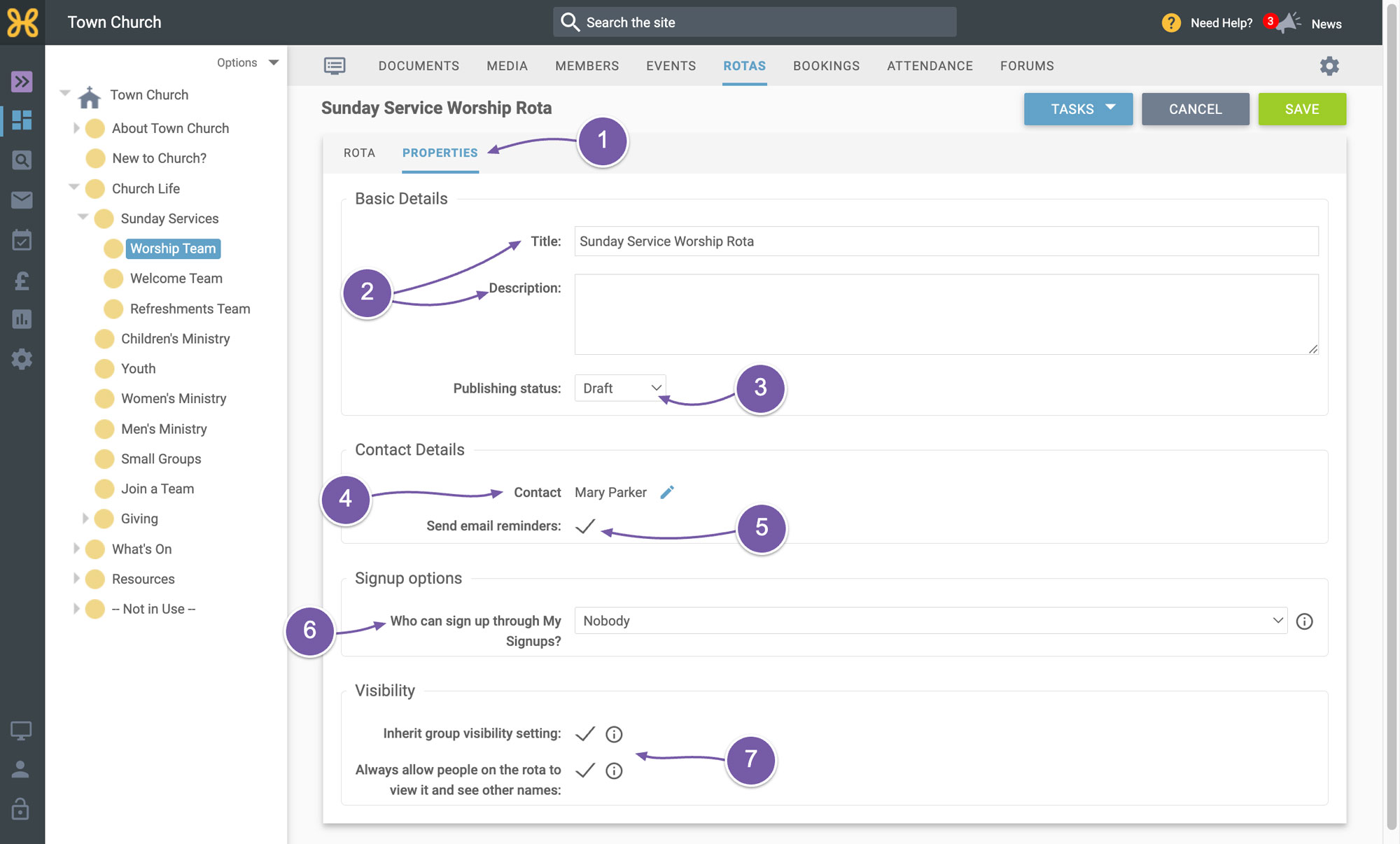
Click on the "Properties" tab
-
You have the option to update the name, description, and publishing status of the Rota.
-
For now, this rota is in draft, and when you're ready to publish it, you can change the option to "published".
-
Lower down, you can set the Rota contact. This is the contact person your volunteers can get in touch with if they have questions about the Rota.
-
The tick box to send email reminders can be toggled on or off here. We will go through how this works later in the video.
-
We have another video about adding sign-up capability for your Rotas.
-
The visibility settings allow you to control who can see the Rota. For most church Rotas, you will want to leave these as they are.
-
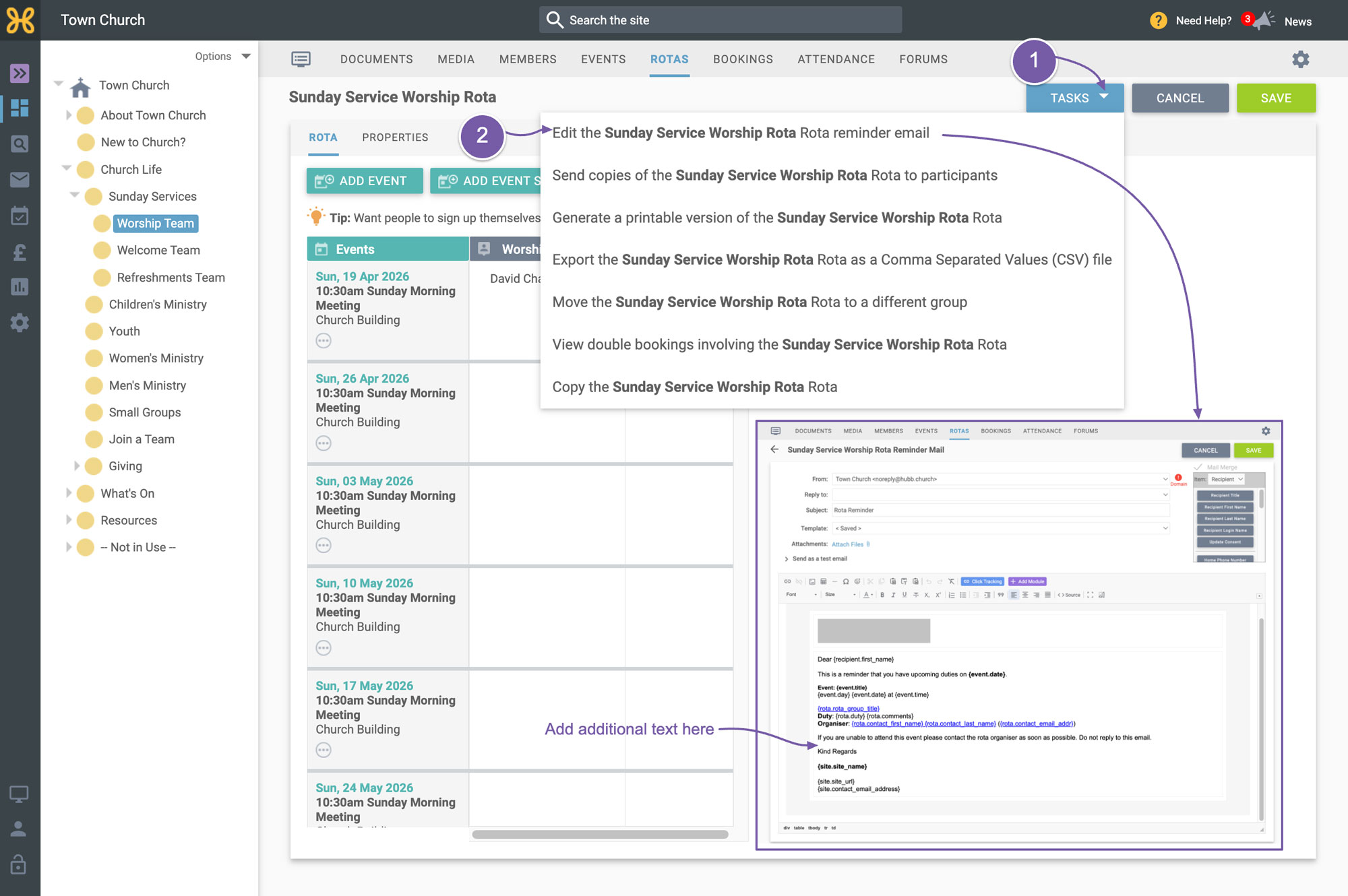
Let's move on to looking at the "Tasks" that you can use on the Rota for communicating with your volunteers.
-
The first task is to "Edit the reminder email" that will be sent to people three days in advance of their role starting. Just so you know, each person can log in to their profile on the app or website and choose how many days in advance they wish to receive these reminders. This reminder is specific to this Rota, so you can add specific details about it. We recommend you leave most of the content as it is and add any new information above the last line.
-
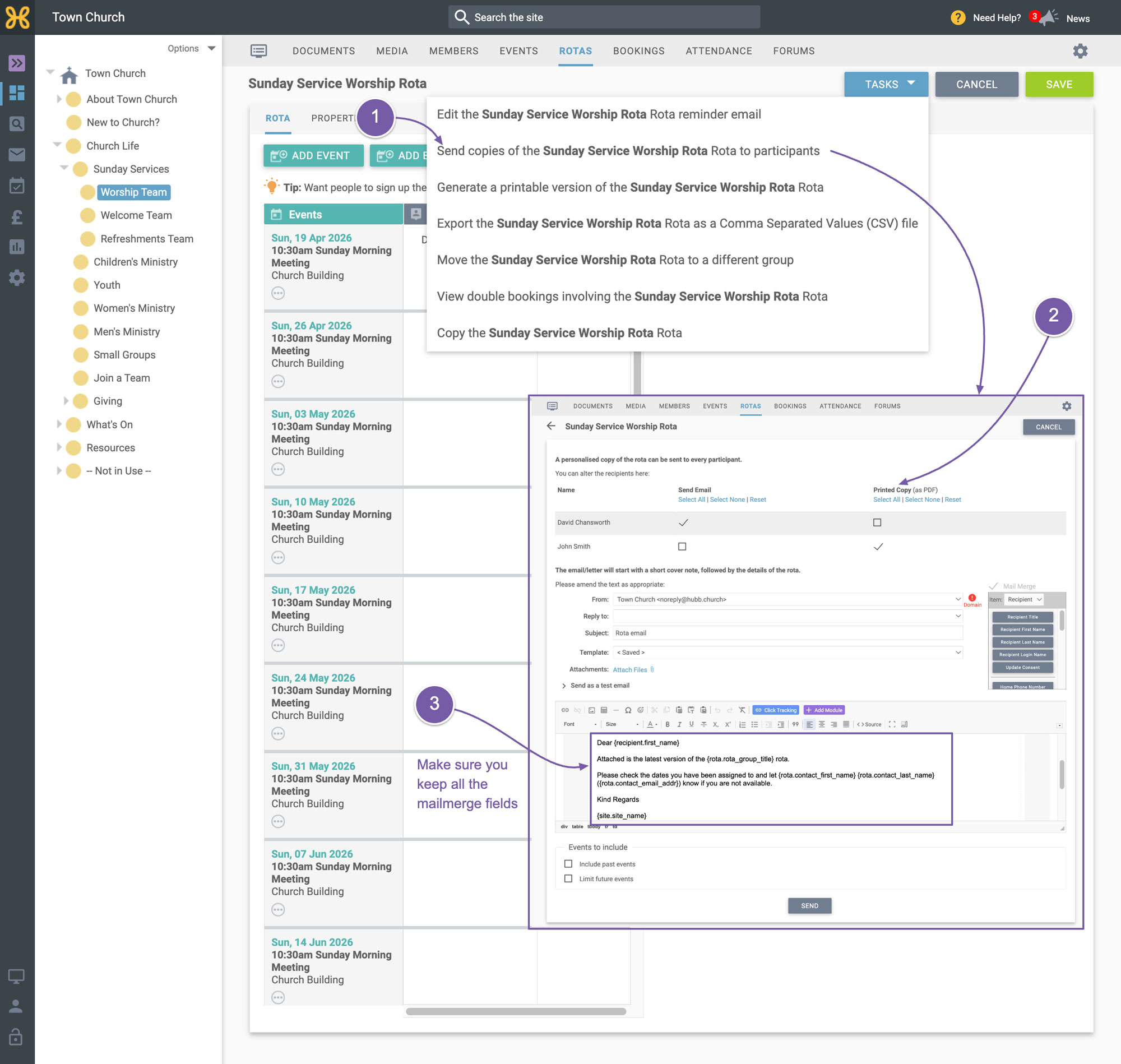
The next task is to send an email of the whole Rota to your volunteers.
-
If we click on that, you can see we can choose to generate a personalised PDF copy for people if they are not on email.
-
Again, this email is set up for you already and there is no real need to edit it unless you want to. Just make sure if you do, that you keep all of the mail merge fields in the email as this is what makes up the contents of the data. When someone receives this email, it will list their serving dates at the top of the email and then below it will show the whole Rota with the events and roles highlighted when they are serving.
You can use the other tasks to:
-
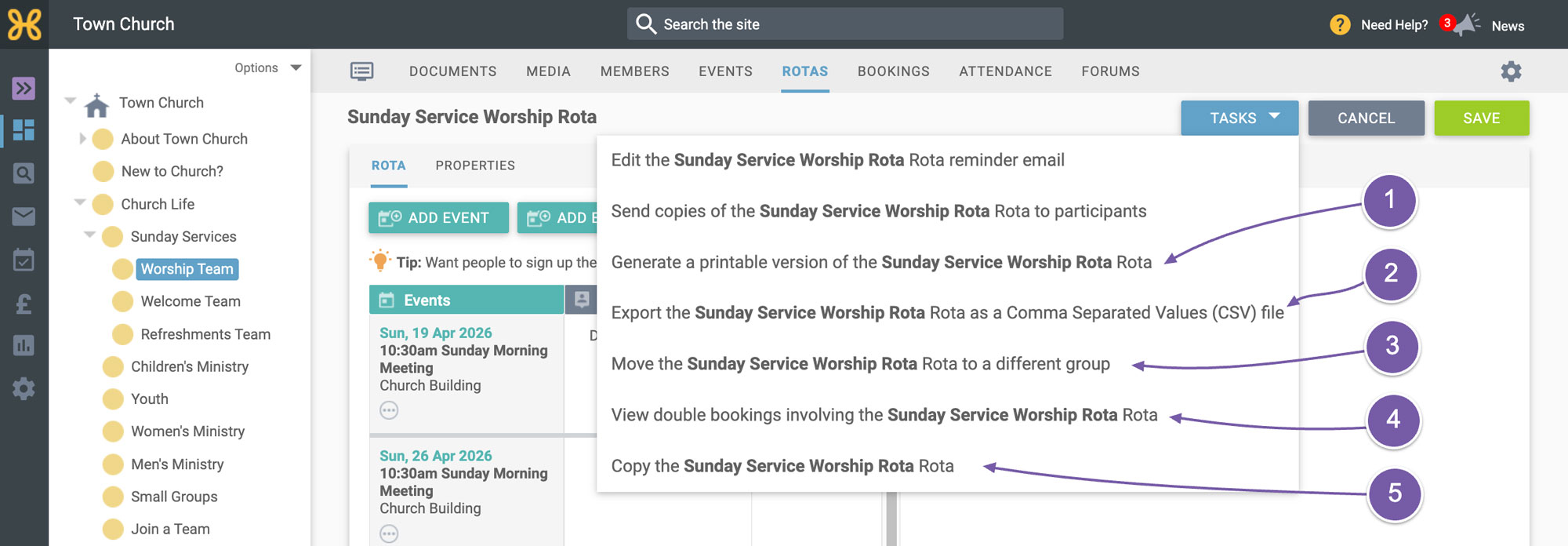
Generate non-personalised PDF copies of the Rota
-
Export the Rota data to CSV
-
Move the Rota to another group
-
View double bookings
-
Copy the Rota.
Our next videos will go through
how to set up your volunteers to sign themselves up to Rotas and
how to create a master Rota.