Allowing sign ups and cancellations
(3 minutes)
Enable people to sign themselves up to a rota and cancel their sign up if they are unavailable
Sorry, your browser is unable to play this type of file.
You can still
download it
One advanced feature of our Rota system is the ability to allow members to sign up to serve on Rotas themselves. This is how many churches operate. It's very simple to turn this on and manage a Rota with this enabled.
On the “Worship Rota”:
-
Go to the "Properties"
-
Set the sign up options to either "everyone at the church" or just "those in this group".
-
If you choose the whole church, then you can decide to have anyone that adds themselves to the Rota to be automatically added to the group.
-
With both options, you can also say if you would like to allow people to cancel their sign up.
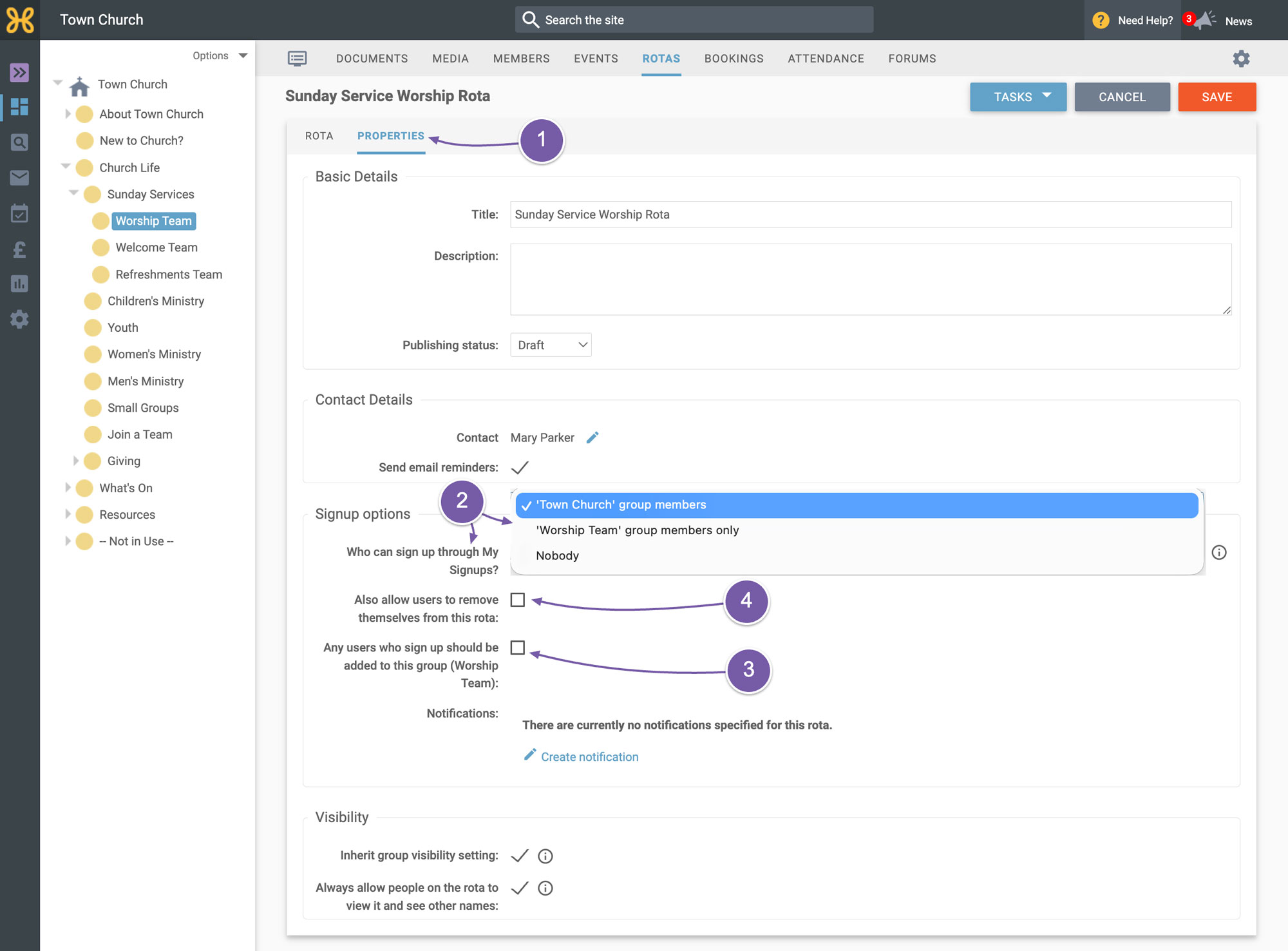
In this example, we will choose to:
-
Allow sign ups from the Worship team only
-
Will not let people cancel a role themselves
-
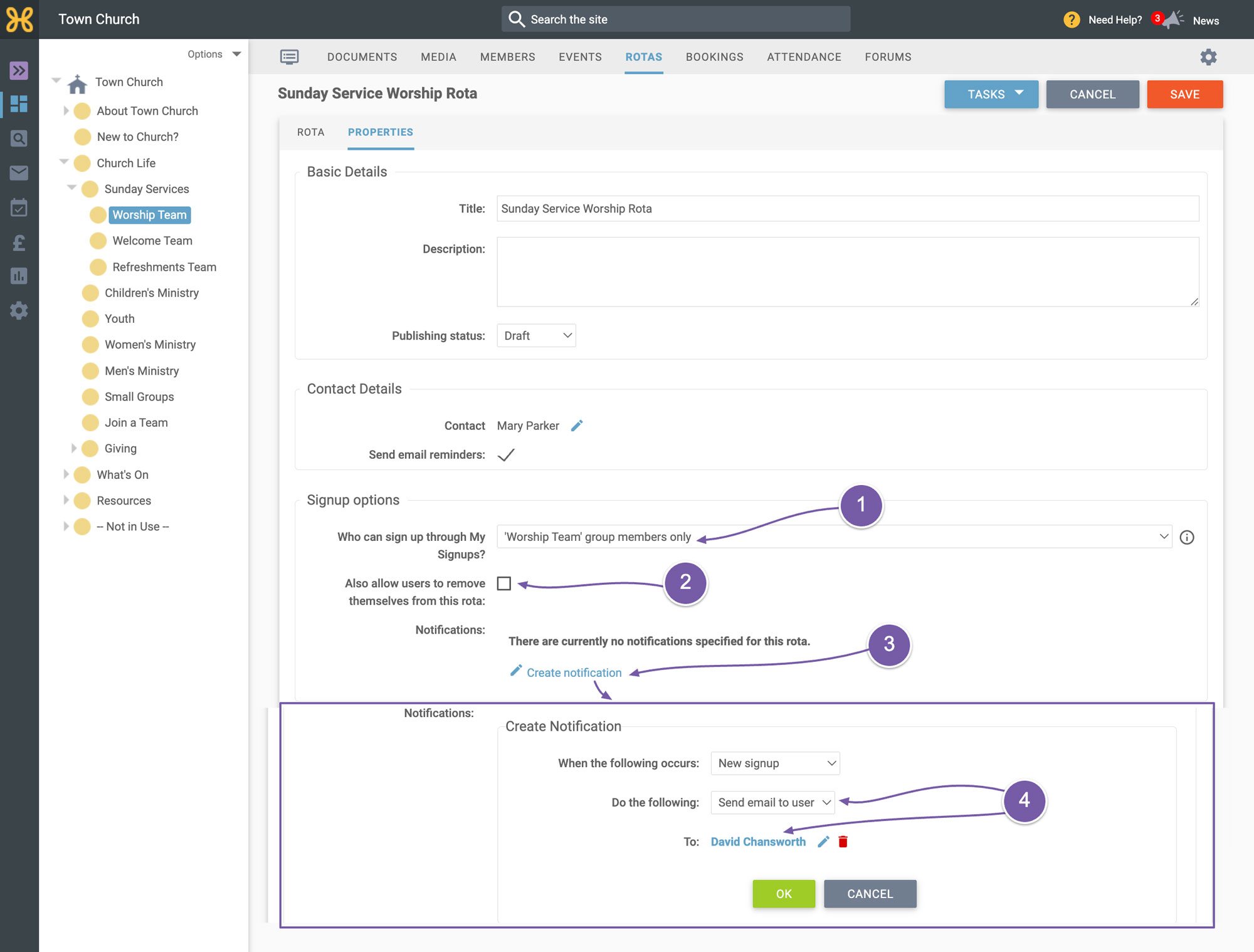
We can now set up a notification to let us know when someone signs up. Just click on “Create notification"
-
Change the dropdown to "Send email to user", and pick the person to send the notification to. Then click “OK” and save the Rota.
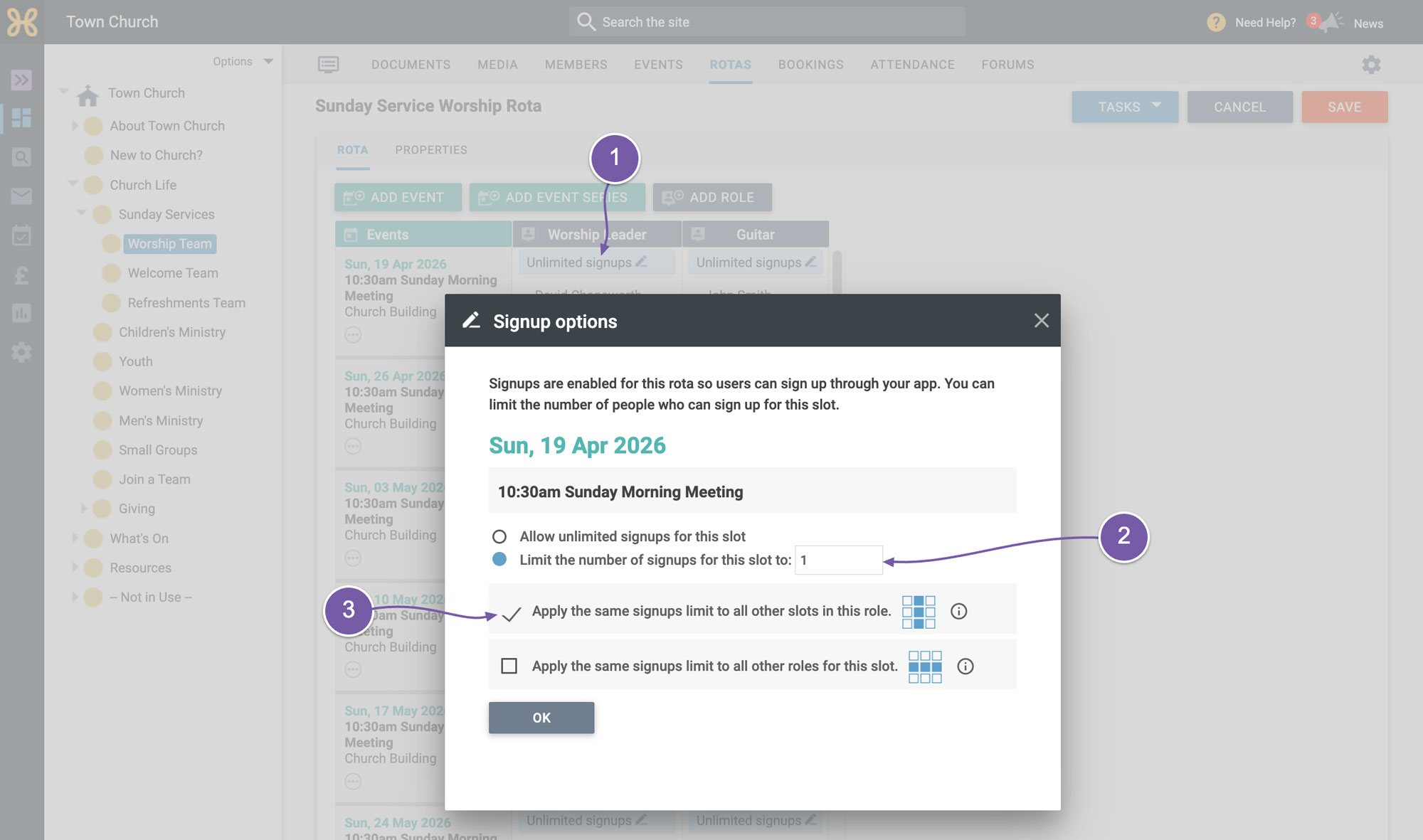
Now we need to go back to the Rota and set up how many people each role can have assigned to it.
-
Click on the top row's “Worship Leader” sign up settings where it says “Unlimited Sign Ups”
-
In the settings box, change it from "Unlimited" to "Limit to 1 sign up".
-
Use the quick tool to apply this rule to all of the slots with this role. Then click “OK”.
You can repeat this for each role and when you are done, click “Save”.
To see how this looks on the user side, let's jump out to the app and sign up to a role. To do this, I need to:
-
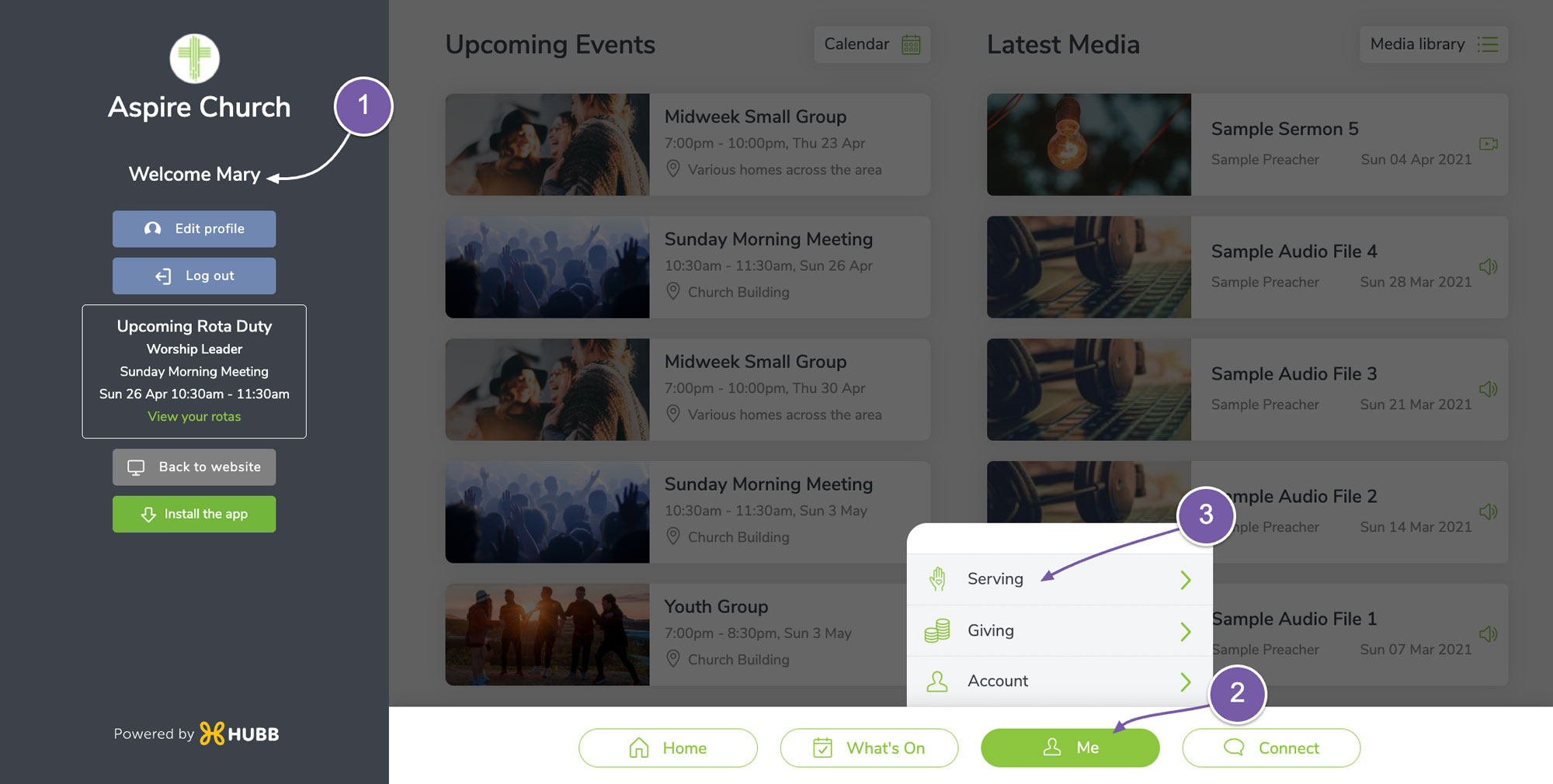
Go to the App either in desktop mode or on a phone
-
Click on “Me”
-
Then select “Serving”
-
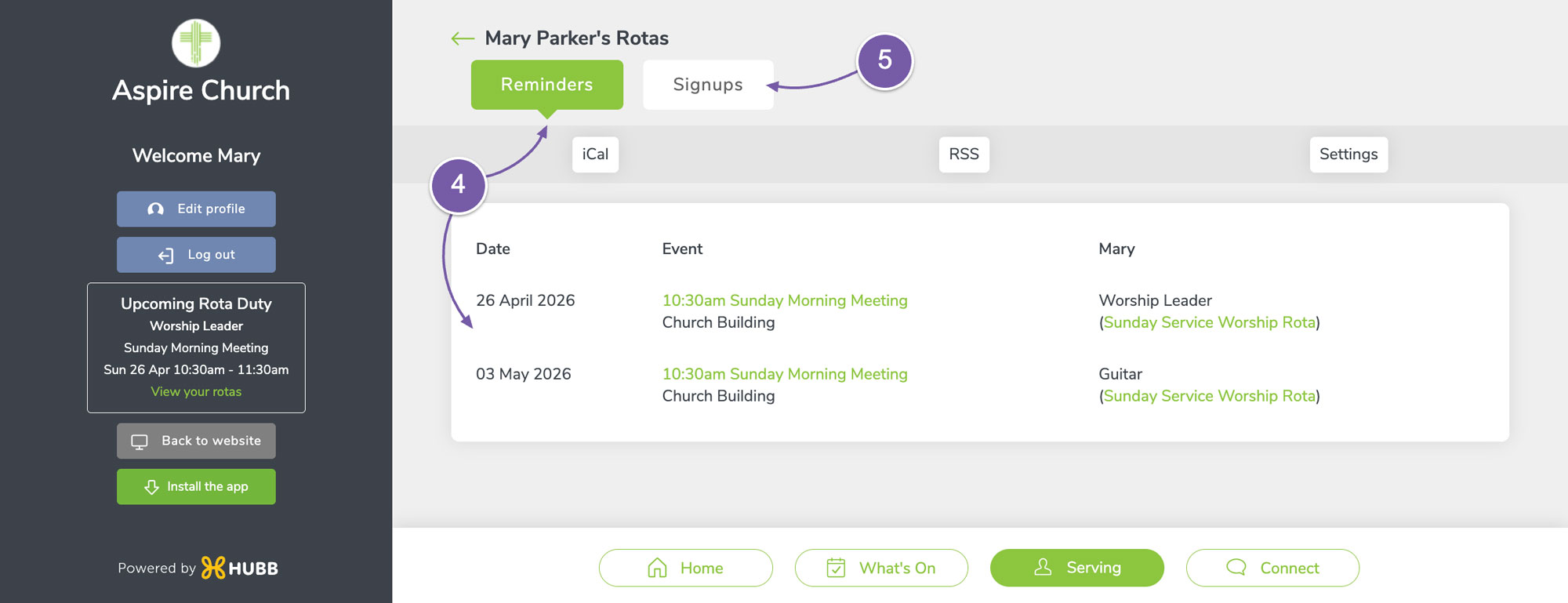
Here you can see the reminders of when you're already set to serve.
-
You can easily click on the “Sign Ups” tab to sign up to another role in the rota
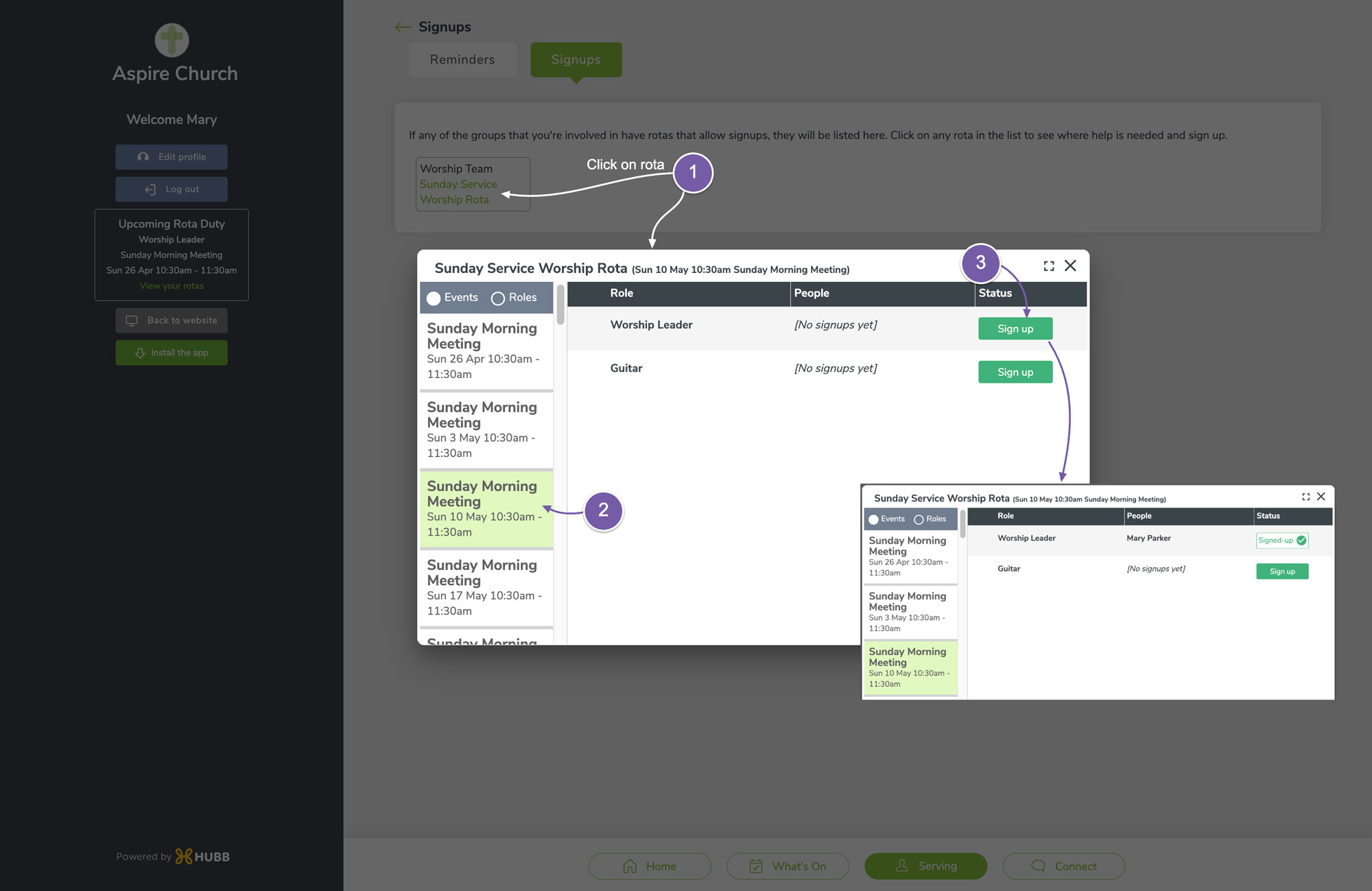
-
Click on the rota
-
Click on a date on the left
-
Click to sign yourself up to the “Worship Leader” role, for example.
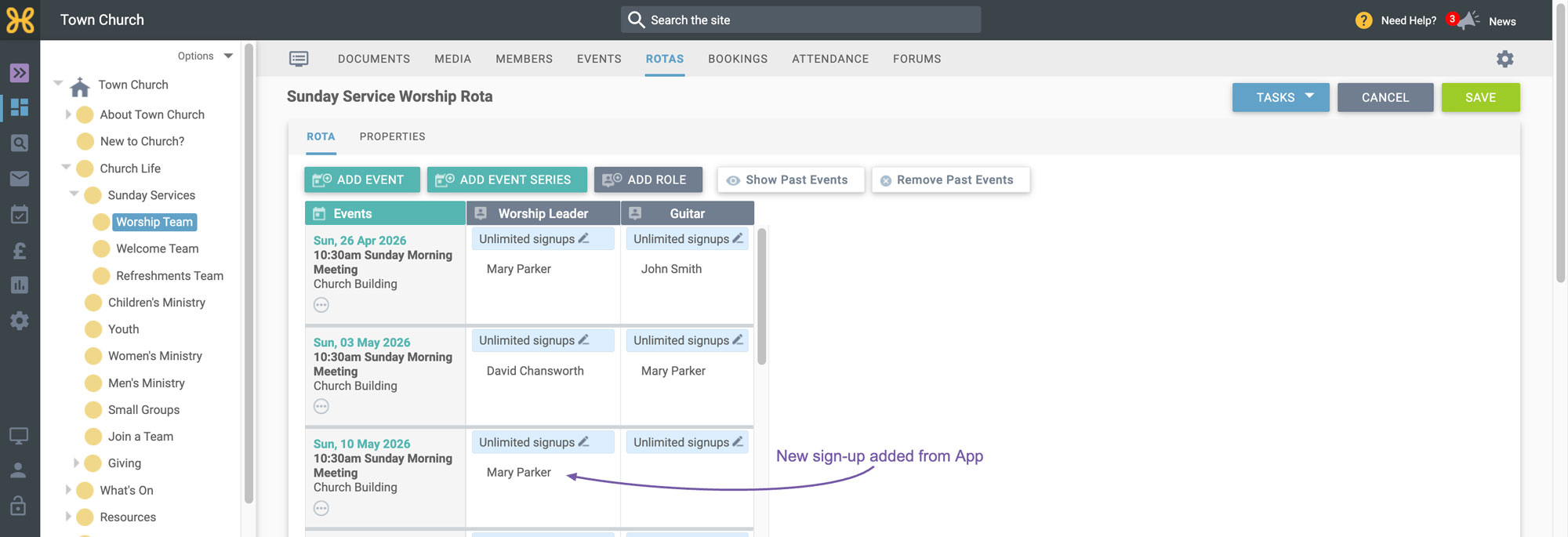
If you head back to the web office and refresh the Rota page, you can see your sign-up has been saved.
So, that's how to set up sign ups. We hope it works well for your church.
Good to know
-
Volunteers have a “My Signups” page in their My Area on the website, listing every Rota they can sign up to, as well as reaching sign-ups from the app as shown above.
-
To point people straight at it, “Rota Signup” is one of the link types available when you add a link in an event description, article or image, and a sign-up link can be included in your Rota emails.
-
If sign-ups are open more widely than the Rota’s visibility, people can see the slots and roles but the names of those already serving stay hidden.
-
Allowing cancellations lets volunteers arrange their own swaps: one person drops out and another signs up in their place, with no administrator involved. If you set up the notification above, you’ll still hear about every change.