Create a master rota
(2 minutes)
Combine columns from different rotas into a master rota
Sorry, your browser is unable to play this type of file.
You can still
download it
In our guides for Rotas, we have focused on creating a Rota per team, rather than creating one large Rota for everyone. Having a single view of the whole service is very useful, so we have the option to create a master Rota so you get a complete view of who is serving on a Sunday.
To build your master Rota, it is as simple as a few clicks and here's how to do it. As your master Rota will likely be used by the admin team that has permissions at the top-level group, we would recommend creating the master Rota there.
-
Go to the top group
-
Click on the “Rotas” tab.
-
Click on the blue plus button to add a Rota
-
Call the Rota something like “Sunday Service Master Rota”.
-
Add a starting event, your “Sunday Service”
-
Untick the box to “Send Rota Reminders”
-
Click “Create Rota”.
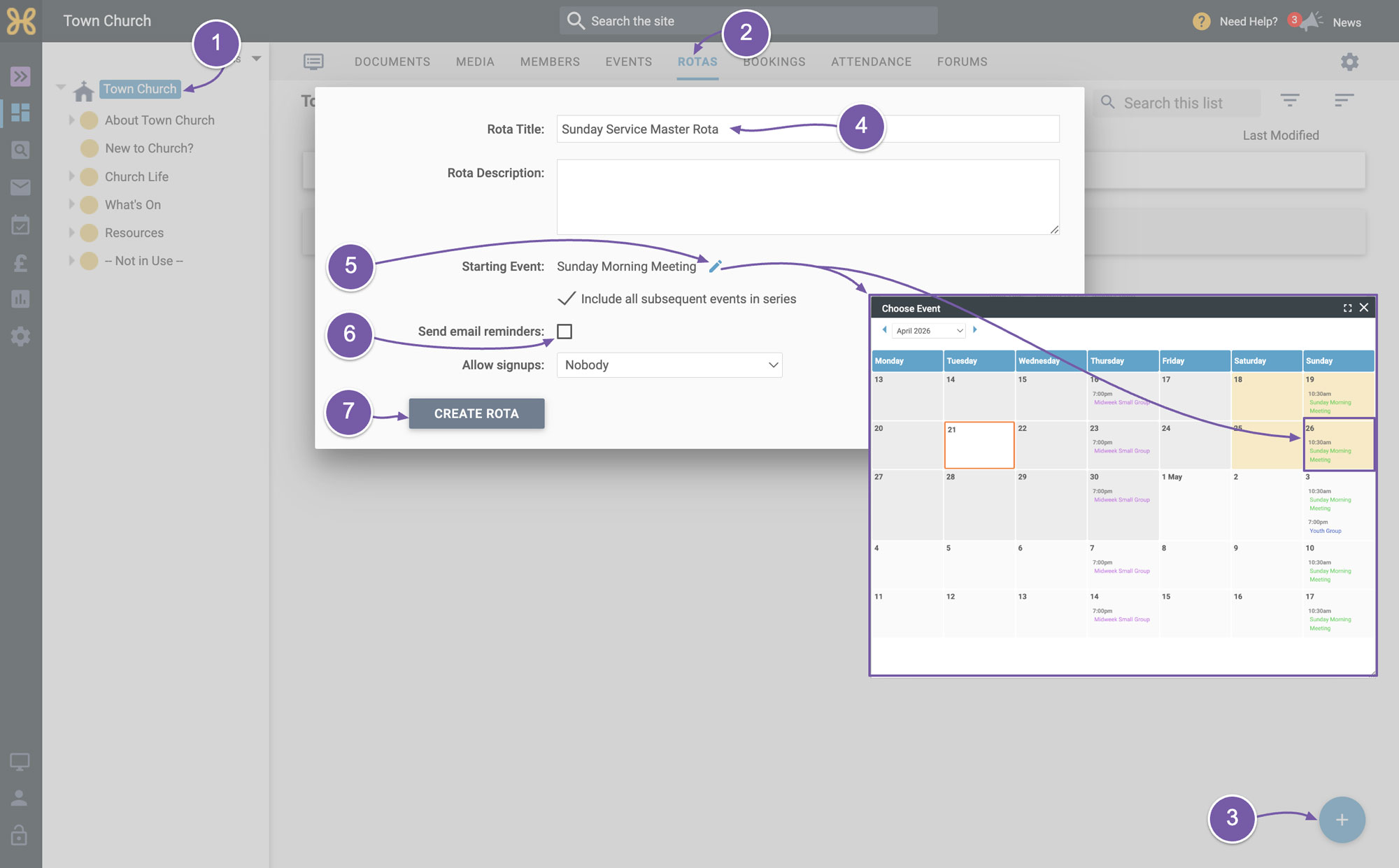
Now all we need to do is import the roles from our Rotas that we wish to be included in this master Rota. To do that:
-
Click on “Add Role”
-
Use the option to "import a role". You will see a warning telling you that “Anything you change in the master Rota will affect the live Rota”, as they are synced together. Go ahead and click “OK”
-
Then find a Rota and import your first task. In this example we are using the “Worship Team Rota” to import the “Worship Leader” task.
-
Once you have imported your first task, you can remove the blank "Sunday Service Master Rota" role that's on the page and keep importing all of the other roles
-
When you're done, save the Rota.
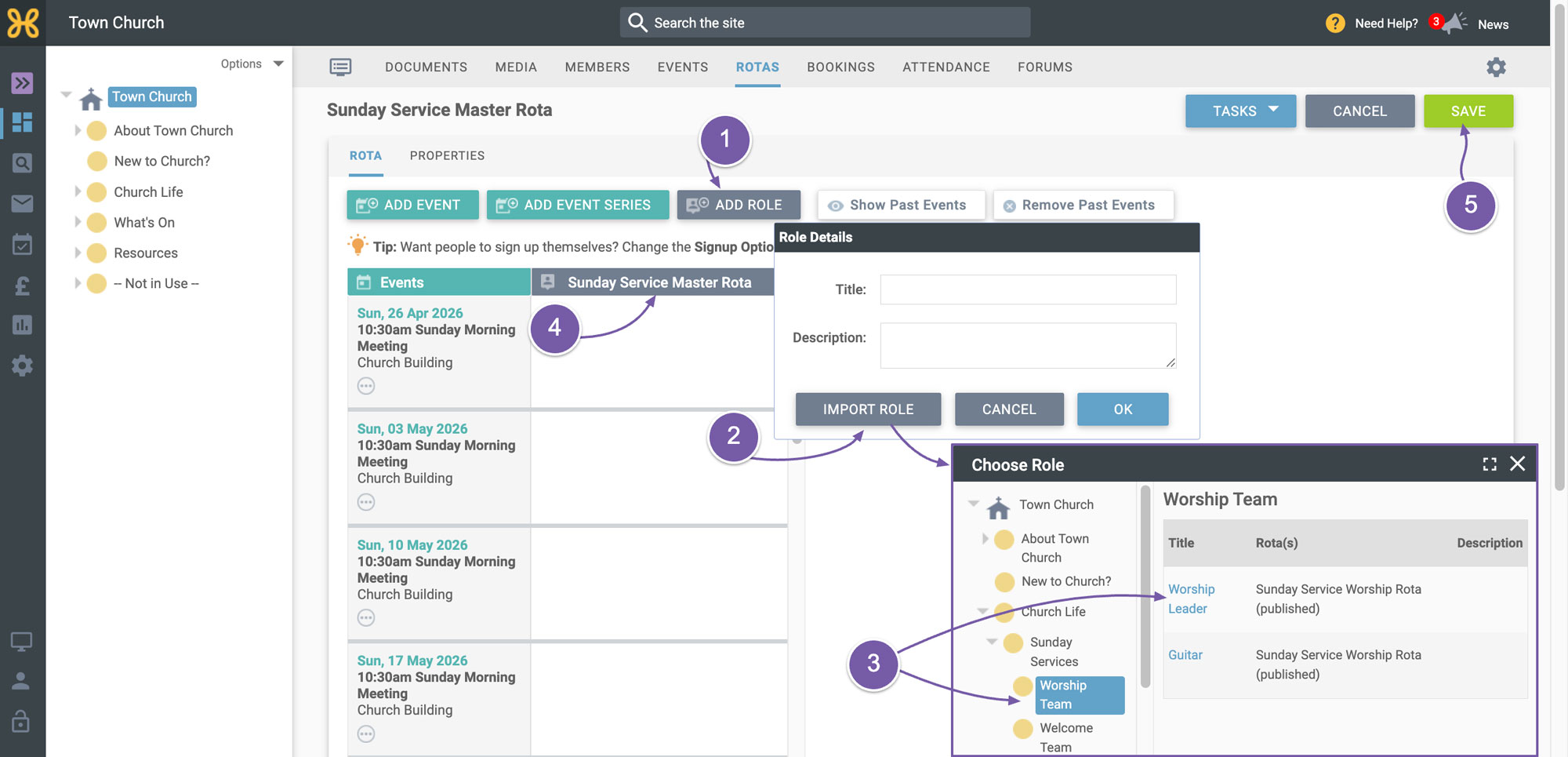 It's important to keep your master Rota in draft
 to avoid people seeing that they are appearing in two Rotas. Even though this is in draft,
any changes will update the original role in its Rota.
We hope this helps you keep up to date and stay organised with your serving.
Good to know
-
For a quick look rather than a permanent master Rota, you may not need one at all: on the “Rotas” tab, the filter has an “include subgroups” option, so selecting a parent group like “Sunday Services” shows every Rota beneath it in one list. The same filter works on Documents and Media too.
-
You can add a note to any cell on a Rota (one note per cell), handy for the “bringing the spare key” level of detail.
-
Because a master Rota spans several teams, be careful with permissions: give people Rota permission only on the groups whose Rotas they should change, so the person tidying the coffee Rota can’t reassign who’s leading worship.