Make your web office safer
Multi-factor authentication, and why we recommend it
Why passwords alone are not enough
Your web office holds some of the most sensitive information your church looks after: contact details, pastoral notes, giving records. It deserves the strongest protection we can offer, and that is why we are encouraging every church to switch on multi-factor authentication.
The problem is a familiar one. Most of us reuse passwords. If just one website somewhere is compromised and passwords are stolen, a hacker can try that same password everywhere else, including your church's web office.
What multi-factor authentication does
Multi-factor authentication closes that gap by checking two things at login: something you know (your password) and something you have (your phone or another device). Even if someone has stolen your password, they cannot log in without the 6-digit code generated on your device.
It is a small extra step for your team, and a very big step up in security for your church.
Off by default, but highly recommended
Multi-factor authentication is switched off by default, so nothing changes for your users unless you choose to enable it. We highly recommend that you do. It is one of the simplest and most effective things you can do to protect your church's data.
How to switch it on
Enabling it takes less than a minute:
-
Go to Site Settings
-
Choose Site Configuration
-
Update the setting under Login Security
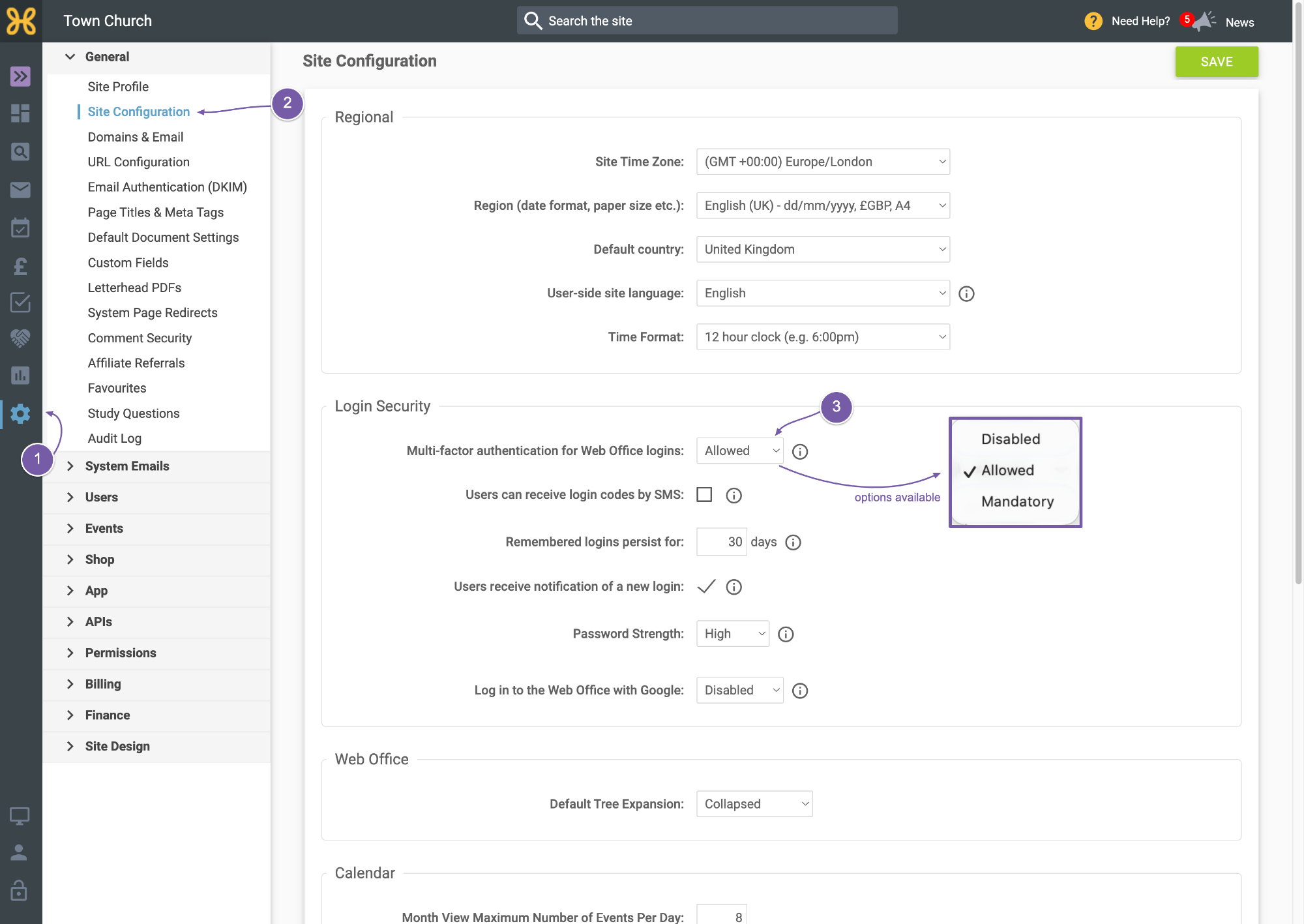
If you would rather start gently, that is fine too. The most important thing is that anyone with administrator access switches it on for themselves, since those accounts hold the keys to your church's data. You can then decide whether to roll it out to everyone else, or leave it optional for users with limited permissions, such as those who only view a rota for a small group.
If you are planning to switch it on for everyone, make sure any volunteers or staff who use the web office know what to expect. The next section is written for them, so feel free to share it.
What your team will see
The first time each user logs in after multi-factor authentication is enabled, they will complete a quick one-time setup so they can generate codes for future logins.
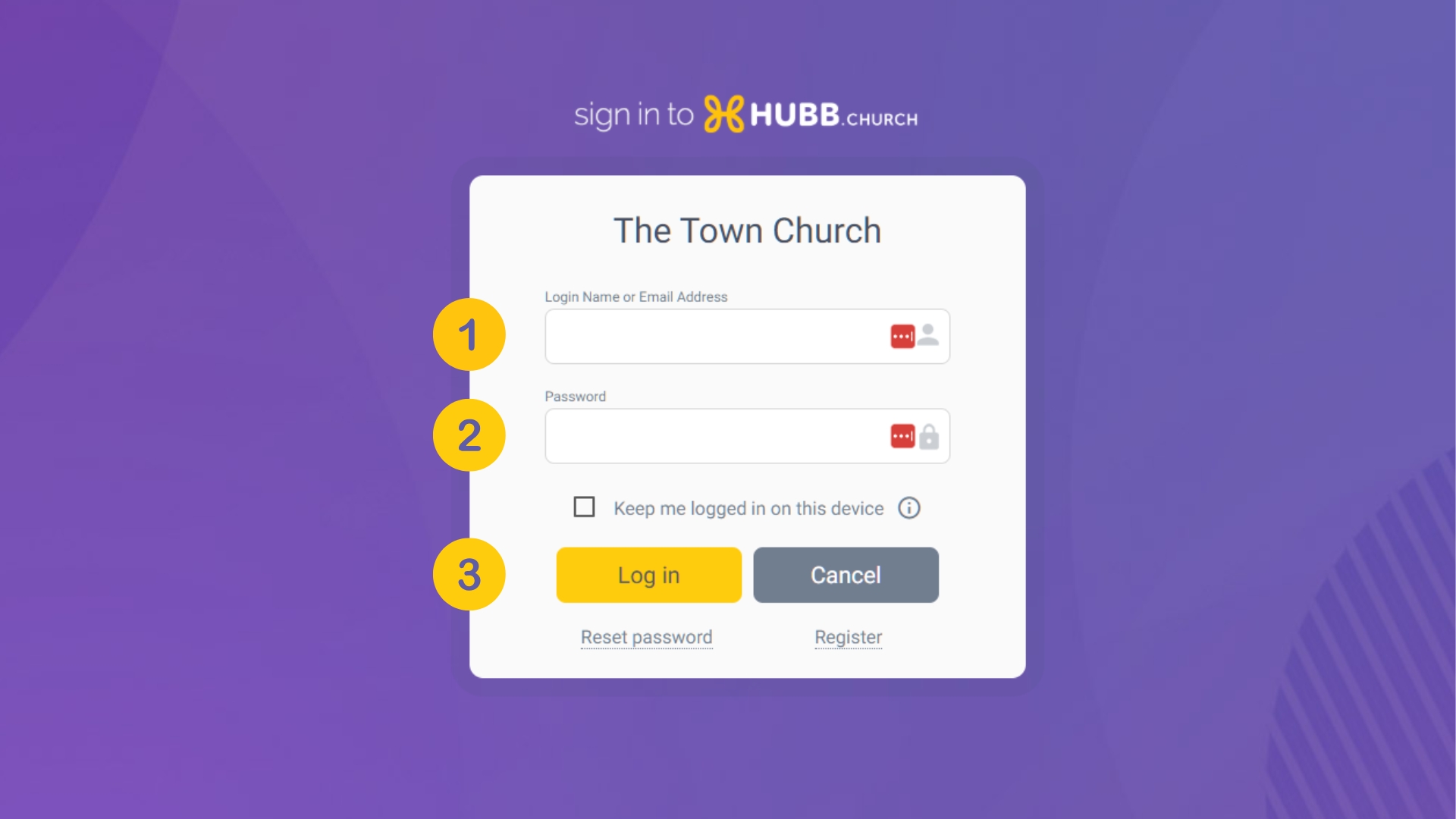
At the login screen:
-
Enter your login name or email address
-
Enter your password
-
Click ‘Log in’
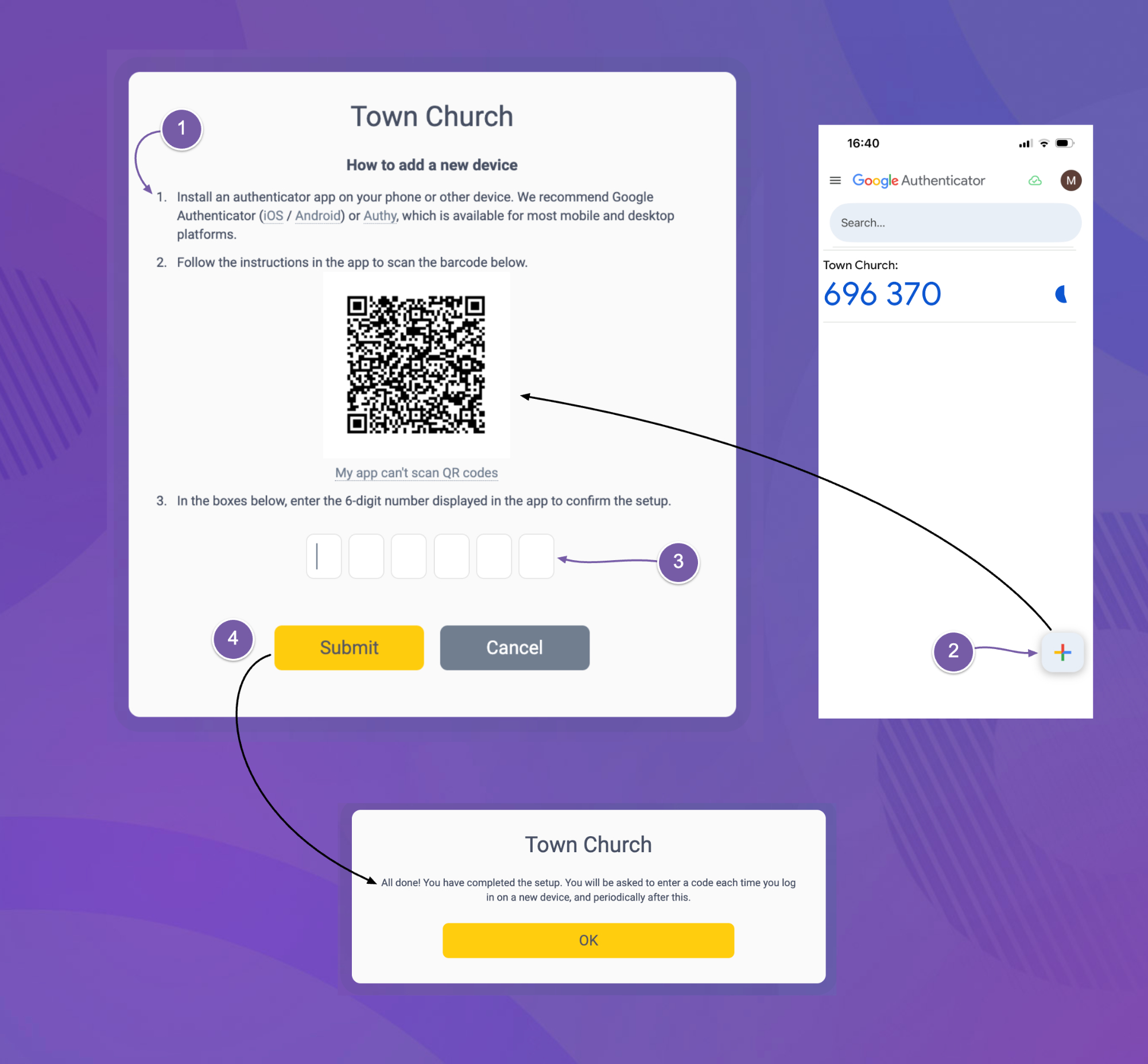
Then set up your device:
-
Install Google Authenticator or Authy on your phone or another device
-
In the app, choose to add a new QR code, then scan the code shown on screen
-
Enter the 6-digit number displayed in the app
-
Click ‘Submit’
Logging in from then on
For future logins, particularly the first login on a new device, users may be asked for a code from their authenticator app:
-
Open the authenticator app on your phone or other device
-
Enter the code displayed into the login page
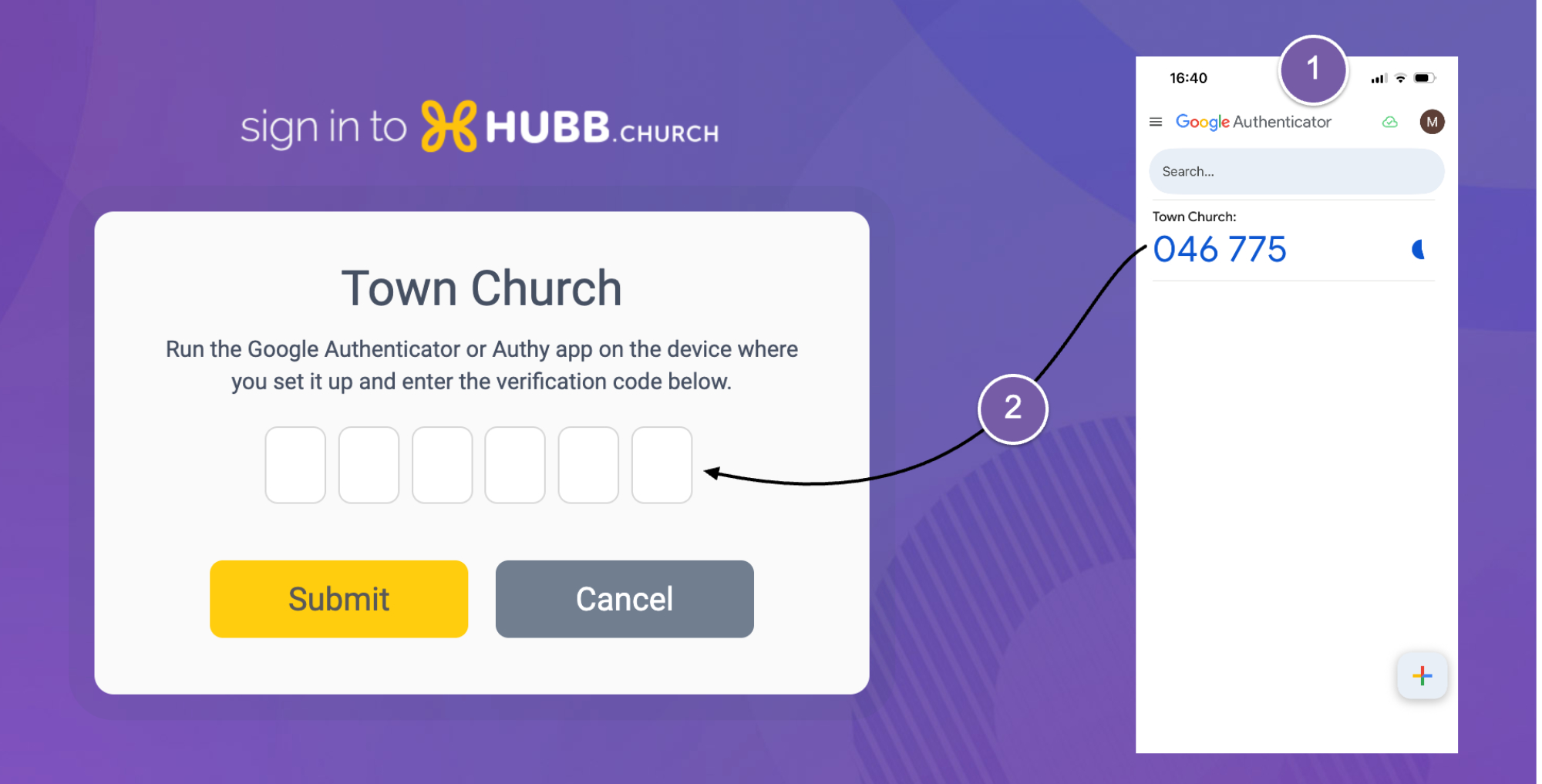
No smartphone? No problem
For users without smartphones, there are desktop authenticator apps, or codes can be sent by SMS message (charges apply on your monthly bill).
Alternatively, for users with limited permissions, you can turn multi-factor authentication off on an individual basis.
What if I lose my phone?
It is the question everyone sensibly asks. Most authenticator apps will automatically transfer your codes onto your new phone when you set it up. But if that does not happen, or it takes a while to get your new phone, do not worry. One of the great things about Hubb is that you can always call and talk to a real person. Just get in touch and we will sort it out for you, so you are never locked out of your web office.
Small step, big difference
Behind the scenes, we work hard to keep Hubb secure, and you can read all about how we protect your data here. Multi-factor authentication is about the other side of the door: your team's own logins. A hacker may manage to steal a password, but what they cannot steal is the phone in your treasurer's pocket. That is the difference it makes, and it is why we would love every church on Hubb to switch it on.