Resources Overview
(4 minutes)
Learn how Hubb can save your church time and help your team manage room and equipment bookings.
Sorry, your browser is unable to play this type of file.
You can still
download it
Hello and welcome to our overview video of our resources feature. We hope this gives you a good basis for understanding how this feature works as you start to roll this out to your Church. Many churches have rooms or a hall that they let out to clubs, groups or social projects. We have features to help you manage your rooms and equipment bookings for all of your Church activities and your external bookings. Although the church and external bookings calendars are integrated, we make sure that your external bookings do not show up on your public-facing church calendar.
There are three places where you will use the resources feature in the web office.
-
The main place is in the resources area, which you can get to by clicking on the “Resources” icon on the far left of the screen.
-
If you have a trial site, then you will see some pre-populated folders and resources that we have put in for you. If you have an existing site with Hubb and you are not seeing any folders or resources here, then don't worry, it's very easy to create these and the next videos will show you how to add folders, resources that are equipment and resources that are rooms.
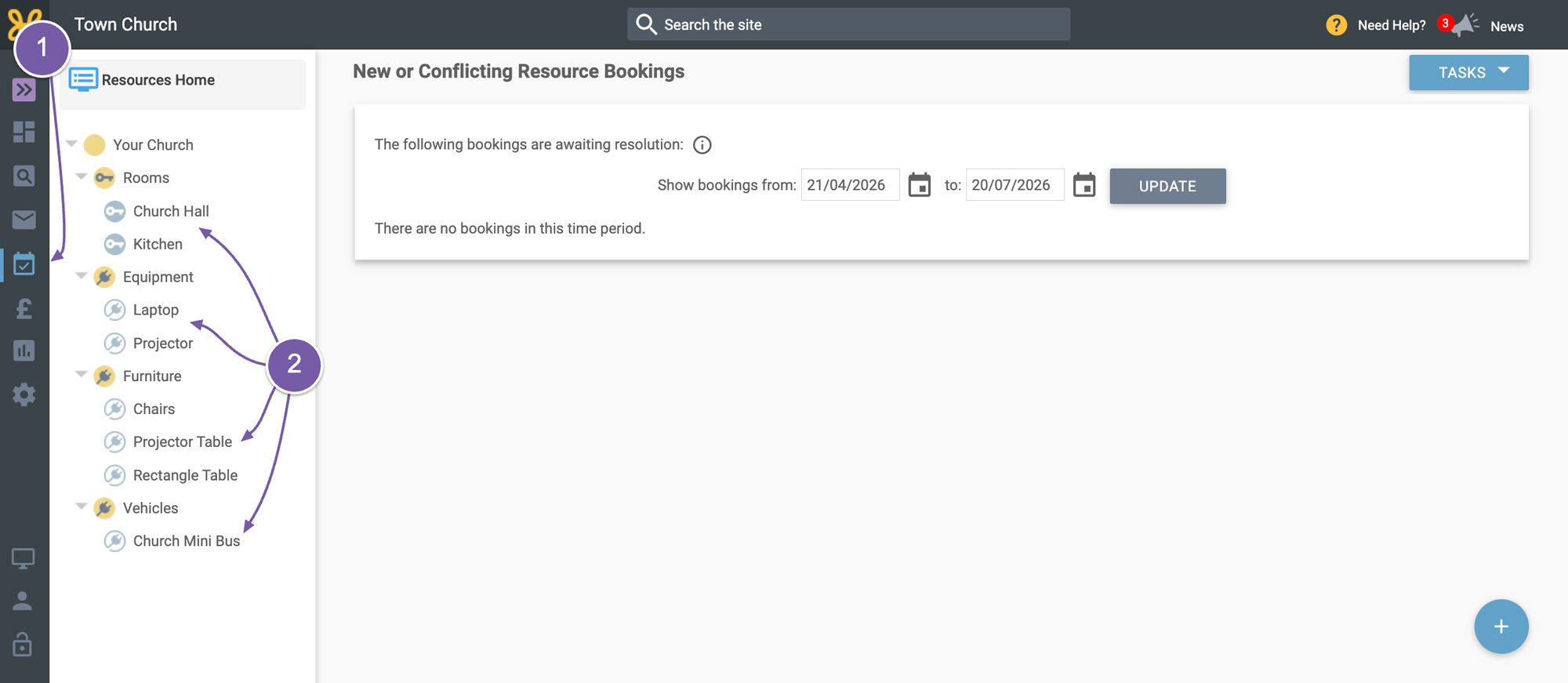
The “Resources” tab is where you add your bookings that are not part of your church activities, for instance if you book your hall out to a local community group or for a birthday party.
-
The second place you will use bookings is back in the site manager
-
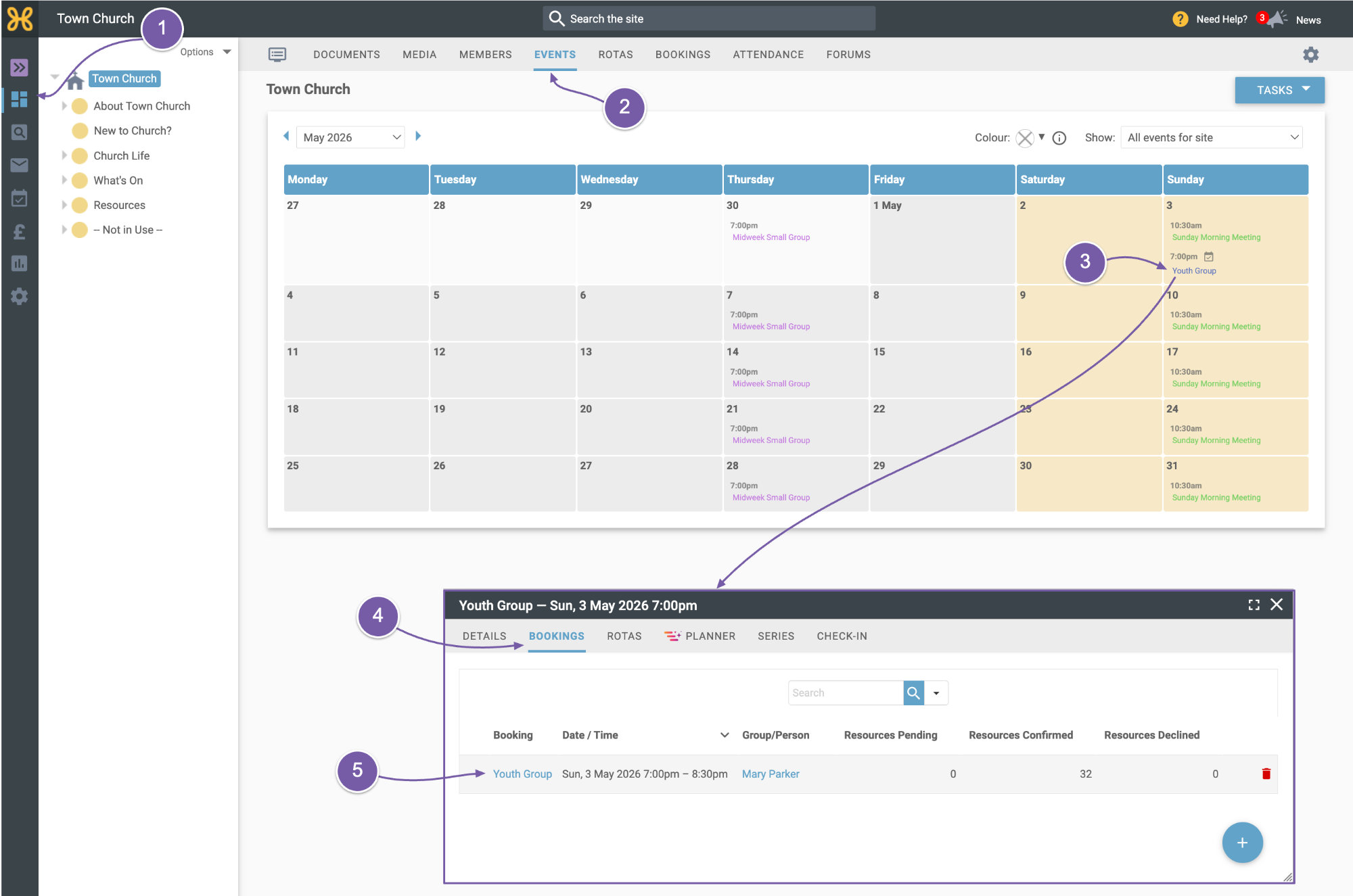
Click on your “Events” tab
-
Click on an event
-
When the event box opens, you will see a “Bookings” tab at the top.
-
Click on that to see there is a booking there. If we click on the name of the booking, we can see details of which resources have been booked and for when.
-
Notice here that I have added a bit of setup and clear up time for my resources. This means that the resources are not available to be booked by others in those times, which makes setting up rooms and equipment easy if you have lots of people using your venue.
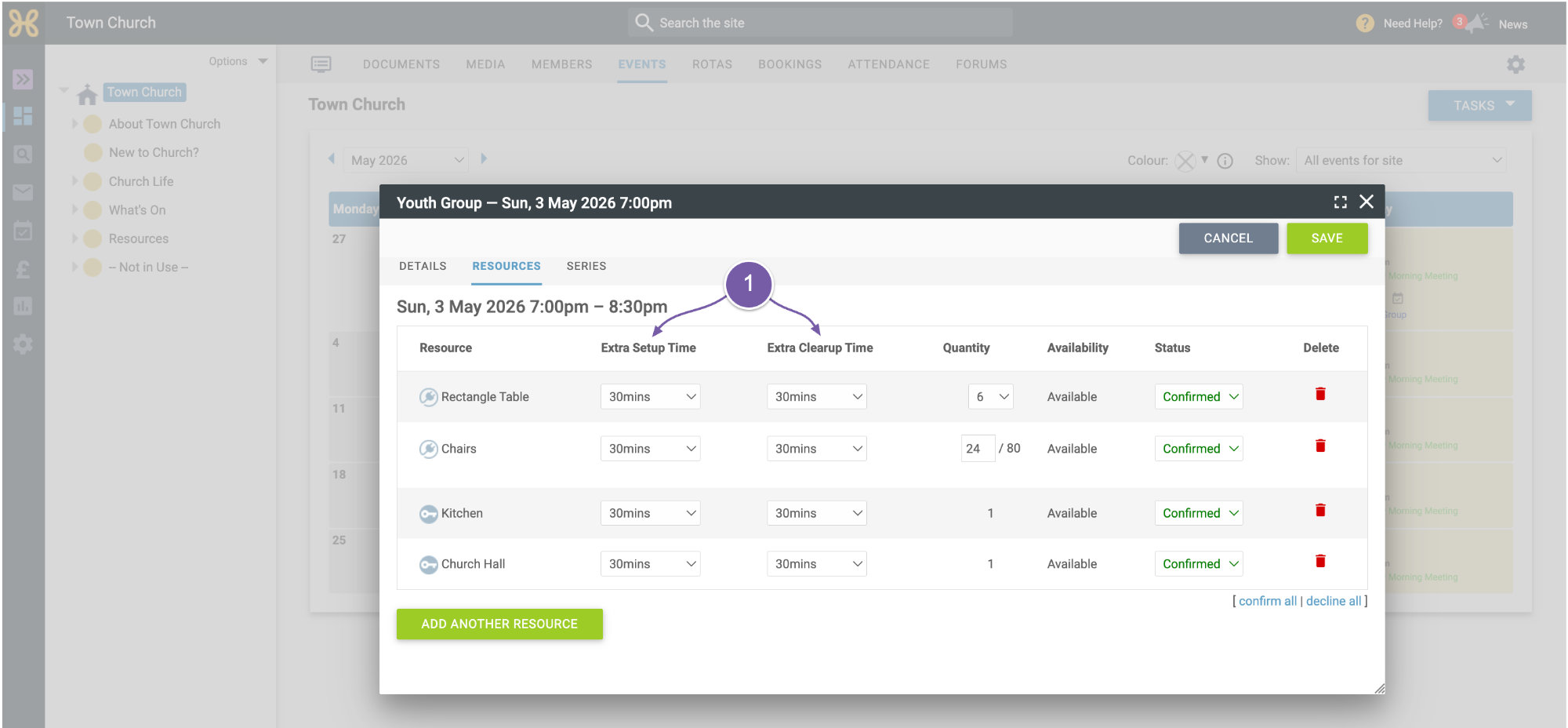
One time-saving tip whilst we're here is to let you know that if your event is part of a recurring series of events, when you add and confirm your resources for one event, you will be prompted to save the booking for all events in a series, which can save you lots of time when starting to roll this feature out for your Church.
-
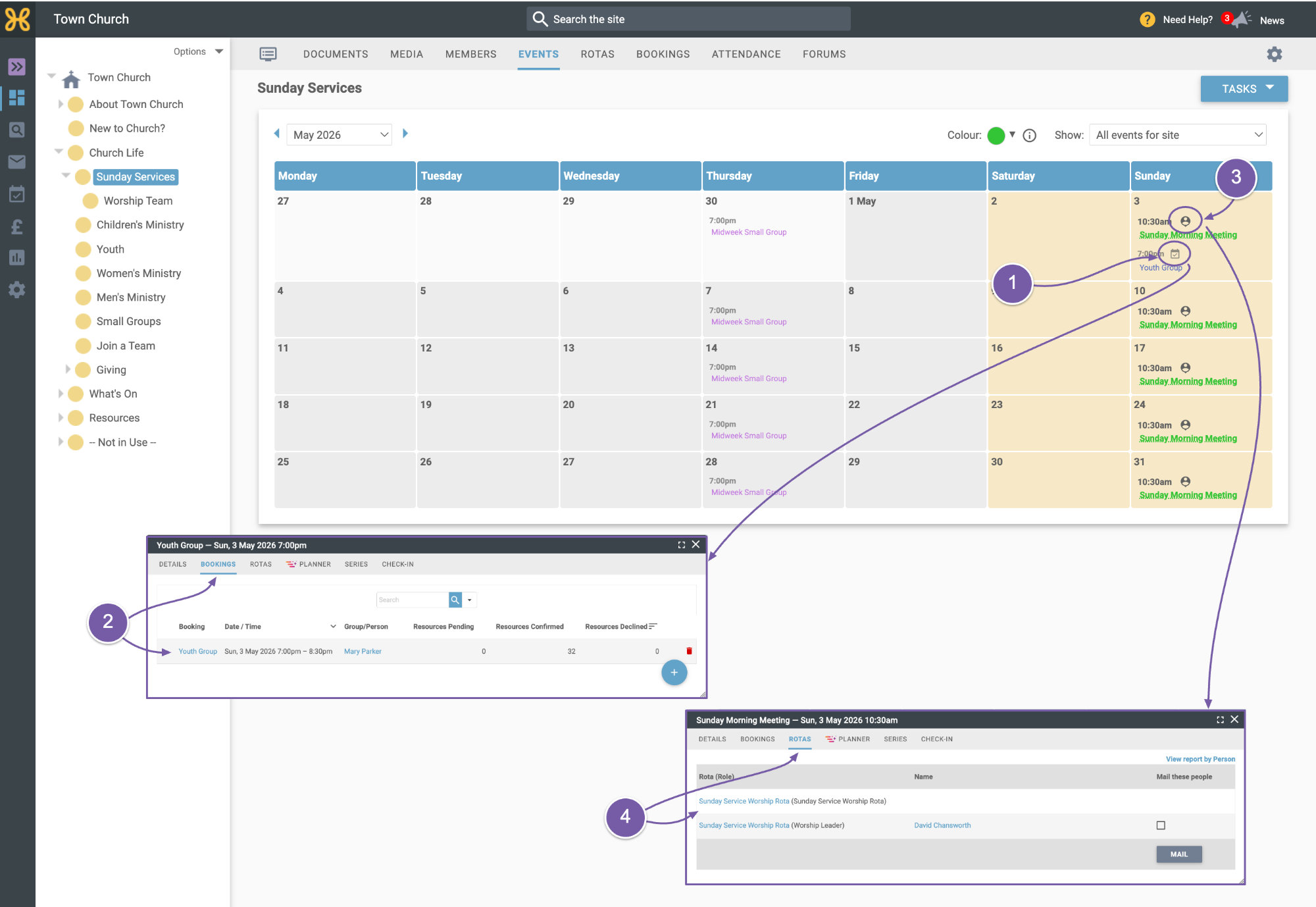
When we exit the event and look at the calendar page, we can also see a little resources icon next to events that have bookings on them
-
If you click on the icon, you will head straight to the bookings for that event
-
You will also notice the person icon for the Sunday Service event
-
If you click on the icon, that links straight to the Rotas for that event.
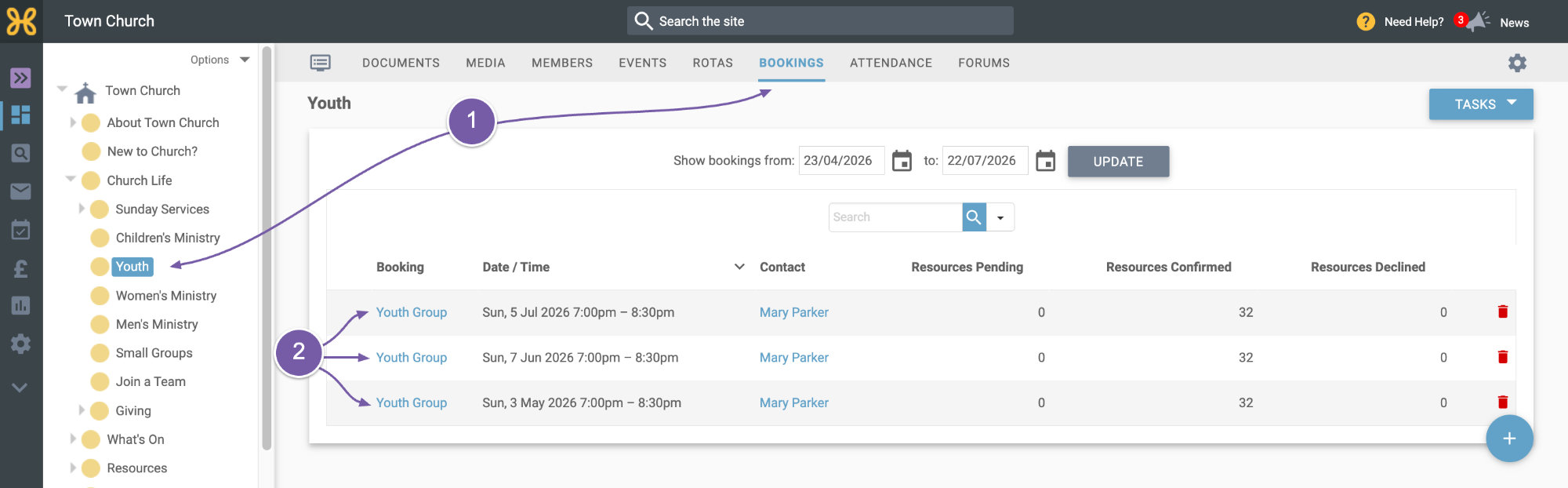
The last place that you will visit when using resources is the bookings tab on any group. If a booking is attached to a group, then you will see a list of their bookings.
-
Let's click on the bookings tab for the youth group,
-
You can see the bookings coming up in the next 3 months.
So that's a quick overview of how resources work in Hubb. We really hope you found that useful and you feel comfortable moving on to our next videos to
creating your resources and
making bookings.