Change your welcome message text
(2 minutes)
Update the welcome text that your website viewers will read.
Sorry, your browser is unable to play this type of file.
You can still
download it
-
One of the first areas of your website people see and read is your welcome message. It can be found on the site right under your main slideshow. By default, we have given you some welcome text that is friendly but not unique to your church. In this guide we are going to focus on editing the text of the welcome area
-
We have further guides about editing the image and buttons.
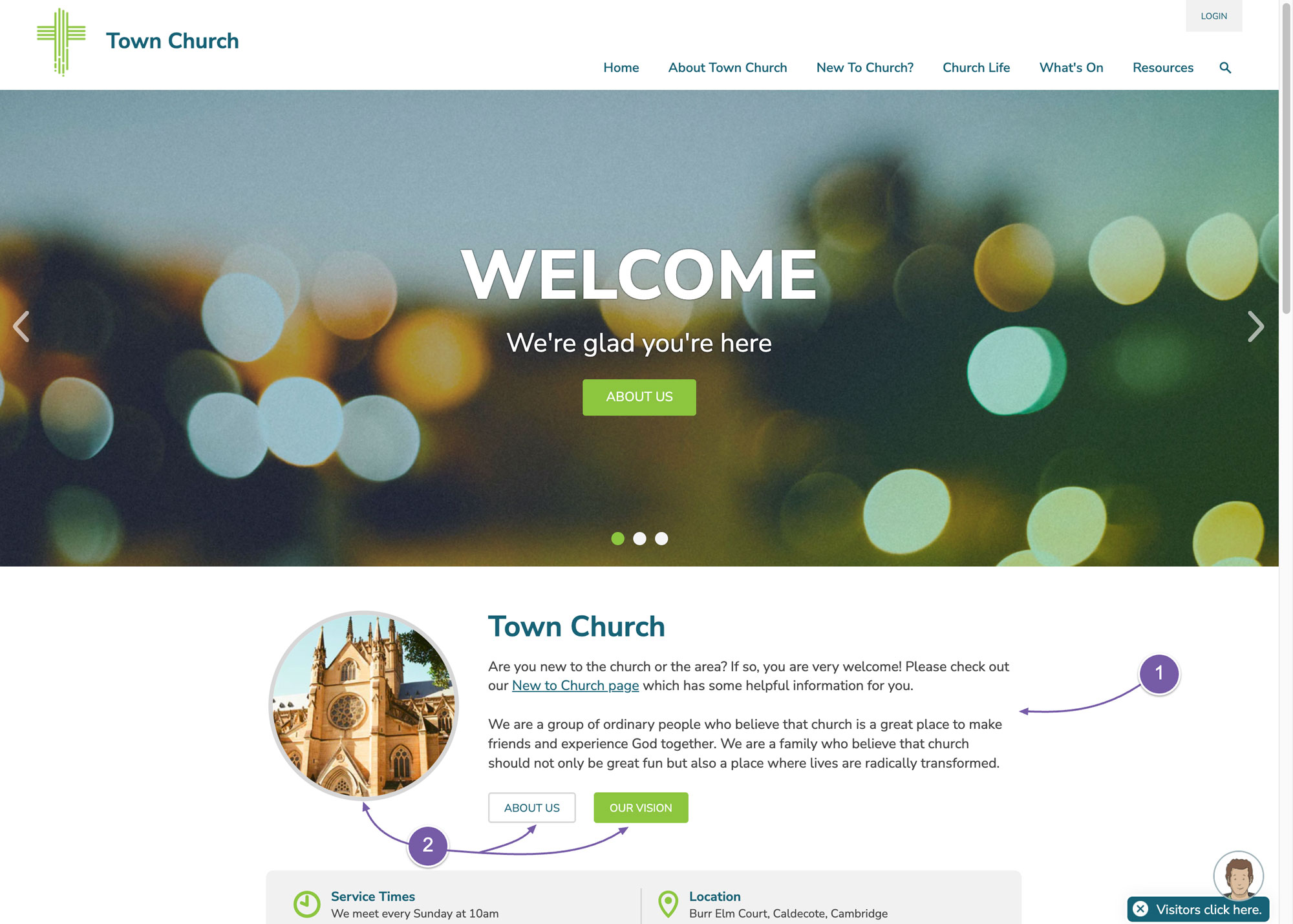
The article that contains this text can be found in the web office.
-
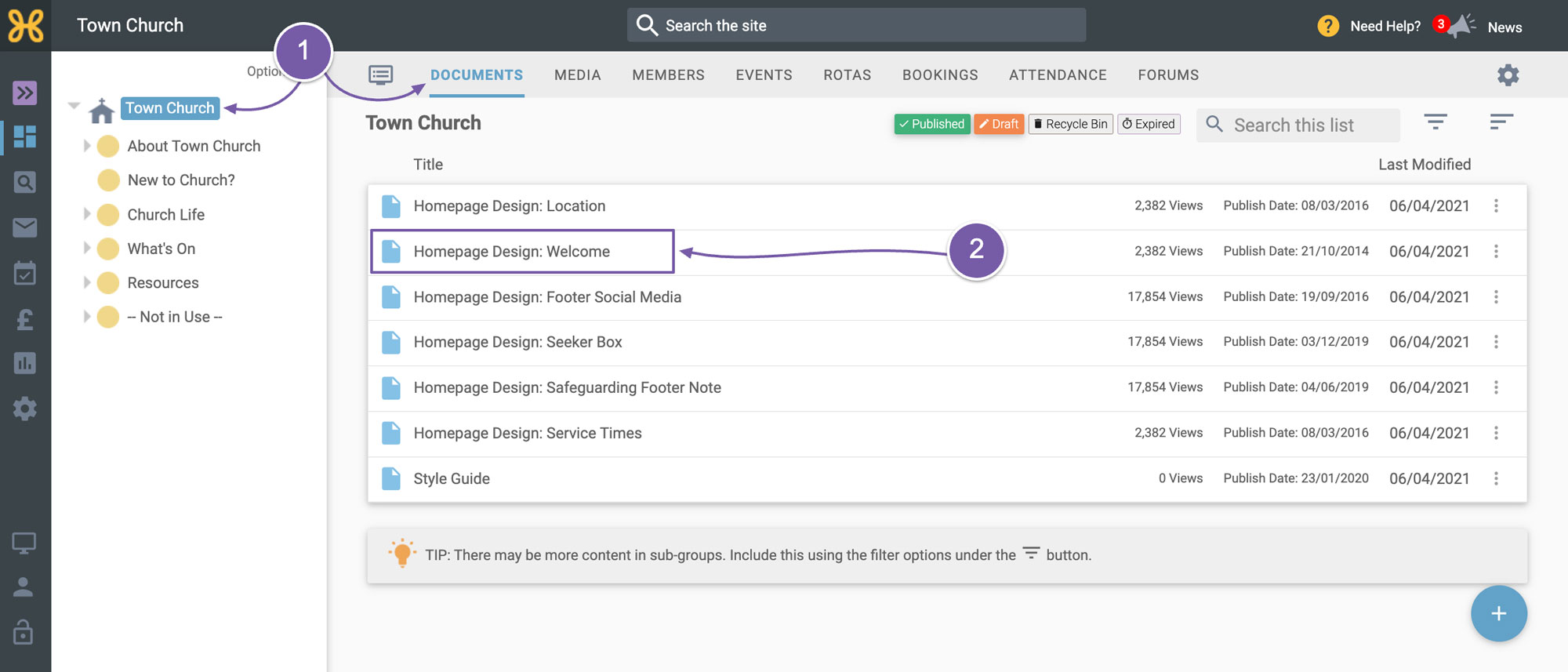
Click on the top group of the site tree, go to the “Documents” tab
-
The article is called “Homepage Design: Welcome”. Click on it, you will enter the editor mode where you can edit the contents.
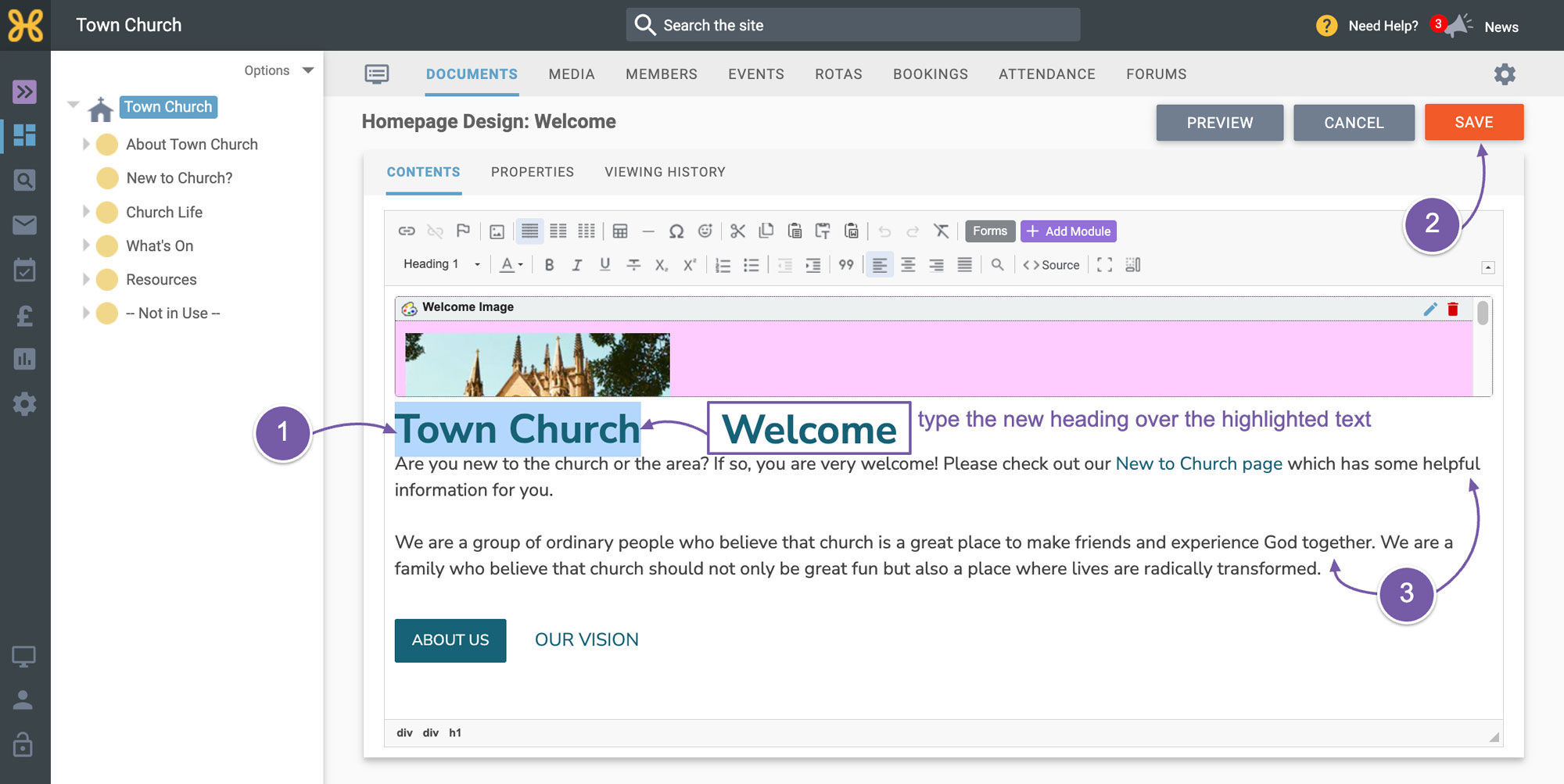
The main areas you will want to edit are the heading and summary text and possibly adding a couple of links to the summary text as well.
-
To edit the heading, highlight the text in the heading and just type whatever you'd like - in this example we have typed “Welcome”.
-
If you're happy with that change you can click on the “Save” button.
-
Then you can go down to the summary text and edit that as you like.
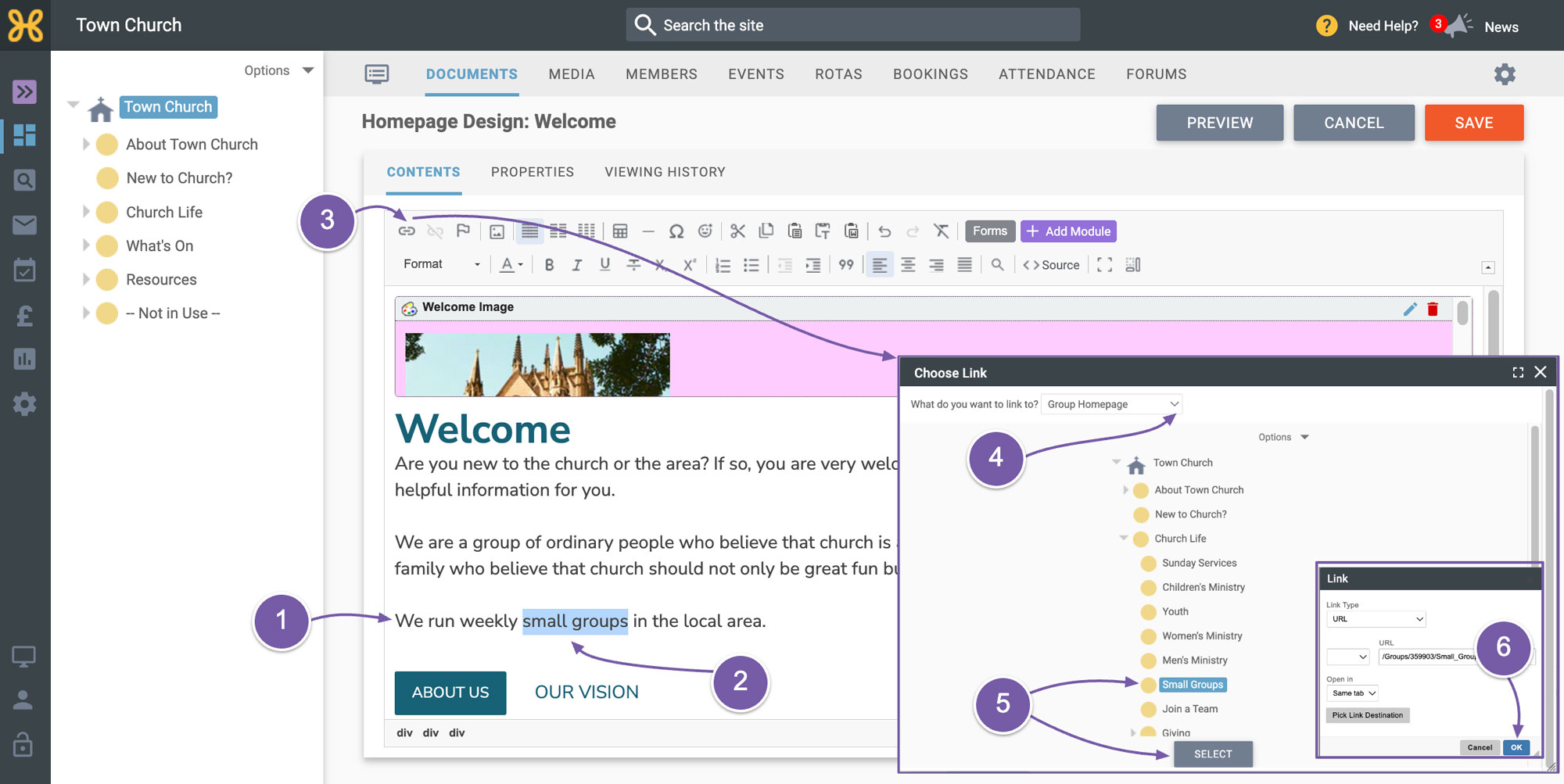
You can highlight any text and add a link.
-
For example, you can add new text that says, “We run weekly small groups in the local area”
-
Highlight the words “Small groups”.
-
To add the link, click on the “Add Link” icon in the toolbar.
-
To link to a page, select "Group Homepage”
-
Then pick the “Small Groups” group, and click on "Select".
-
When shown the link confirmation box, just click “OK”.
In our next videos we will go through changing the
link on the buttons and the
image in the welcome area.