Change your welcome message buttons
(2 minutes)
Personalise the buttons in your welcome message to point to where you want.
Sorry, your browser is unable to play this type of file.
You can still
download it
-
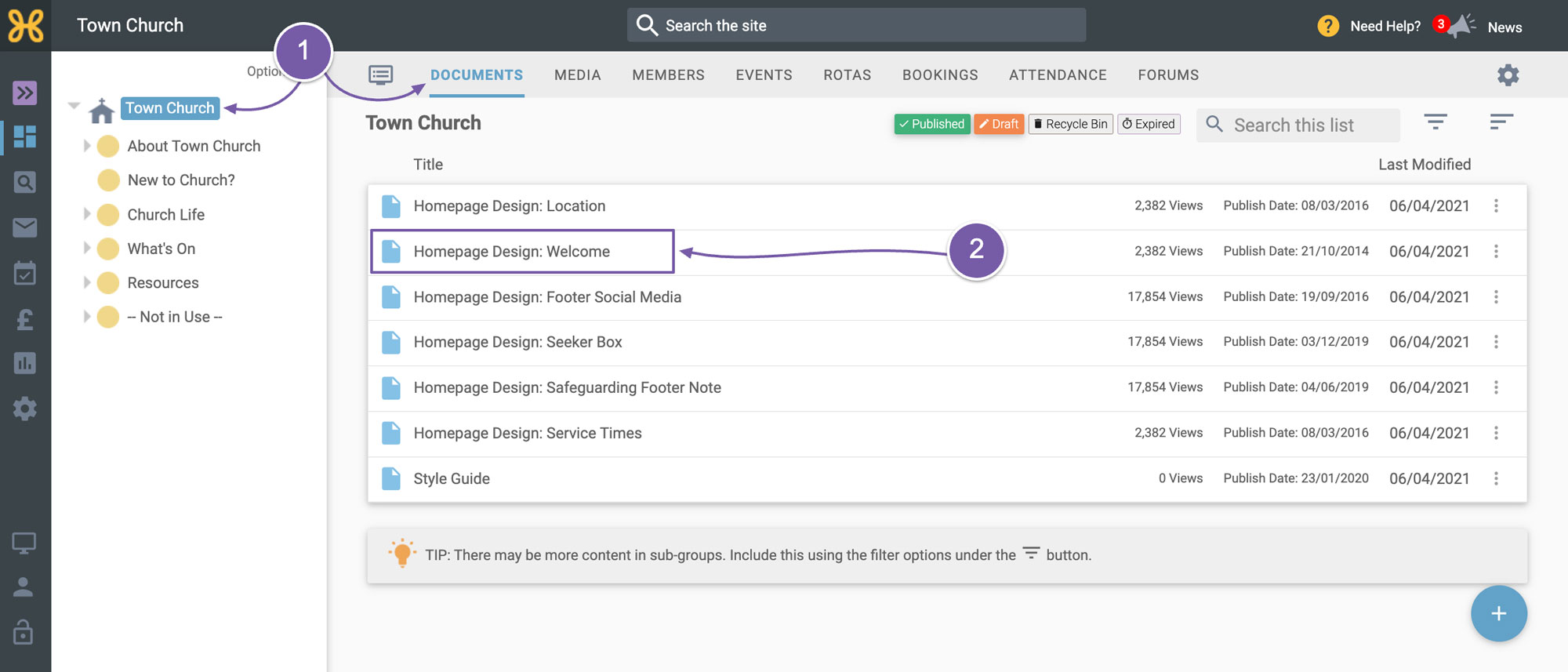
To edit the buttons in your welcome area we need to go to the top group in the site tree then the “Documents” tab.
-
The article is called “Homepage Design: Welcome”. If you click on it, you will enter the editor mode where we can edit the buttons.
Firstly, we will look at editing where the button is linked to. Then we will go through how to adjust the text on the buttons. Currently the left-hand button that says “About Us” is linked to the “About Us” page. The right-hand button that says “Our Vision” links to the “What We Believe” page.
-
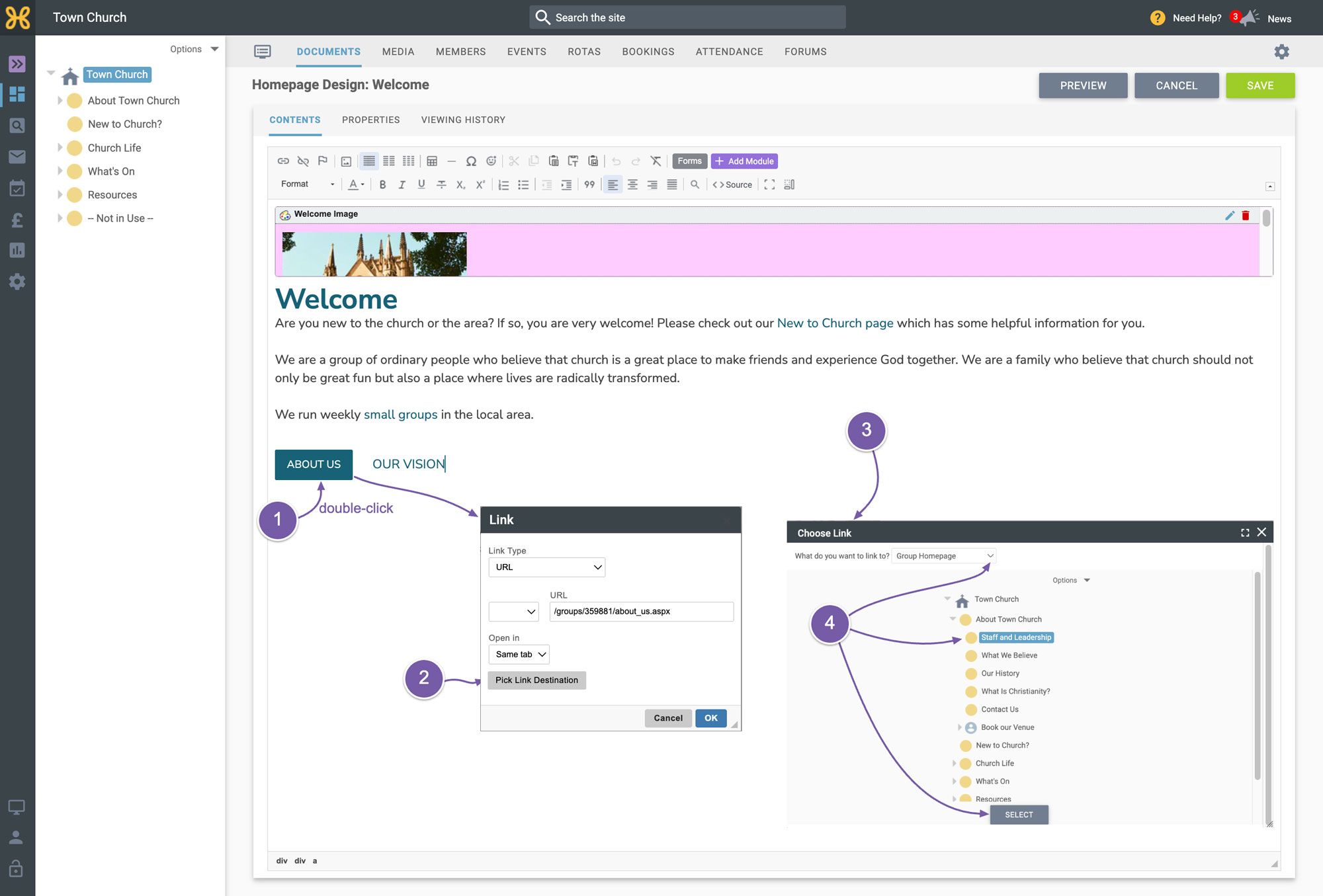
To edit the link that is set on the buttons just double click on the button which will bring up the link box.
-
To change the link click on the “Pick Link Destination” button.
-
This brings up our link picker box where you can choose what to link to.
-
Navigate to find the page you want to link to - in this example we will link to the “Staff and Leadership” page, and click on "Select".
-
To change the text of the button all you need to do is place your cursor before the last letter in the button
-
Delete the letters leaving the first letter so your cursor sits between the first and last letter.
-
Now you can write the text that you want the button to say.
-
When you are done, delete the first and last letter.
-
Click on "Save"
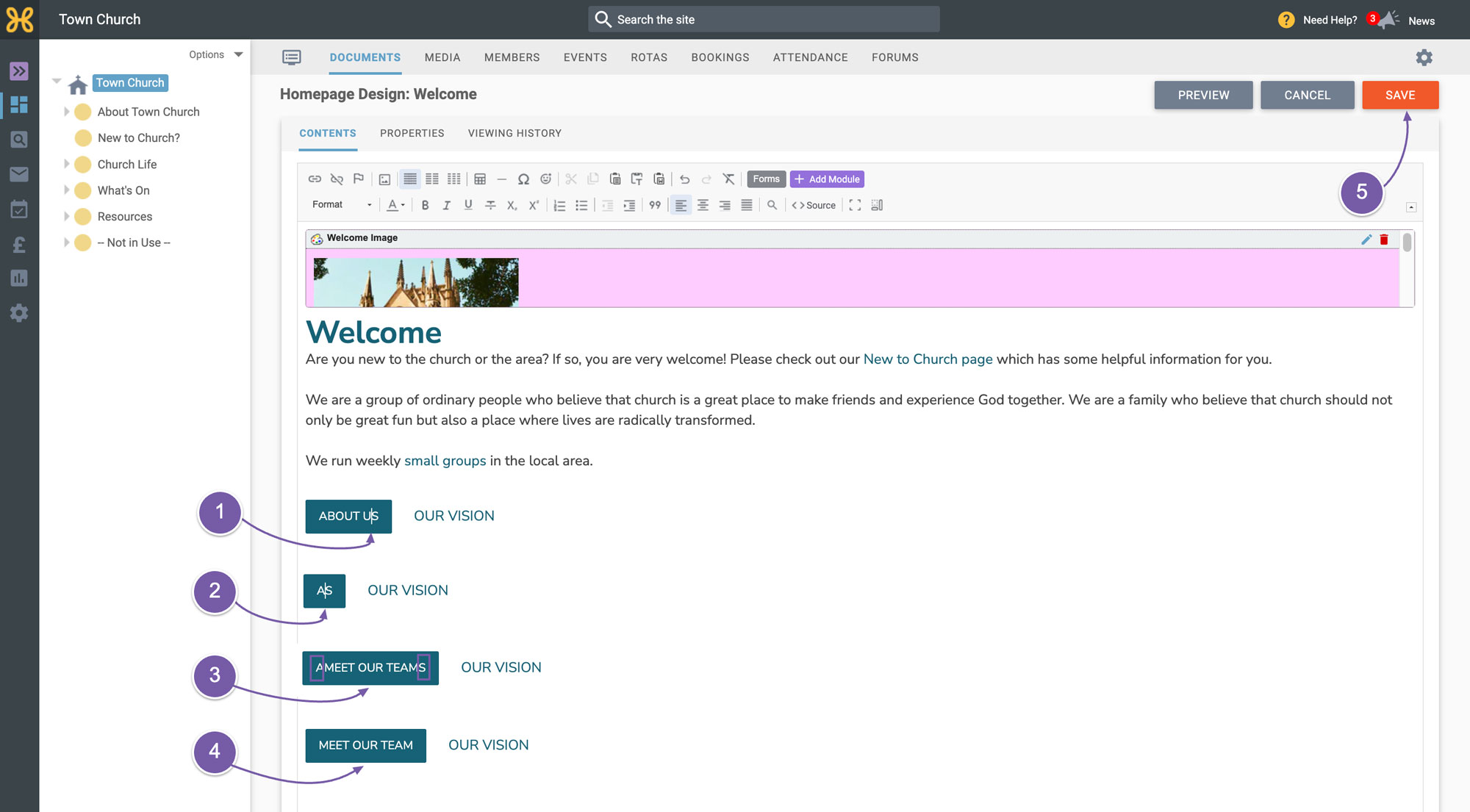
The reason we leave the first and last letters is to ensure the button stays there. If you were to delete all of the letters, the button would disappear.