How to start using Chat in the app
Chat lives inside your church’s own app, so there is nothing separate to download and no new account to set up. If you already use the app for events, rotas or giving, you are most of the way there.
Getting the app
-
On your phone, visit your church’s website address followed by /app. For example, yourchurch.org.uk/app.
-
Follow the prompt on screen to add it to your home screen.
-
Allow notifications when you are asked. This matters more than it sounds: notifications are how you know a message has arrived.
-
Log in with the same details you use on your church website.
Our guide on installing the church app on your phone has this in more detail, with pictures.
Opening Chat
-
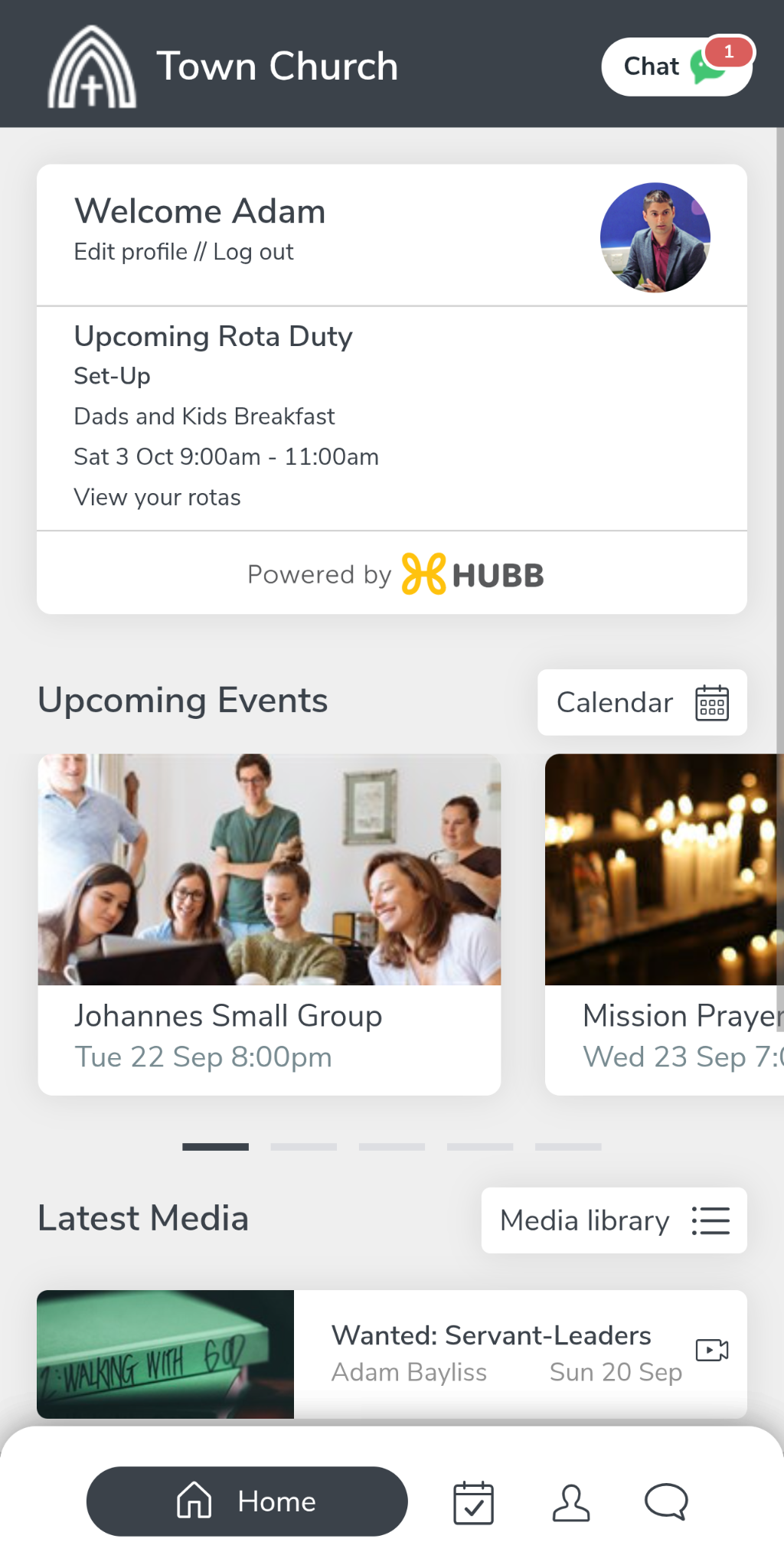
Open the app and tap Chat, at the top right of the screen. It also appears in the bar along the bottom. When you have unread messages, a number appears on it.
-
You will see your Chat list. Anyone you can message appears here, whether or not you have spoken before, with your most recent conversations at the top.
-
Tap a name to open the conversation, type your message and send it. See How to send a message.
If your Chat list is empty, that usually means chat has not been switched on for any group you are in. That is a setting for your church rather than something you can change yourself. See Why can’t I see Chat?
Good to know
-
If you installed the app before and did not allow notifications, log out and log back in, and accept the prompt when it appears.
-
You can pick up a conversation on another device. It is your account rather than your phone that holds your messages.
-
Nobody sees your phone number. Messages go through your church account.
-
If a group is busier than you would like, you can mute it rather than leaving it. See How to mute a conversation.
-
Conversations between adults are private to the people in them. See Who can see chat messages?
Still stuck? We’re real people.
Raise a support ticket and our UK team will get back to you.
Contact support