Once your consent questions are set up, they show up in a few places around Hubb. Here’s where to find them.
Mailing
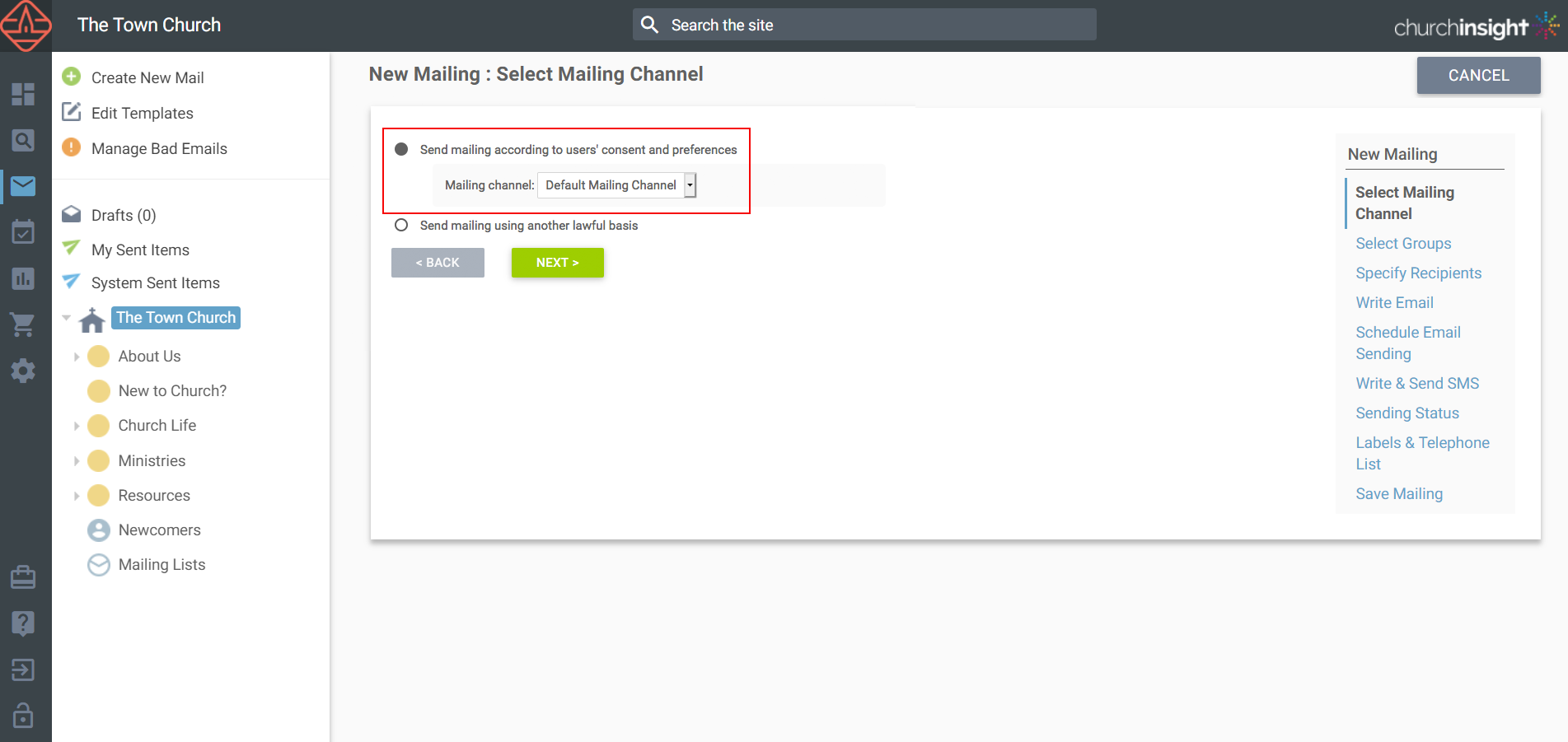
When you create a mailing, the ‘Select Messaging Channel’ step asks which messaging channel it’s for. Because that’s tied to people’s consent, you won’t contact anyone who hasn’t agreed to hear from you. You can override this and send on another lawful basis, but only do so if you genuinely have one, as it will also reach people who’ve unsubscribed.
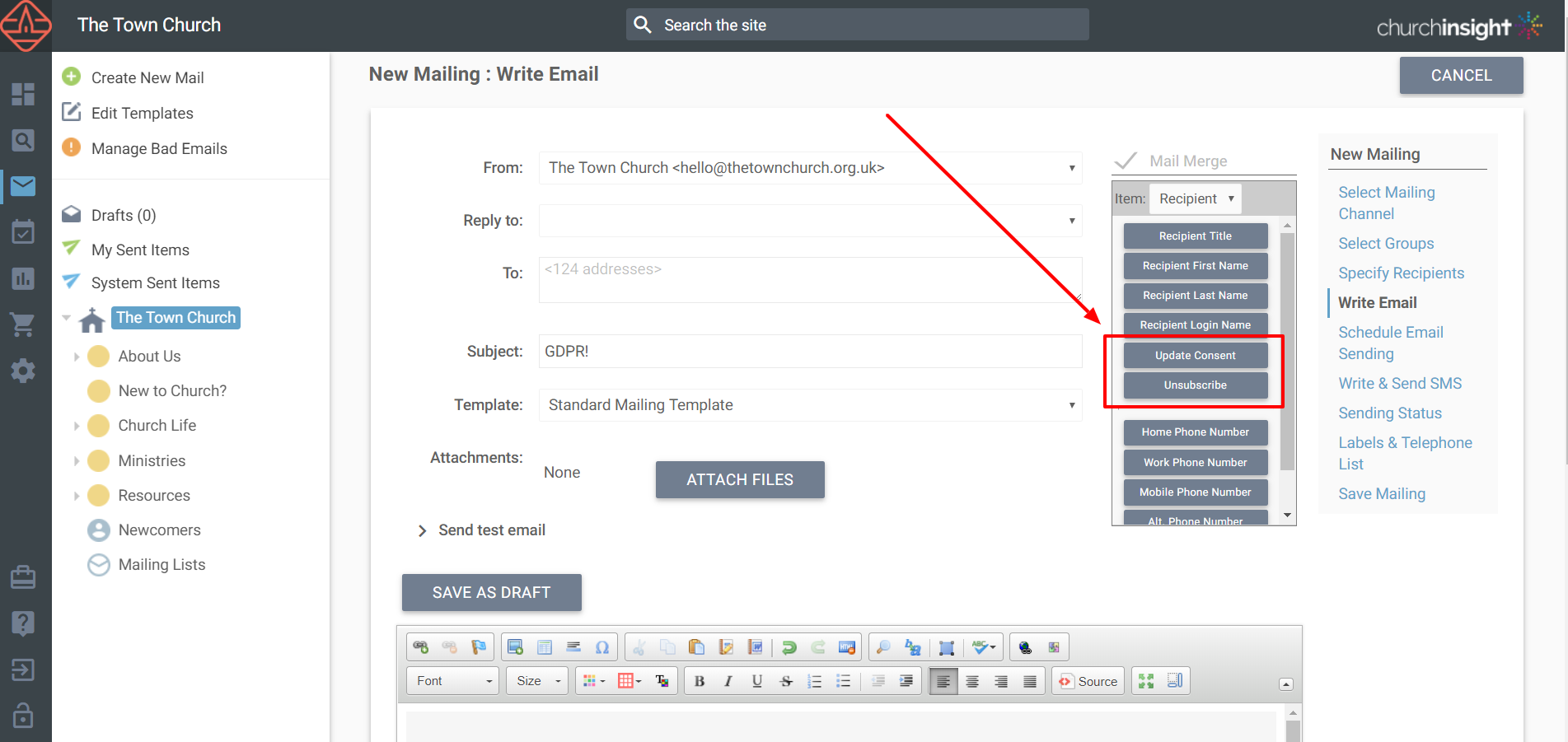
Two links are available for your emails, and they’re added to the footer of every messaging-channel email automatically:
-
Unsubscribe – lets someone quickly unsubscribe from the channel the email came from, with the option to leave others too.
-
Update Consent – takes someone to a page where they can edit all their consent options, even if they don’t have a login.
You can add these from the mail-merge buttons on the toolbar, or as links using the link button, then ‘Browse’, then ‘System Page’ (they’re at the bottom of the list).
Query
When you build a query, there are extra criteria for each consent question – Consent Values and Date Consent Set – so you can find people who have (or haven’t) agreed to something, or who set it in a particular period.
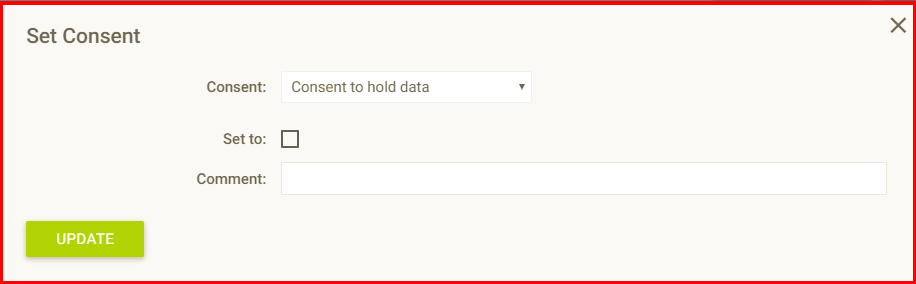
From a query’s results, ‘Tasks’, then ‘Messaging & Consent’, then ‘Set Consent’ lets you set a consent question to a particular value for everyone in the list. It’s handy for recording consent you’ve collected on paper. It records that you, the administrator, set it, along with any comment, and it’s kept permanently in that person’s consent history.
User records
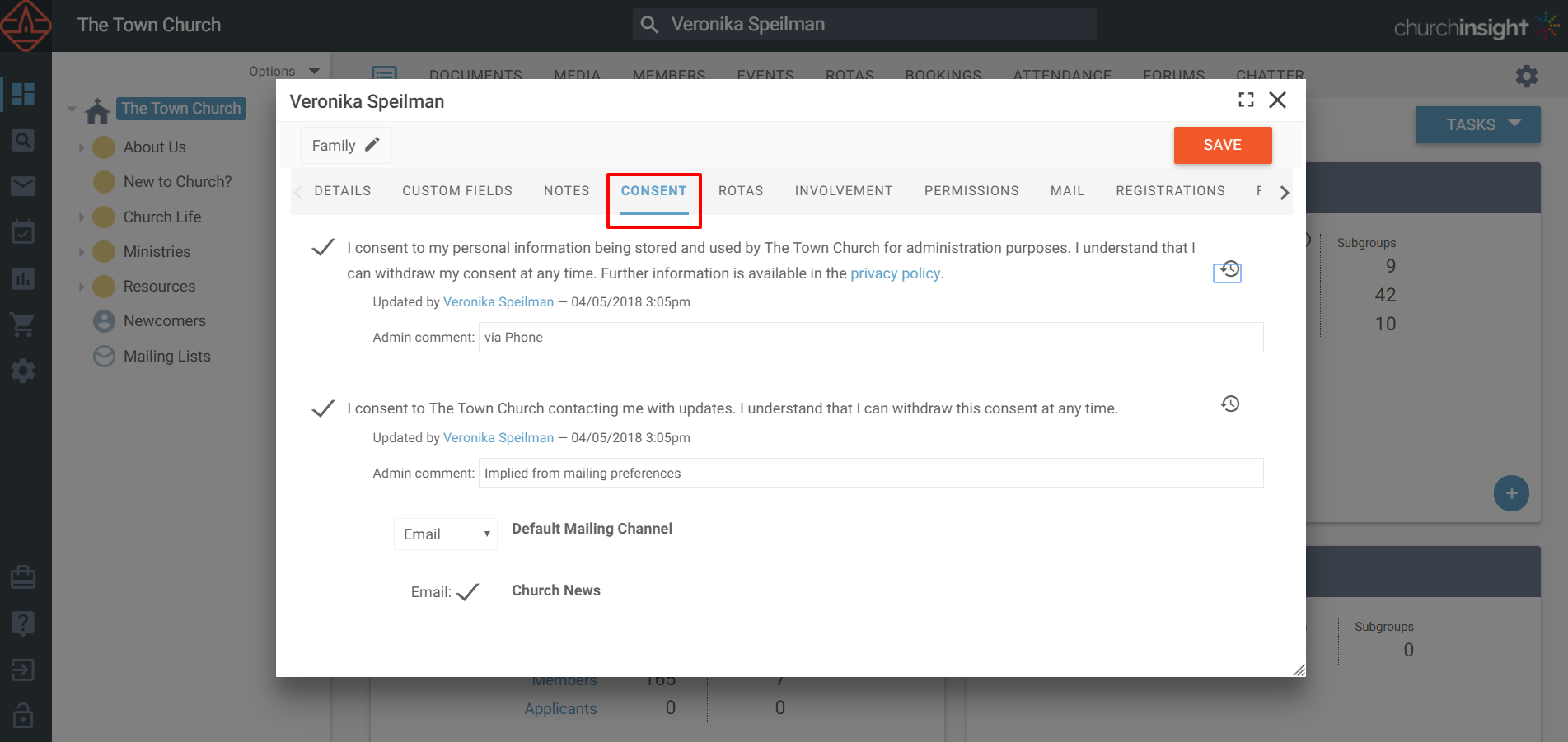
Each person’s record has a consent tab showing their consent and messaging preferences, who recorded each one and when, any administrator comments, and the full history of every consent question.
My Area
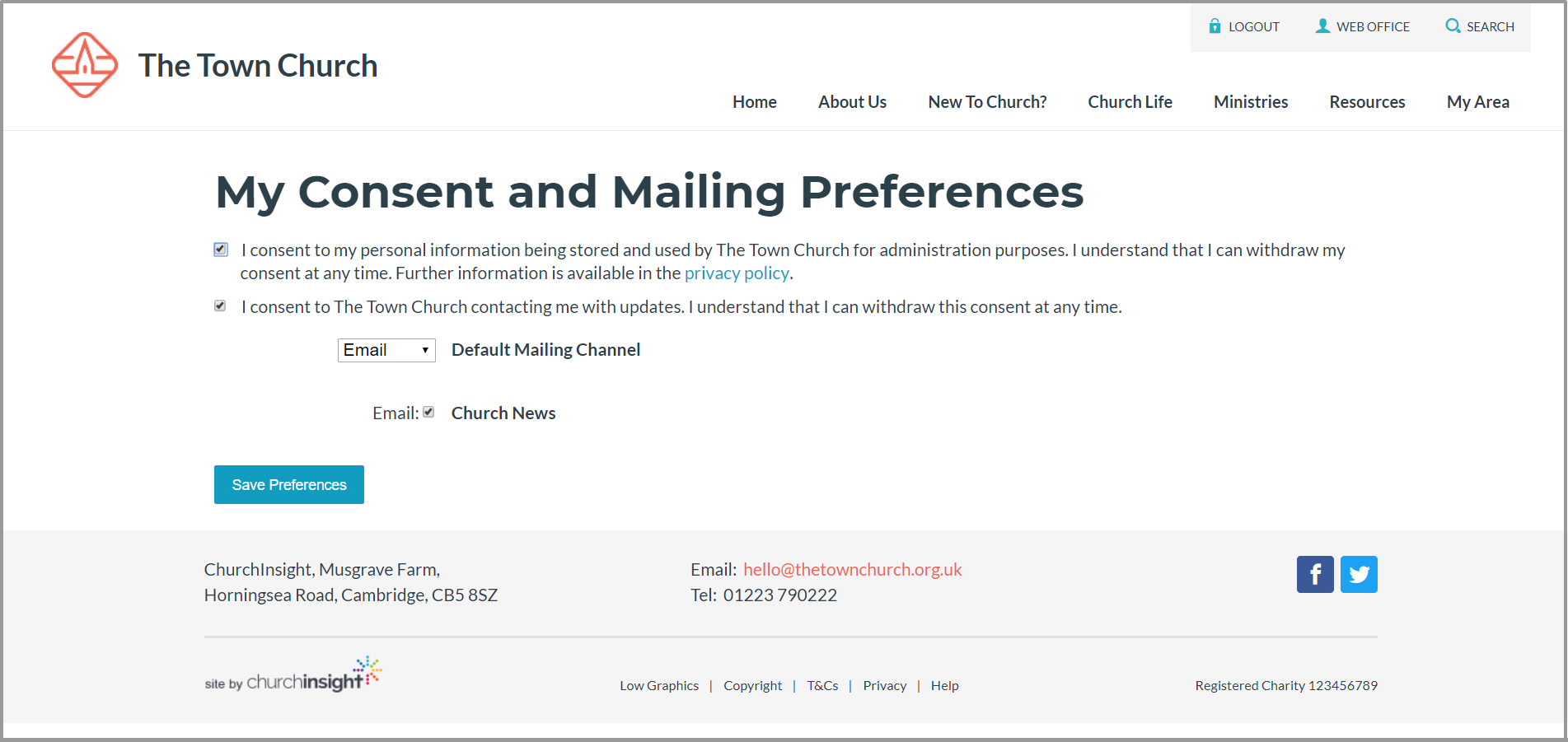
People can manage their own consent and messaging preferences under My Area > My Involvement > Consent & Messaging. Anything they change shows straight away in the web office.
The address book
Whether someone appears in the address book depends on your address book policy (Site Settings > Users > Address Book) and on their own privacy settings. New members need to opt in by ticking the boxes to show their details, either when they register or later from ‘My Profile’ under My Area.
Still stuck? We’re real people.
Raise a support ticket and our UK team will get back to you.
Contact support