Setting up consent questions and mailing channels
Hubb’s consent questions let you record what the people in your database have agreed to, and mailing channels let them choose which of your communications they receive. Someone has to agree to a consent question before they can be contacted through the mailing channels grouped under it.
Deciding what consent you need to ask for is up to your church. You’ll need a ‘lawful basis’ for holding and using people’s data, which for most churches is either legitimate interest (using data in a way people would reasonably expect for the running of the church) or the person’s consent. That’s your church’s responsibility rather than something we can advise on, so if you’re unsure, the Information Commissioner’s Office is the place to check.
The two consent questions we include
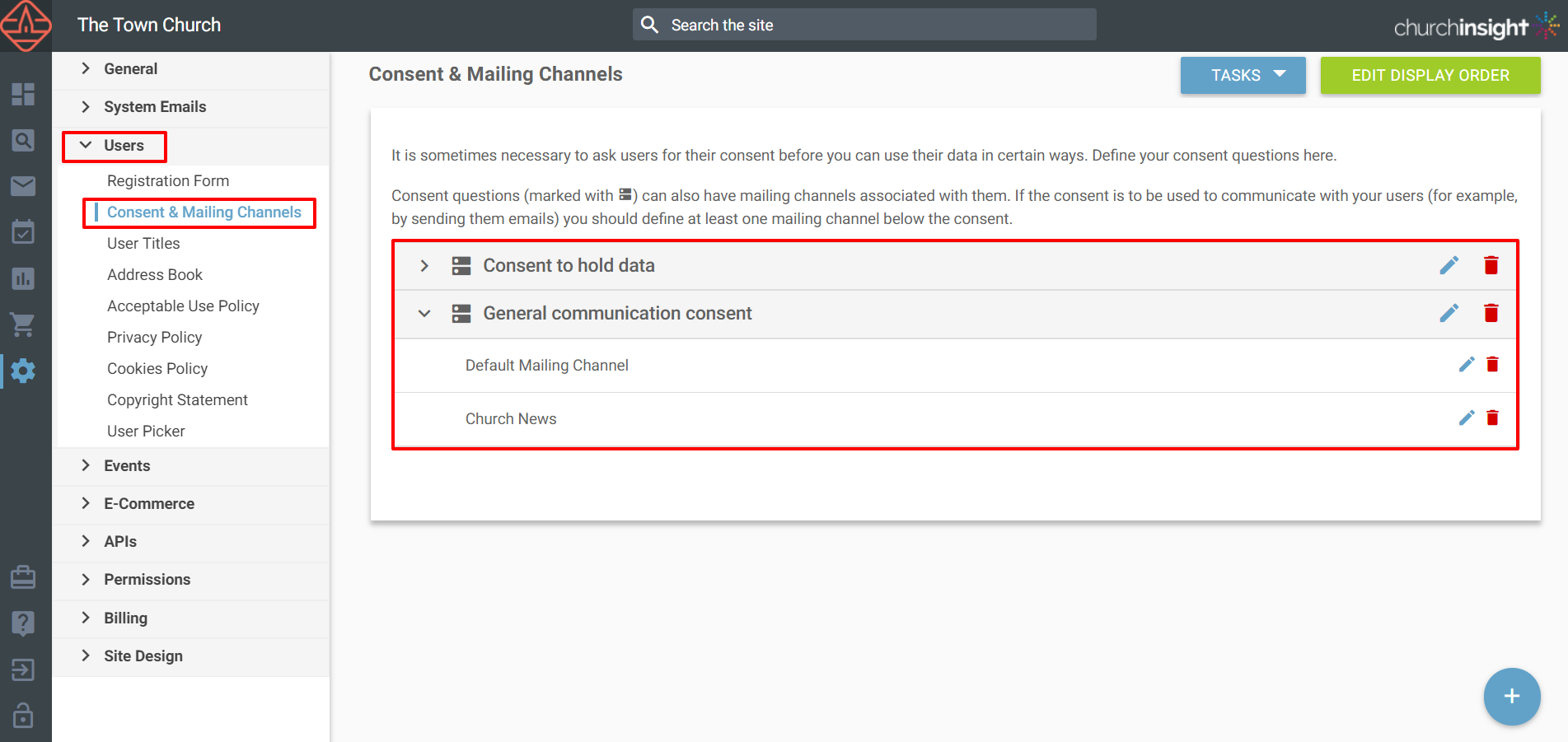
Every site starts with two example consent questions under Site Settings > Users > Consent & Mailing Channels, which you can edit or delete to suit your church.
-
Consent to hold data – an example of asking someone’s permission to store and use their information. Many churches won’t need this if they’re relying on legitimate interest, in which case you can simply delete it.
-
General Communication Consent – an example of asking permission to contact someone. Your existing mailing channels sit under this, so once a person consents they can then choose how they hear from you.
Add a consent question
Go to Site Settings > Users > Consent & Mailing Channels and choose ‘Consent Question’ from the blue + button at the bottom right, or from the tasks button at the top right.
-
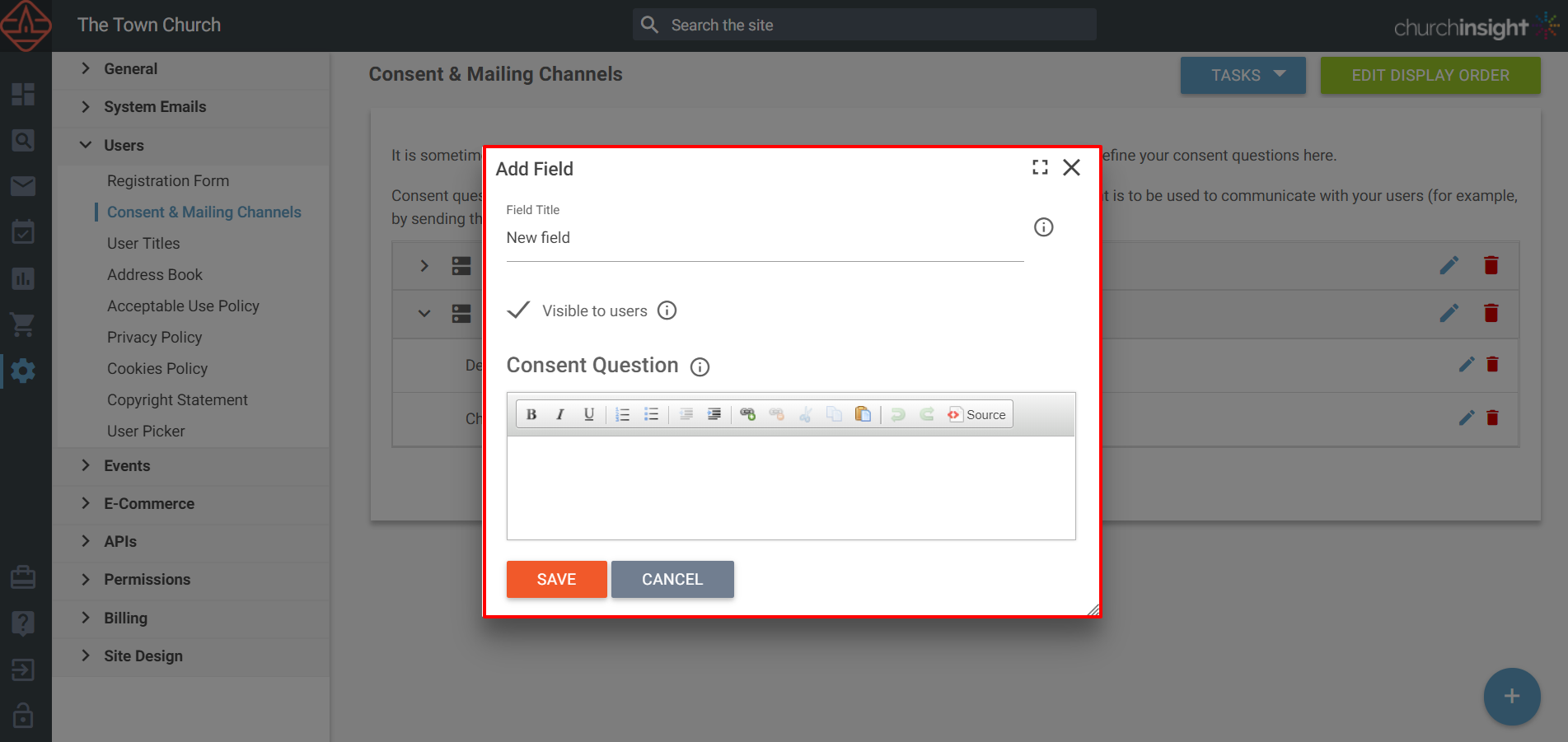
Give the question a title. This isn’t shown to people, it just identifies the question in listings.
-
Leave visible to users ticked. Unticking it hides the question from people while keeping it visible to administrators, which is useful if you’re no longer collecting a consent but want to keep the records you have, or you collect it on paper instead.
-
Write the consent question itself – the wording people see, with the important detail about what they’re agreeing to. You can include links to further information.
-
Click Save.
Add a mailing channel
In the same place, choose ‘Mailing Channel’ from the + button or the tasks button.
-
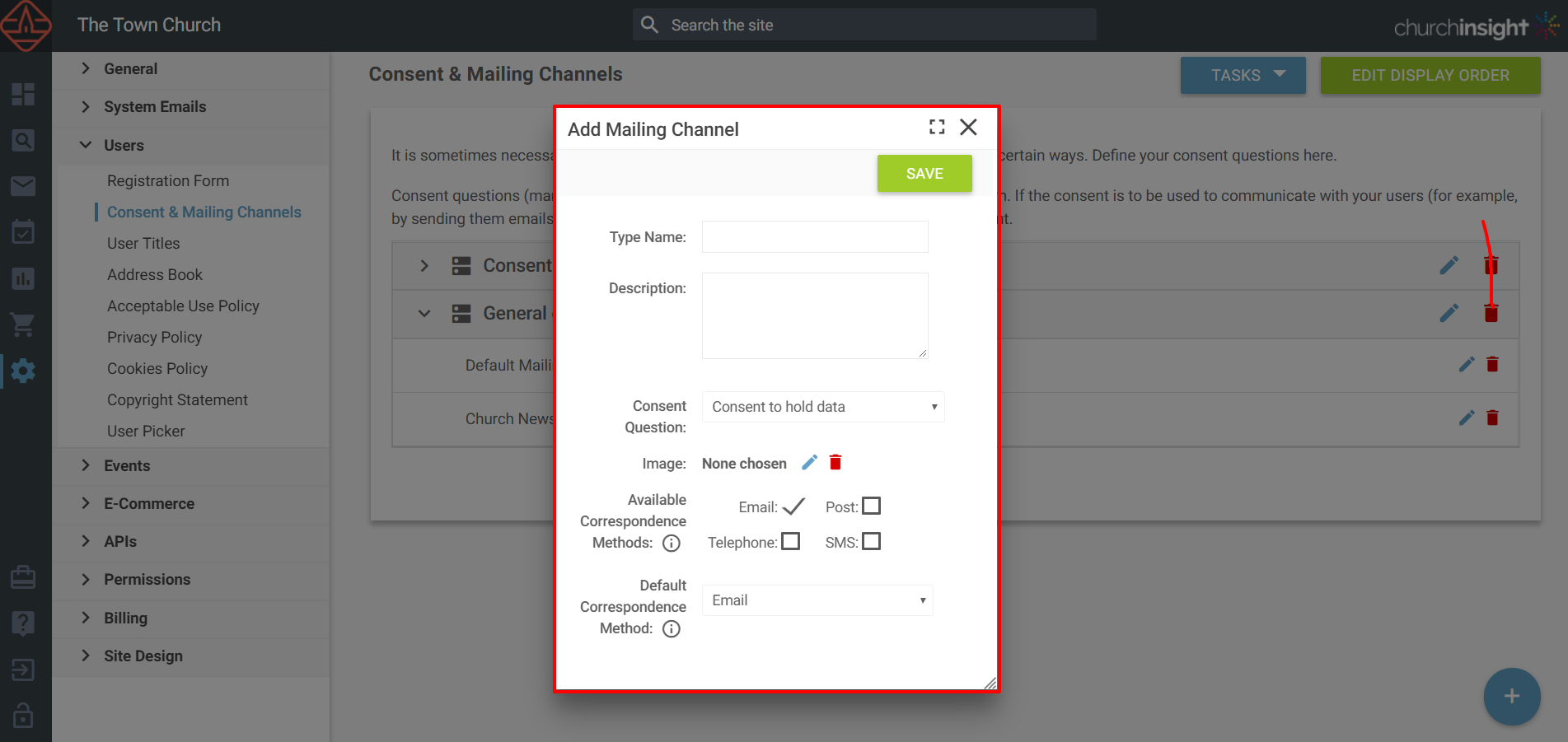
Give the channel a name and a description.
-
Group it under one of your consent questions.
-
Add an image if you’d like one.
-
Choose the correspondence methods people can pick from, and set the default that applies if they don’t choose one.
-
Click Save.
Show them on your registration form
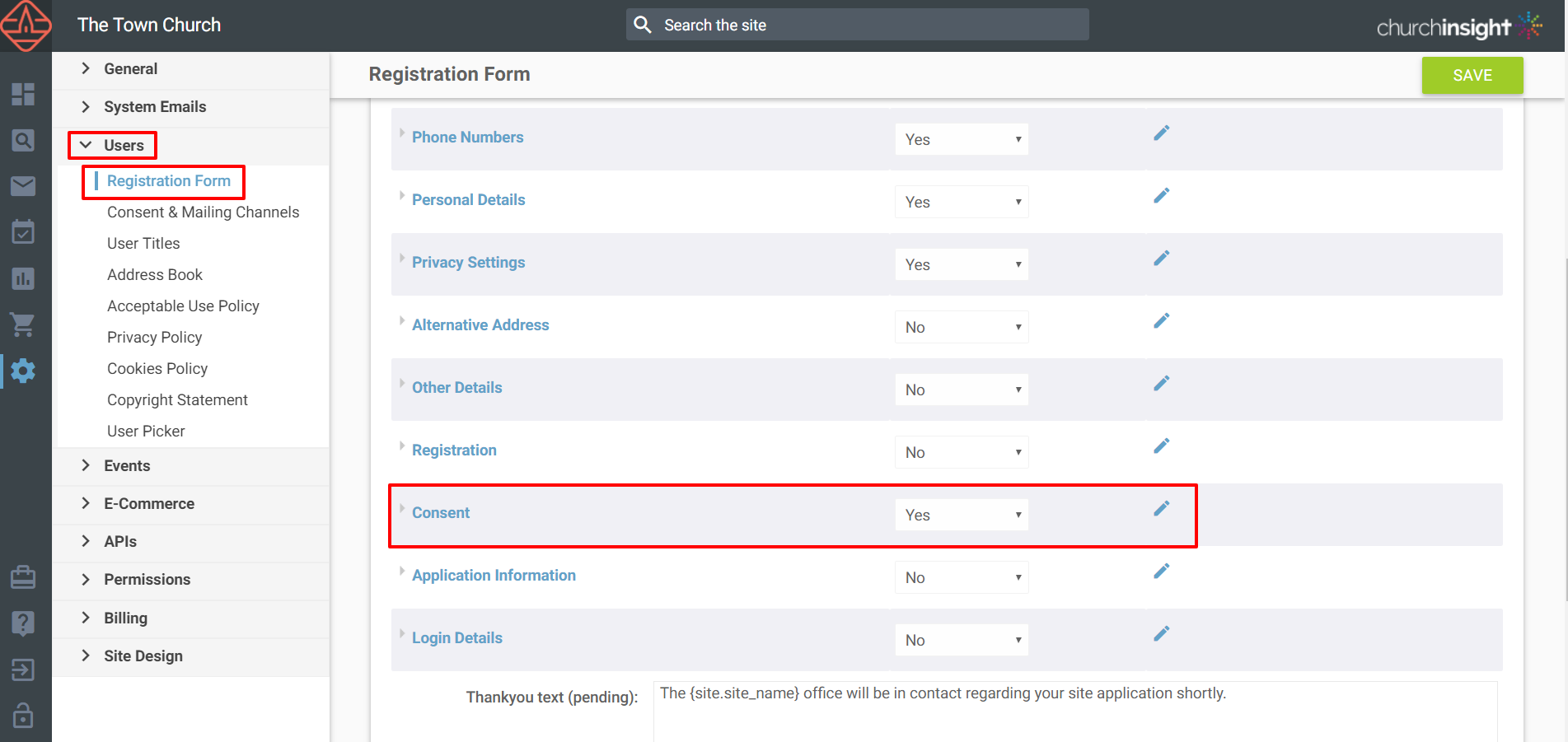
For people to answer your questions when they sign up, go to Site Settings > Users > Registration Form and set the consent section to ‘Yes’. You can list all your consent fields, or pick a ‘Custom set of fields’ to show only certain ones.
Good to know
-
You don’t have to show every consent question on the registration form. You might want different questions for sign-up forms, payments and check-in, and you can add consent questions in each of those places too.
-
Think about the wording. If you rely on someone’s consent to hold their data and they later withdraw it, you may need to stop holding it, so many churches keep separate, specific questions rather than one all-or-nothing one.
Still stuck? We’re real people.
Raise a support ticket and our UK team will get back to you.
Contact support