Plan Tasks and Settings
Sorry, your browser is unable to play this type of file.
You can still
download it
Let's look at all of the tasks and settings in your plan.
-
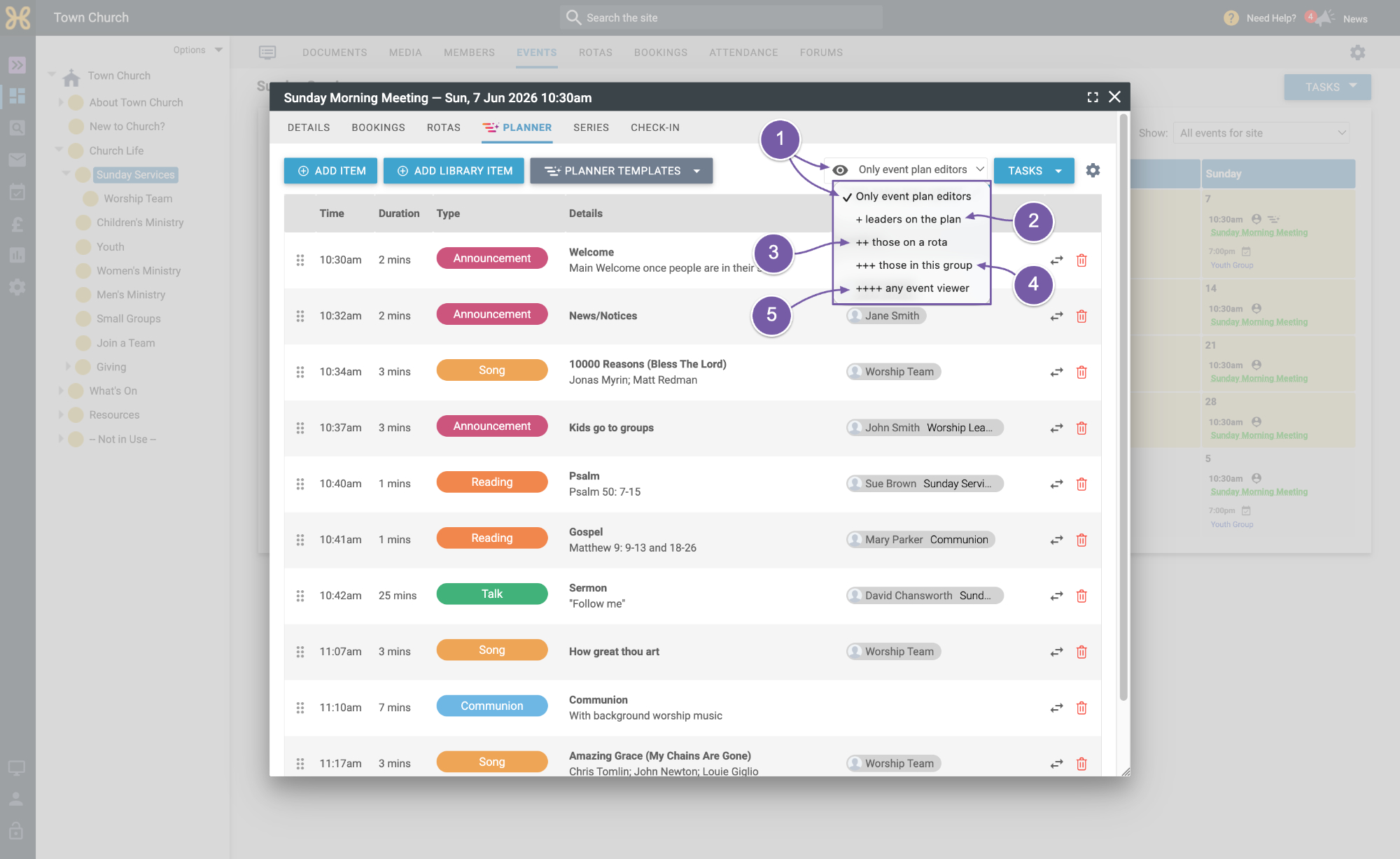
The first setting we'll look at is the visibility of your plan. This controls who can see the plan on the user side dashboard. By default, your plan is only visible to those with the event plan permission for the group that the event is in. This is helpful as your plan will be kept hidden while you're working on it.
-
The next drop-down option will also allow anyone who is a leader in the plan to view it.
-
Next those on the Rota can also view the plan.
-
The next option is allowing anyone in the group to view it.
-
Lastly, you can also allow anyone who can view the event on the website's calendar to view the plan.
Let's now review the tasks available in the plan.
-
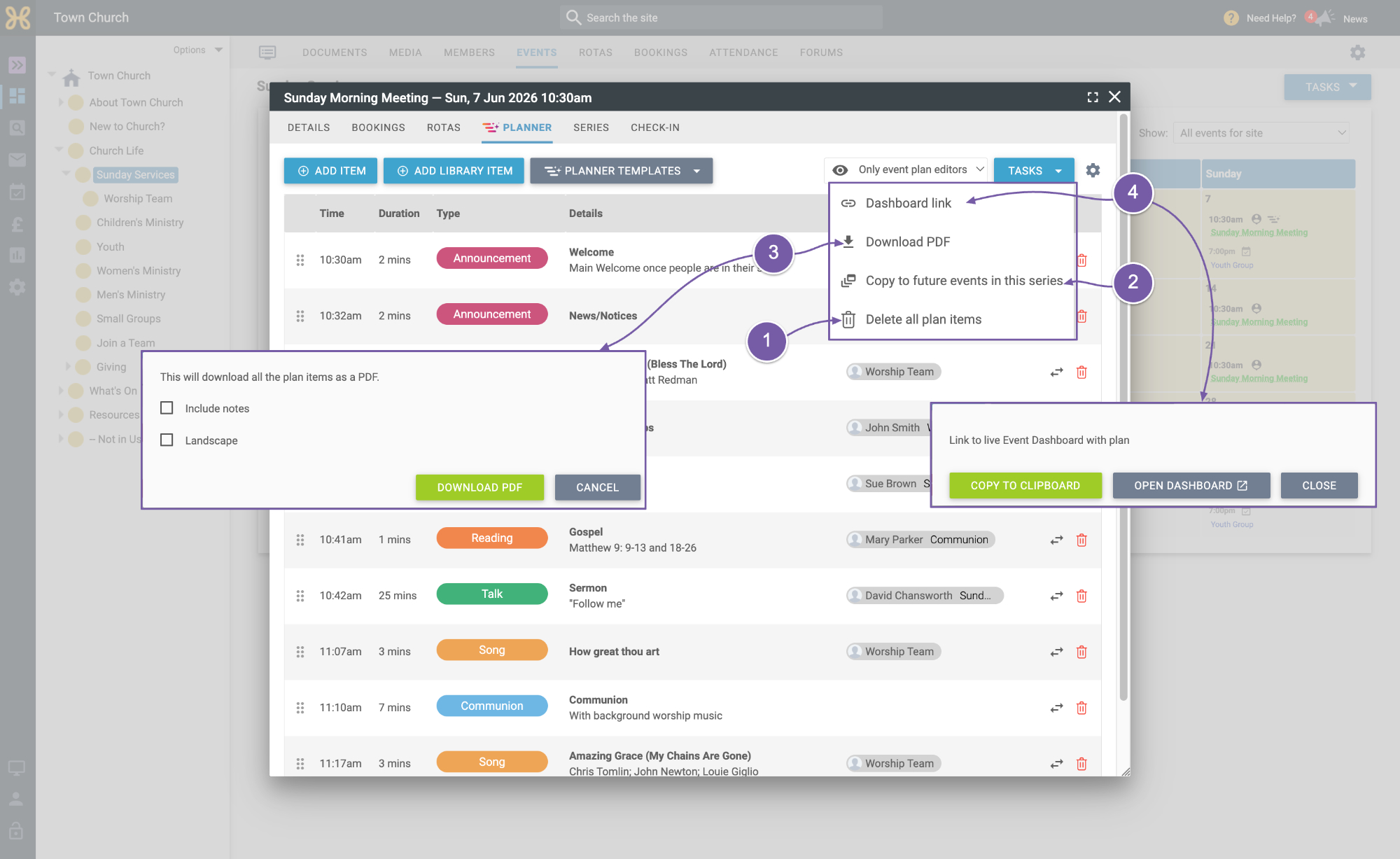
If you need to delete all of the items in the plan you can click on “Delete all plan items”.
-
We also have the option to “Copy this plan to future events in the series”. This can save you a lot of time going forward. If you would like to do this, we have a follow-up option that allows you to copy the leaders or not.
-
You can also quickly get a PDF version of the plan.
-
The last setting to show you is the dashboard link. When you select this, you can choose to copy the link to your clipboard or open the plan in the dashboard.
Watch our next video to learn more about “Planner” being live in the dashboard and how people can access it within your Church app.