Quick tip – get to know our time saving features!
(2 minutes)
These features will save you time when you set up rotas
Sorry, your browser is unable to play this type of file.
You can still
download it
When you have set up your Rota's events and roles, you may have many people to add to the Rota. Rather than manually adding everyone on the Rota to future events, we have some tools to speed up the process.
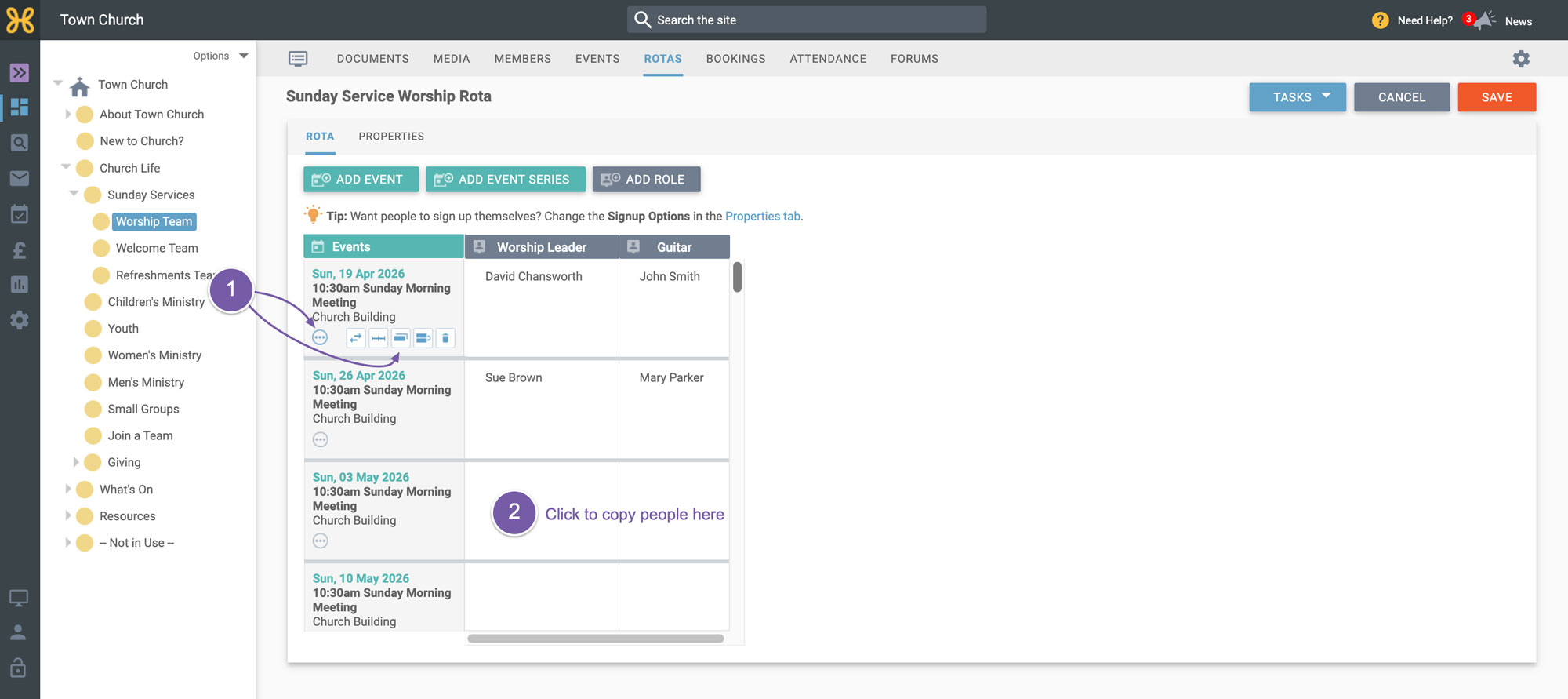
In this example you can see we have the first two weeks fully created. This church serving works in such a way where the same people serve alternate weeks. Yours may work in a similar way, like every four weeks for example.
To copy the whole team from week one to week three:
-
Hover your mouse over the three option dots on the event and select the “Copy Row” option.
-
Then click on the row you want to copy the people to. You can repeat this for all of the rows on your Rota.
-
You can also choose the option to swap a row with another as well.
-
The other options are to swap the event for another one
-
Delete the event
-
Split the event into slots. That's a more advanced feature if you're wanting to split serving on the event to two different times. For example, you may have a community action day and you want a Rota for the morning team and a Rota for the afternoon team, but you only have one event in the calendar.
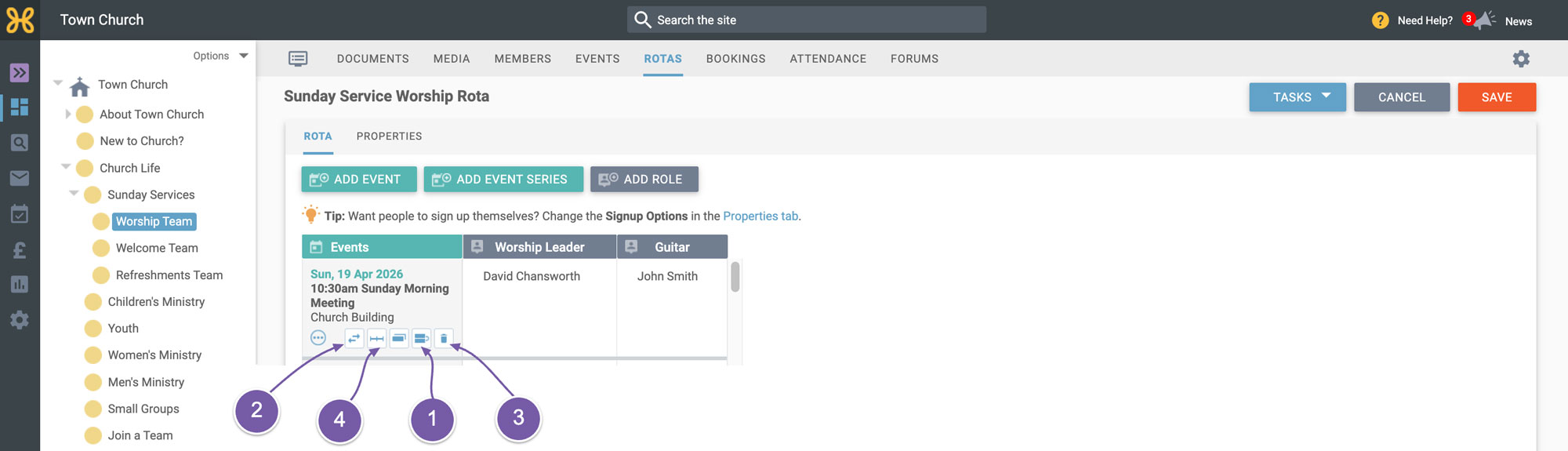
The most used features are the "copy" and "swap row", and now you know how to use those, it should help speed up creating your Rotas when you have your members in the system.