Editing the Sunday service event
(5 minutes)
Learn the basics of our calendar feature and personalise your Sunday service event that is already in your Hubb website.
Sorry, your browser is unable to play this type of file.
You can still
download it
If you are in your free trial, you will see that your trial site comes with a Sunday Service event to help you get started. It's a good time to look at this event and edit it to suit your church. If you are new to using Hubb at a church that already has the calendar set up, then this page will help you to edit an existing event and get to know the basics of the calendar.
For this example:
-
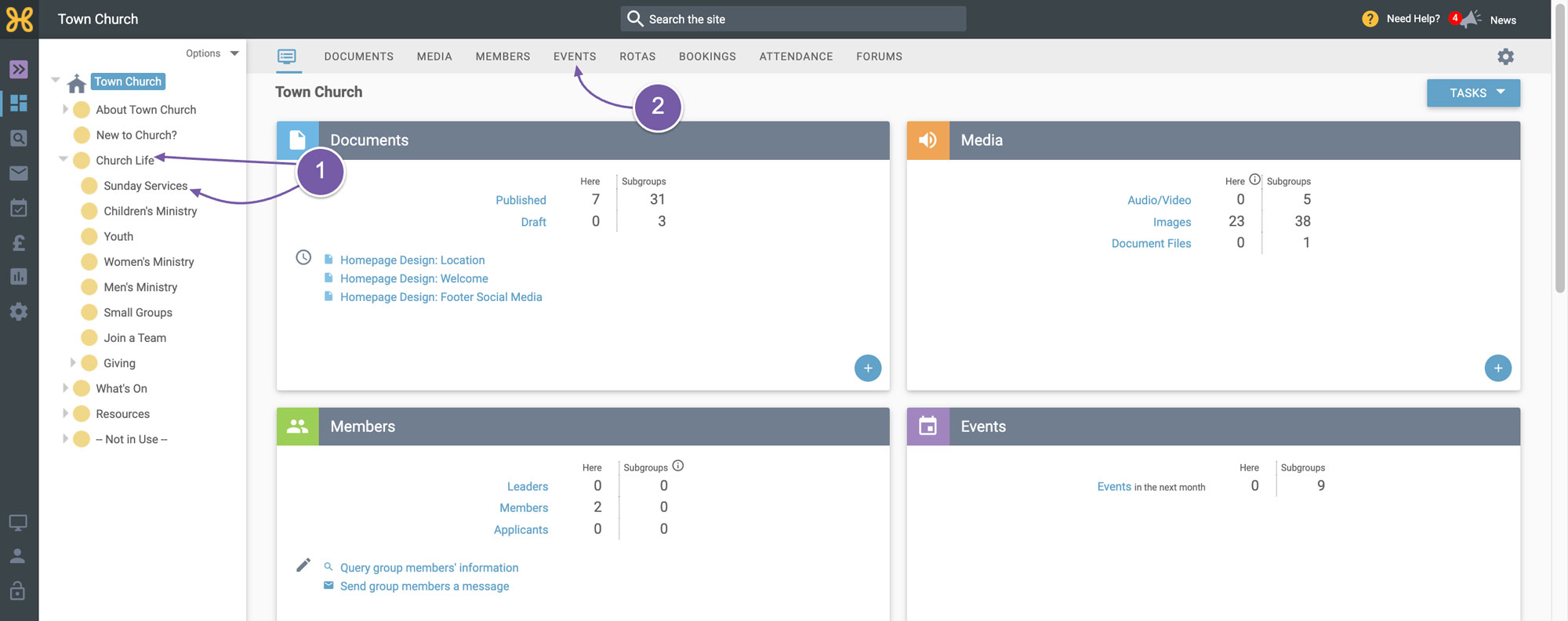
Go to the Site Manager and navigate to the "Sunday Services" group under "Church Life".
-
When we are in that group, we just need to click on the “Events” tab to bring up the calendar.
-
It's important to note that you will see all events in the system, but the ones that are bold and underlined are stored in the group you are currently in.
-
If you were to click on an event that is not in the group, when you finish editing that event, you will be taken to that group.
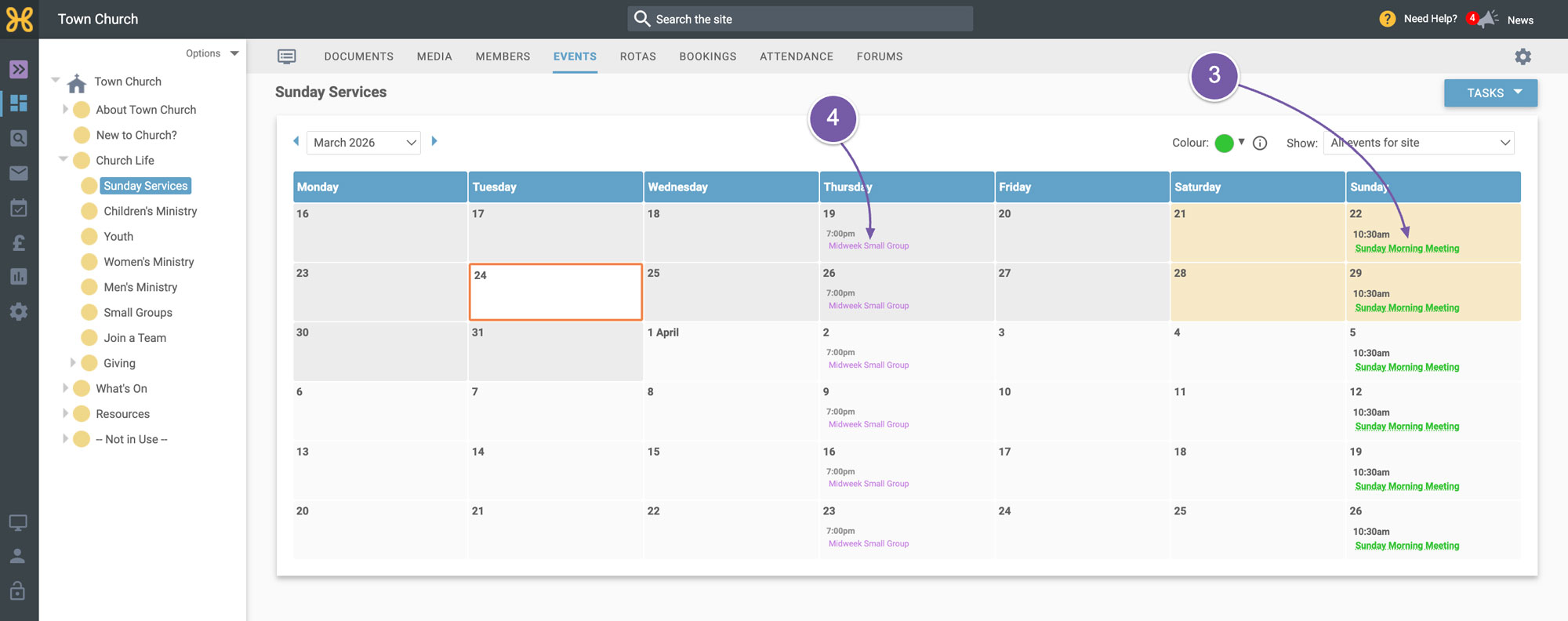
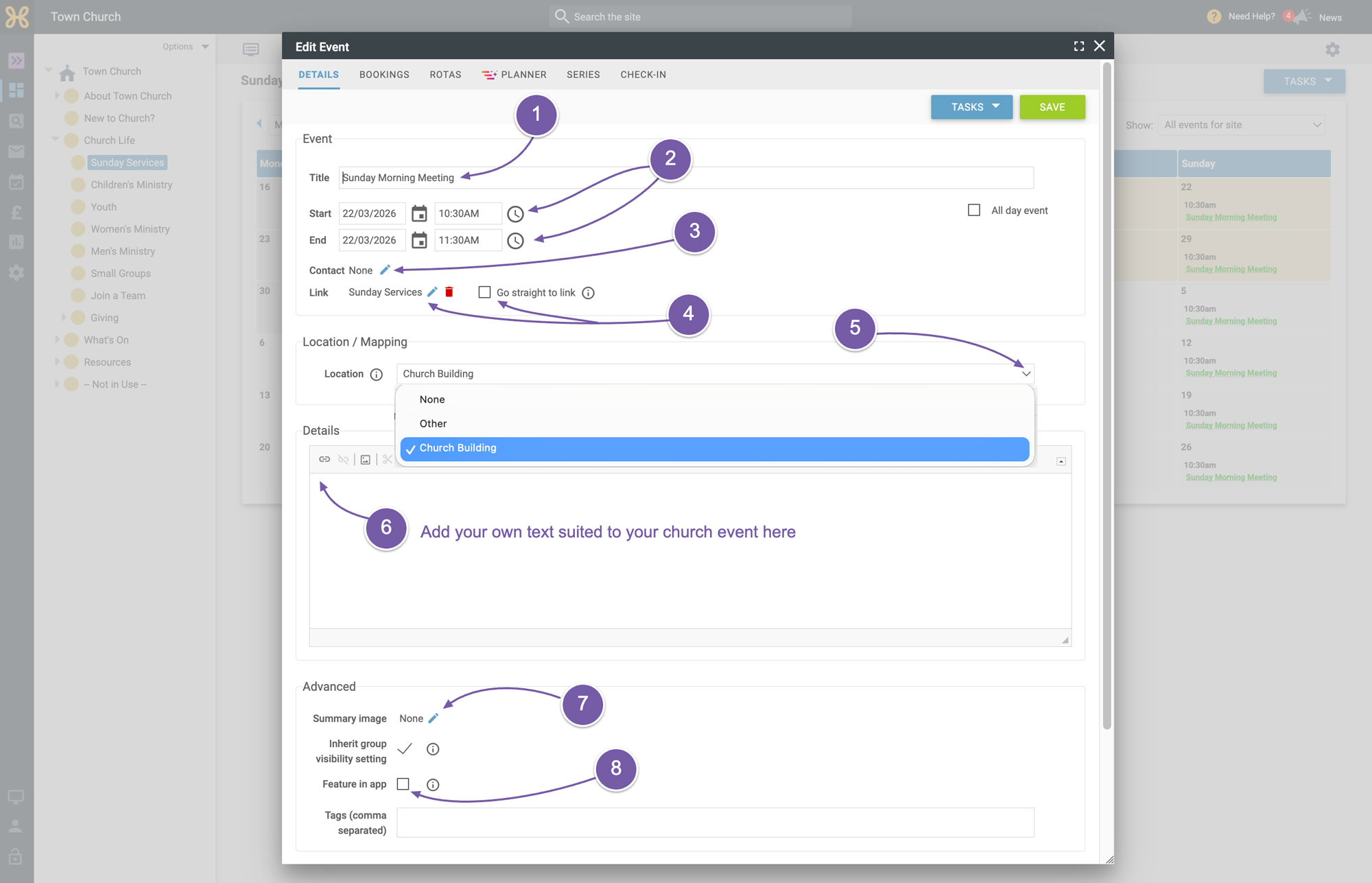
To "Edit" the Sunday Service event, click on the name of the event and the event properties appear.
-
Here you can easily edit the title of the event to suit you.
-
Click on the start date and the time drop down boxes to edit these settings for when the event starts and ends.
-
If required, you can add a contact - this is where you can choose someone in your database to be the public contact for more information about the event. You don't have to set one up and most people know to head to your contact page to get in touch with you. It's just an extra option that can be used if you wish.
-
Add a link for more information. When someone visits your site and clicks on an event, an extra link can appear if you set it here. We have set this link to be your Sunday services page which may have more details on it than this event entry. We have an option for you to take people directly to the link you set rather than open up the event details. This can be really handy if you're advertising an event as another organisation or another church you work with.
-
You can easily pick a location from your preset event locations or you can select other and fill in the details manually. If you would like to see how the map location settings work then you can watch our video called “Setting Your Default Event Locations” which has the same options to go through. For any events that have no physical location or you do not know or want the location to be public, you can just select “None” from the list of location options. For now, we will use our preset event location that is already on our site.
-
In the details area you can change the text to be suited to your church.
-
If you would like to add an image to the event, we recommend adding a summary image that is our feature image size of 800x400 pixels. The reason we recommend adding an image here rather than in the event details editor is that the image is picked up in your app feed to give you a nice feel to your app. Also, it is picked up on the home page of your Aspire template that your free trial comes with. To add or choose an image from your site click on the “Edit” pencil icon and find the image from your web office.
-
The last option we need to look at now is the feature in app option. If you are using the app layout that lists the events on the home screen of the app then it will automatically show the next five events that are coming up. But if you choose to feature any events in the app the view will change to only showing the featured events and not the next five. So now you have edited your event you need to save it.
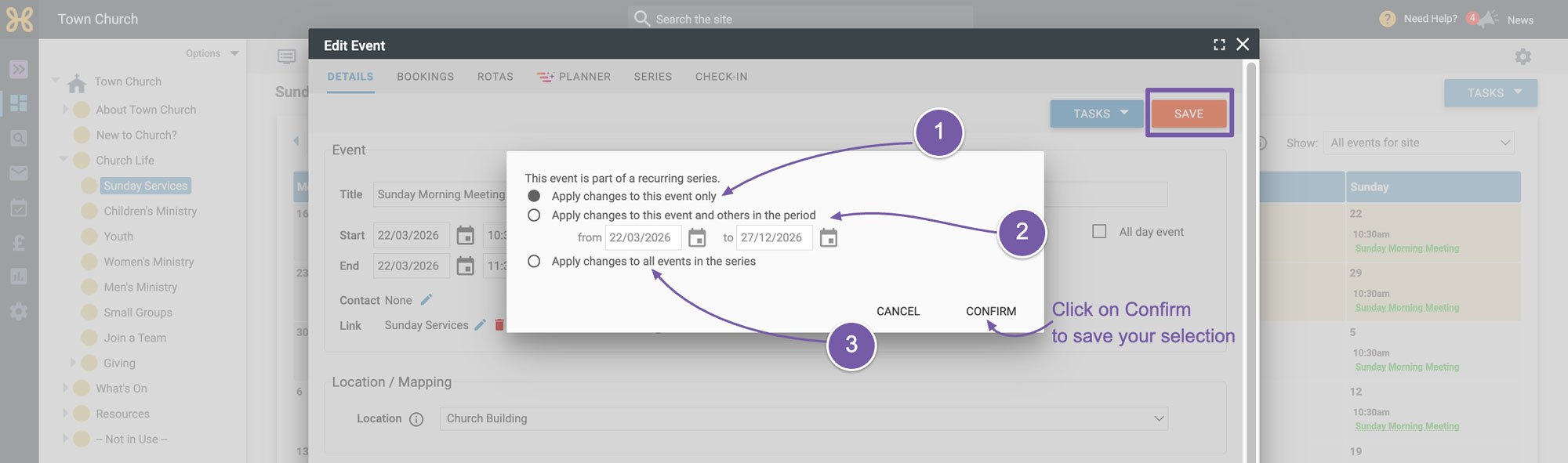
As this event is already set up as a recurring event you will be presented with a set of saving options:
-
You can save the changes to only this event and no others in the recurring event series.
-
Choose to save the changes to events in the series within a certain date range. This is great for editing all of your events that fall in a school summer holidays for example.
-
And last you can choose to apply the changes to all events in the series. For this instance, we will pick that last option and change all of the Sunday Service events.