Editing a web page and adding images
(2 minutes)
Images make your site come alive! In this video we talk you through how to add an image to your site for the first time, and make it responsive, so it looks good on phones and tablets.
Sorry, your browser is unable to play this type of file.
You can still
download it
In this example we will edit the “About Town Church” page to add an image.
-
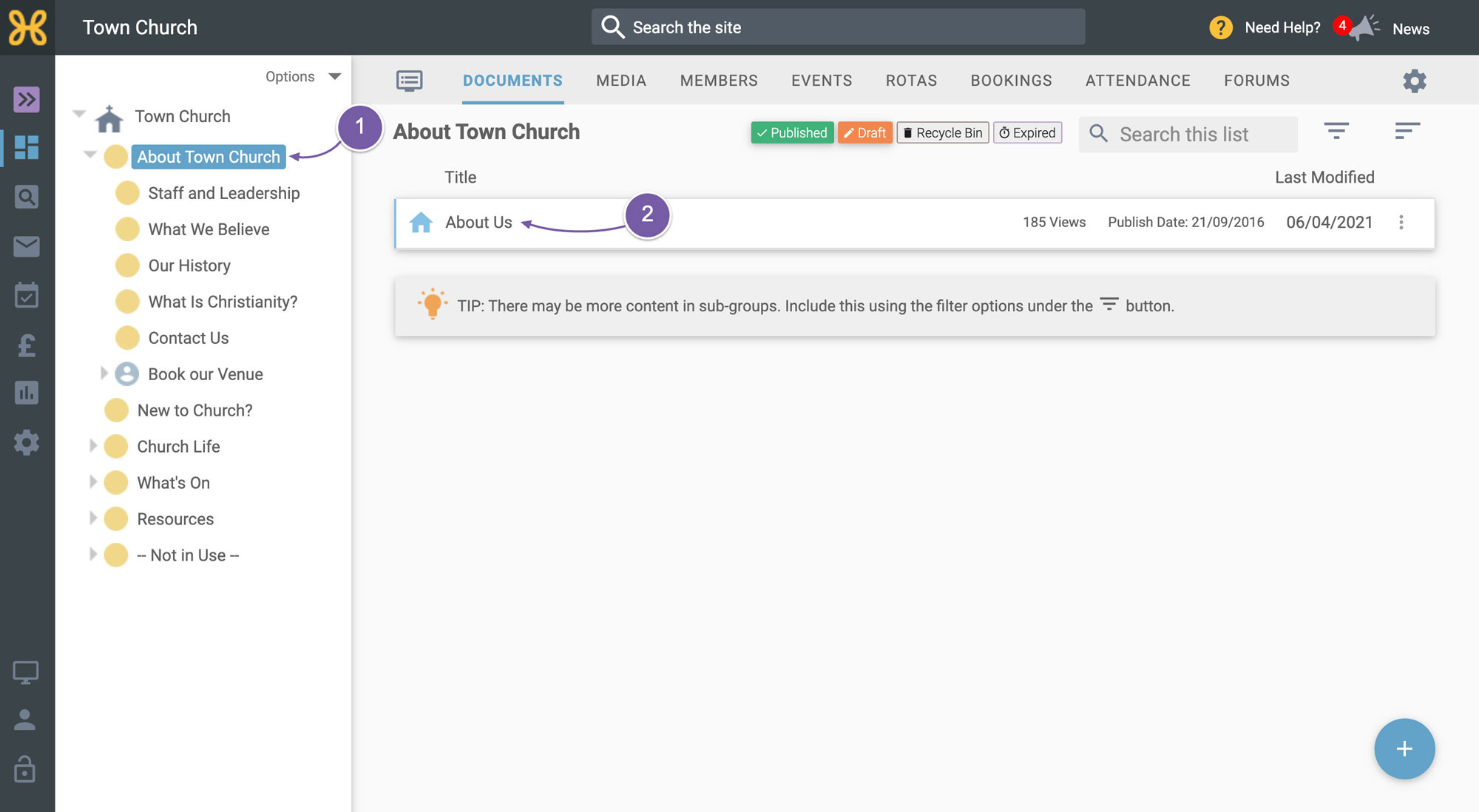
We need to click on the “About Town Church” group in the group tree on the left.
-
And from the summary page we can see the quick link to the latest articles we have used in this group. So, we can click straight on the “About Us” article and we can go straight into editing mode.
-
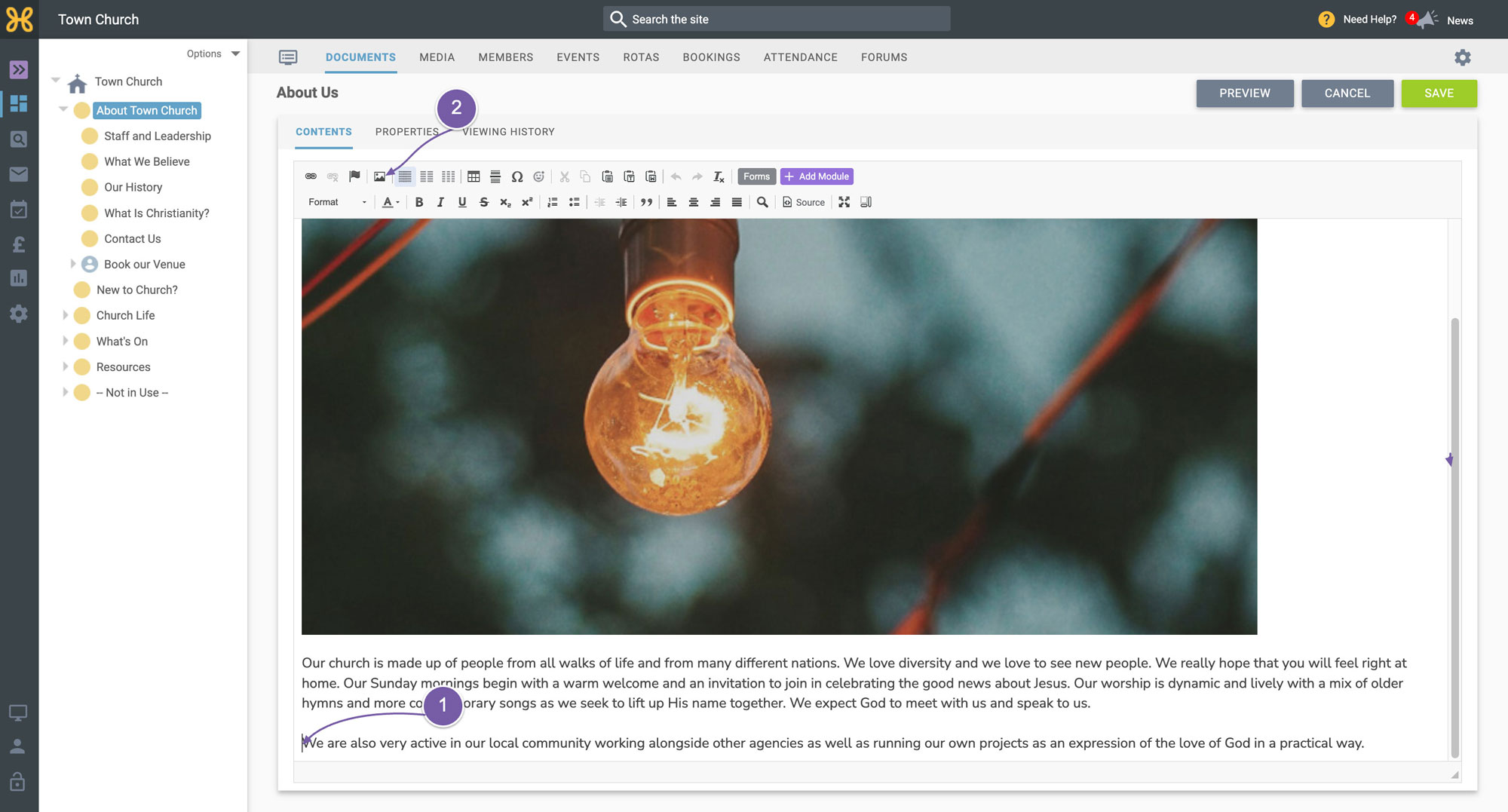
Click where you want the image to go
-
Click on the “Add Image” button on the toolbar.
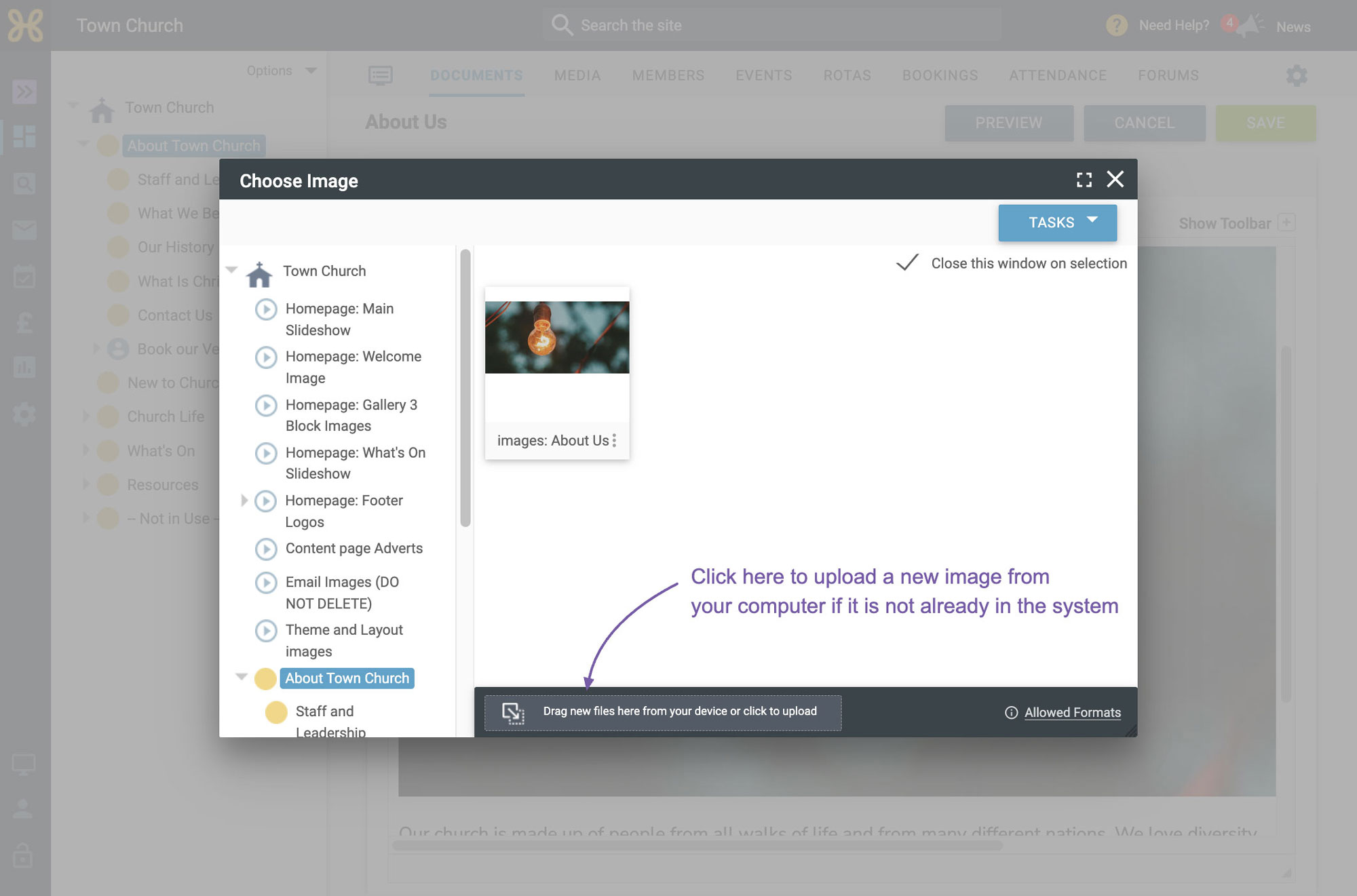
Here you can browse for the image in the web office if you have already uploaded it. But let's use an image not currently in the system. We need to add it first by clicking on the upload area and finding the image from our machine to upload.
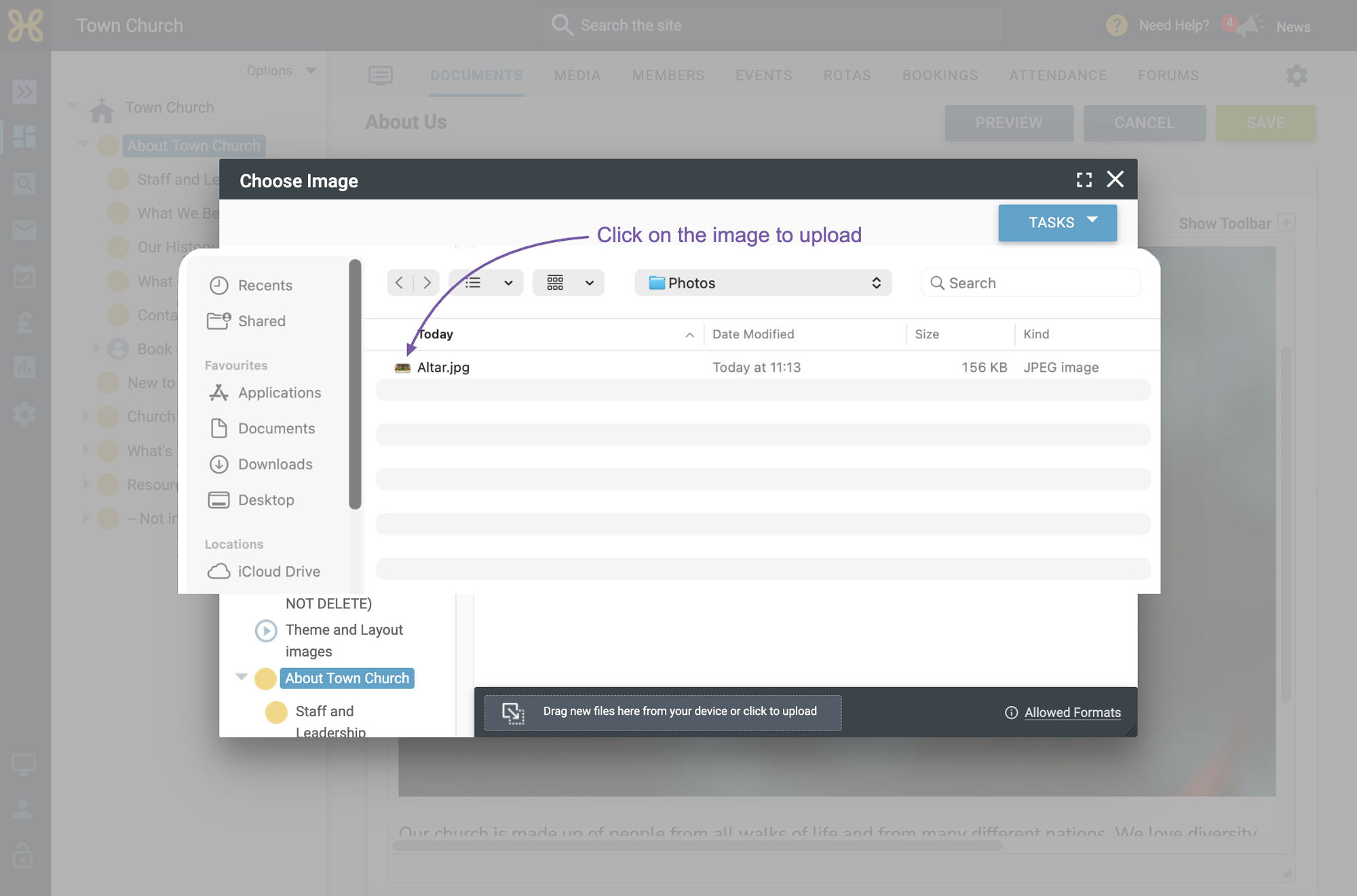
Once it's uploaded, we need to select it.
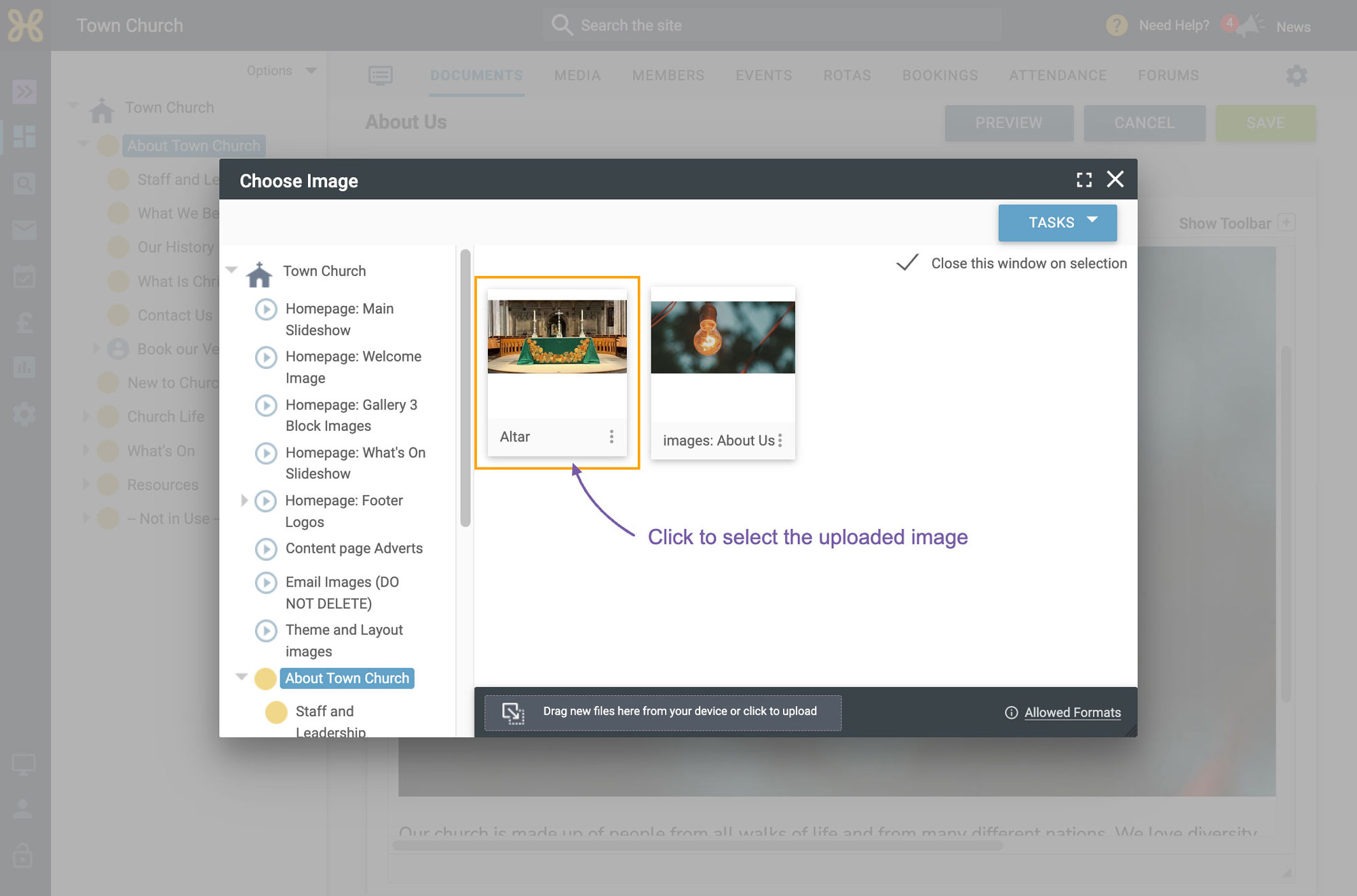
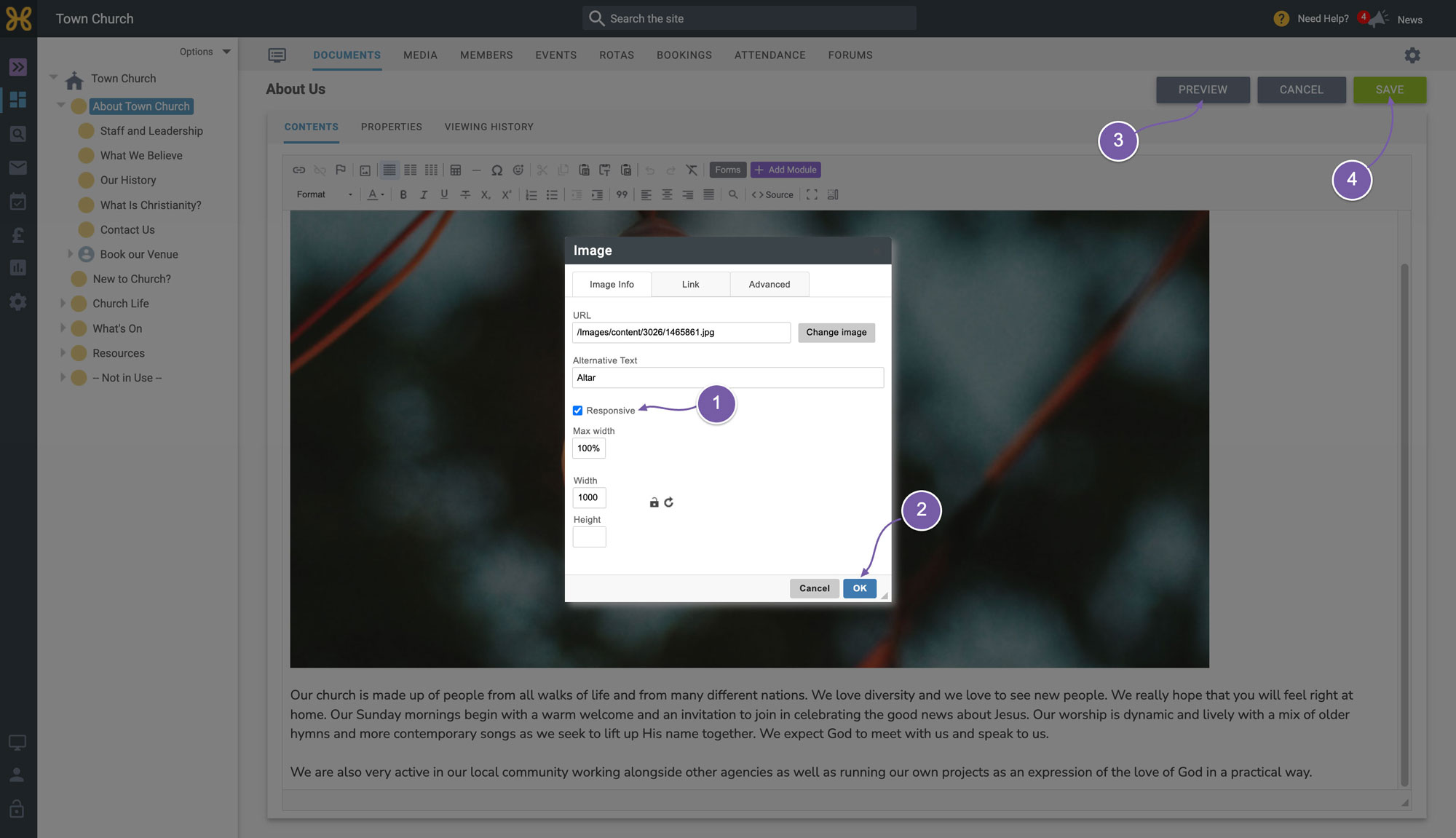
When it's selected you will see the “Image Properties” dialogue box.
-
By default, this image is set to work well on a phone or small tablet as well as on larger screens.
-
All you need to do is click “OK” and take a look at your article.
-
You can click on preview at the top right of the screen to see how the page is looking.
-
When you are happy with your article you can click “Save”.
So, you now know how to add images to your articles to make them more engaging for your website visitors. Before you start working through your site adding images it's important to think through using the best image sizes for the content.
So please watch our
next video on using our built-in image editor to help you crop and resize your images to be optimised for desktop, tablet and mobile screen widths on your Hubb website.