Editing a Web Page and adding links
(4 minutes)
One of the first things you will want to do on your trial site is make the content on your website specific to your church. Take a look at this video for an introduction to the Editor
Sorry, your browser is unable to play this type of file.
You can still
download it
In this example we are going to look at some basic editing of an article to help you get your website content in order. We have another video about adding images and making sure they look good on phones and tablets. For now, we are going to look at adding text and links into an article.
We will edit the “About Town Church” page.
-
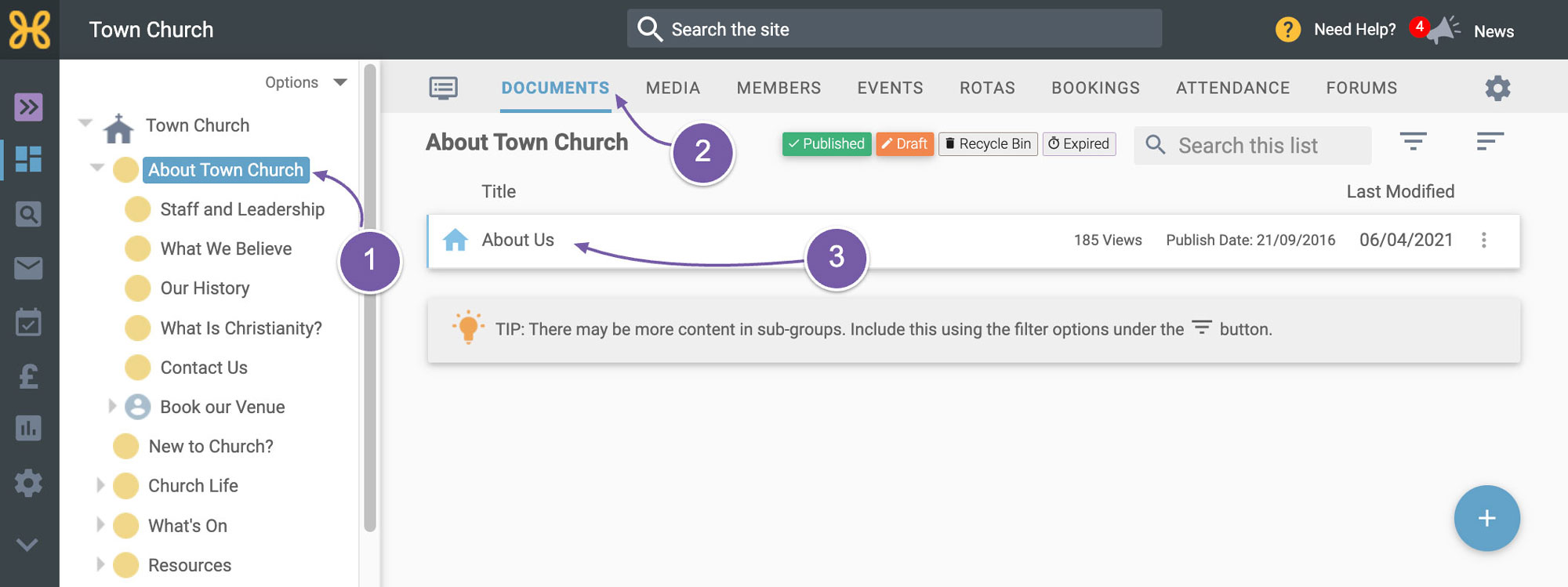
Click on the “About Town Church” group in the group tree on the left
-
Click on the “Documents” tab
-
Find and click on the “About Us” article to go into the editor.
-
When you want to add text to your page, it's easy to just use the editor to write as you would in Microsoft Word or a Google Doc. Just start typing some text.
-
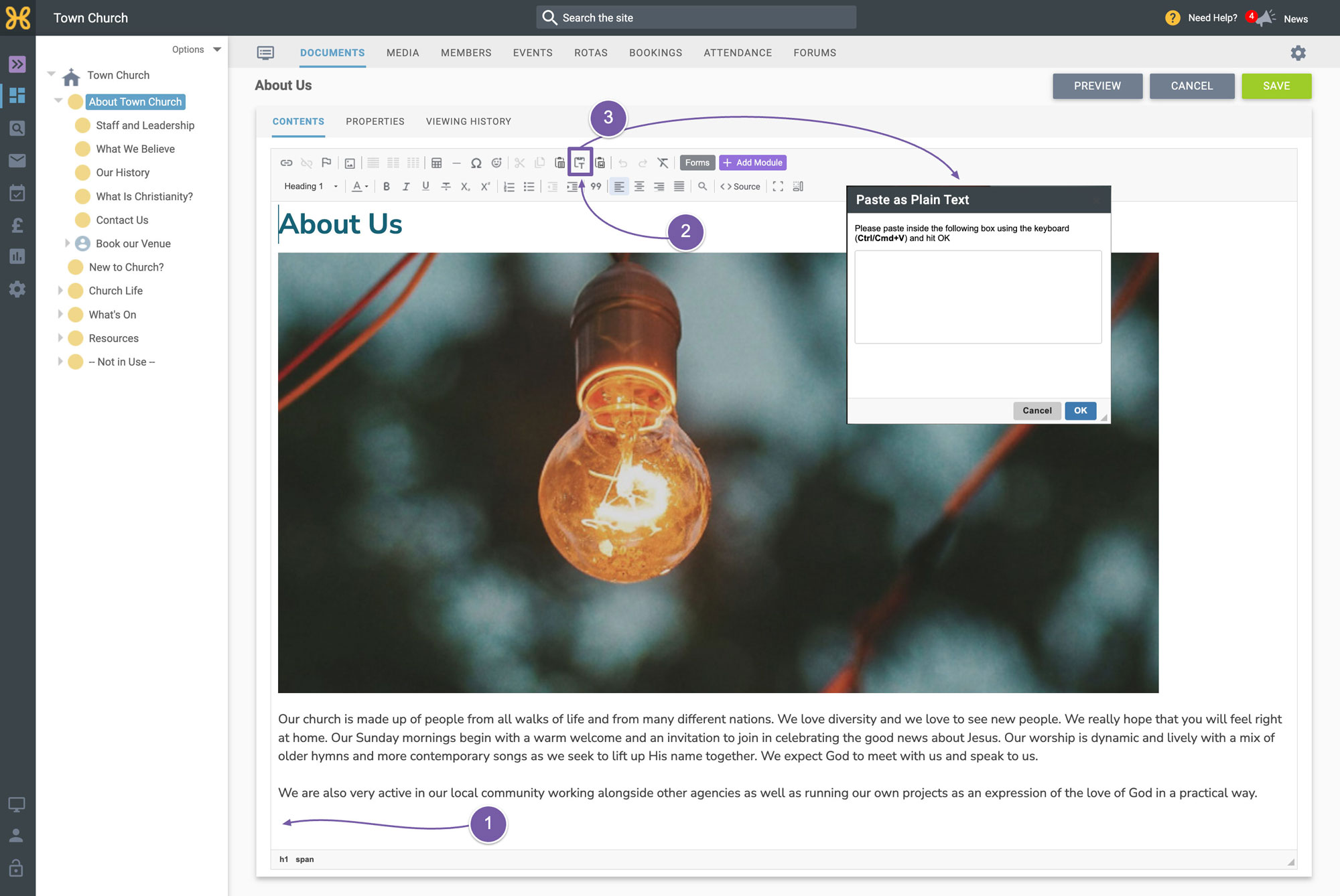
But if you have got text somewhere else already, you can also copy and paste text into this article by clicking on the “Paste as Plain Text” icon on the toolbar.
-
Then paste your copied text into the window which pops up. We use this tool because it strips away formatting from the place the text was and makes it plain for us to format using the tools in Hubb. By using our formatting options, the overall site will stay consistent and give your users a better website experience.
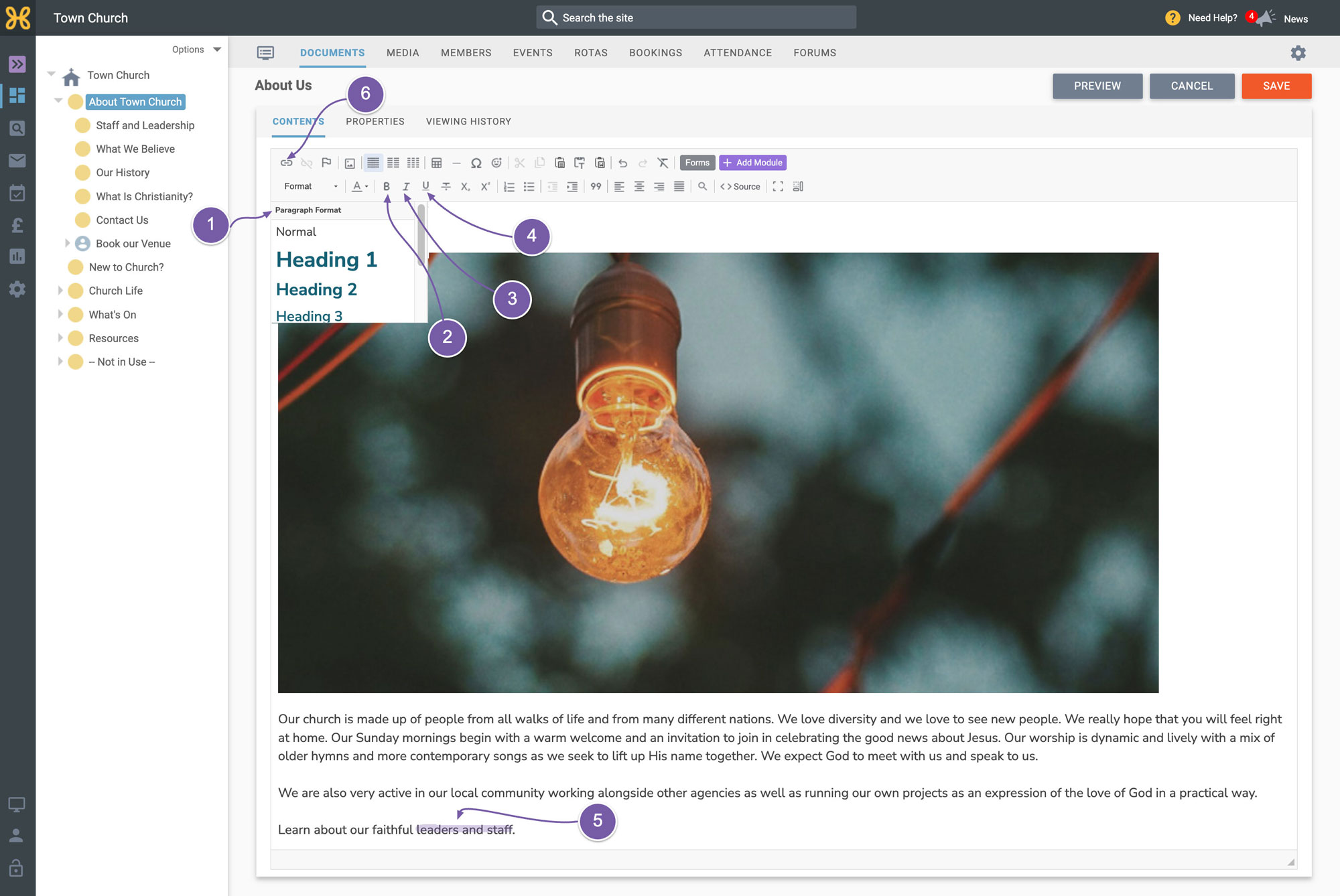
To format the text, you can select:
-
Heading style
-
Bold
-
Italic
-
Underlined
-
To add a link to some text, just highlight the text you want to add the link to
-
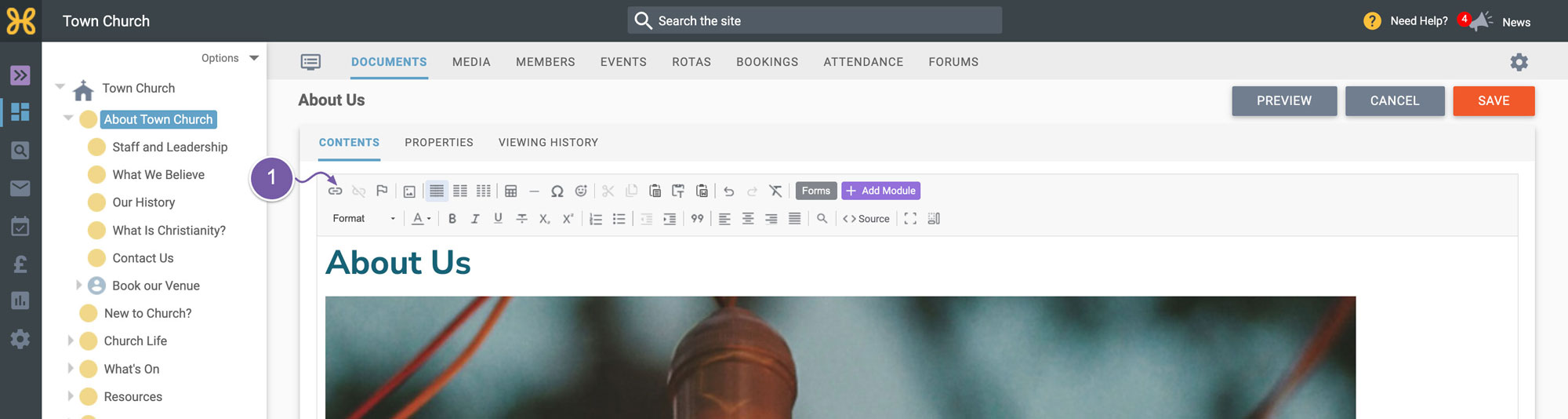
Click on the “Add Link” icon on the toolbar.
To
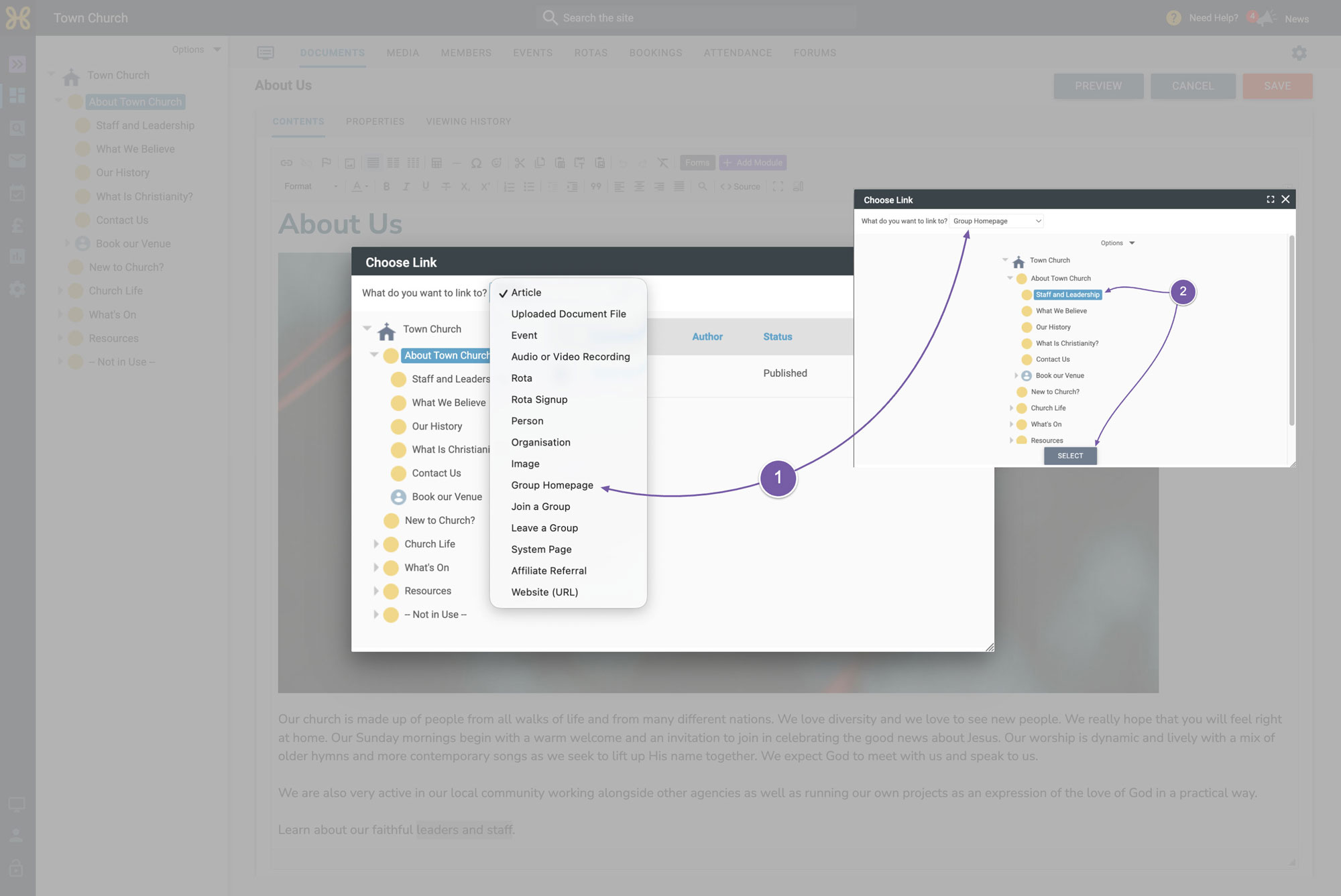
link to a group homepage:
-
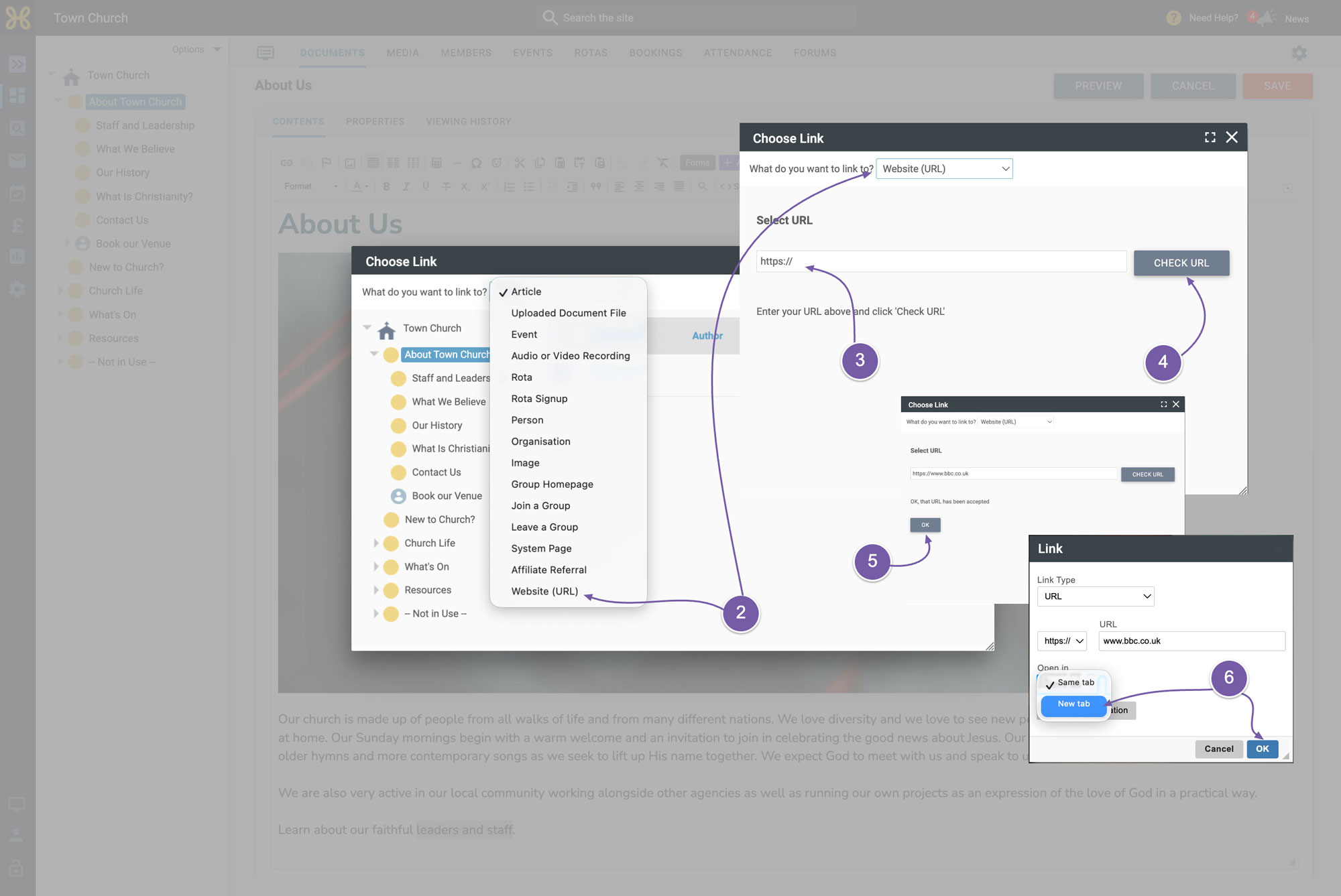
Select “Group Homepage” from the dropdown menu
-
Then pick the group you want to link to and click the "Select" box to confirm your choice.
If you want to link to a page on another website, then go through the same process:
-
Highlight the text you want to add the link to and again click on the “Add Link” icon on the toolbar.
-
On the dropdown at the top, select the “Website URL” option at the bottom.
-
Type in the website address you want to link to.
-
Then click “Check URL” to make sure it is a valid link
-
When that's confirmed, click “OK”.
-
Then on the link confirmation box, change the open in the "Same Tab" dropdown to be “New Tab” and click “OK”. This will make sure that when people click on the link it will open in a new tab so they will still have your site open.
-
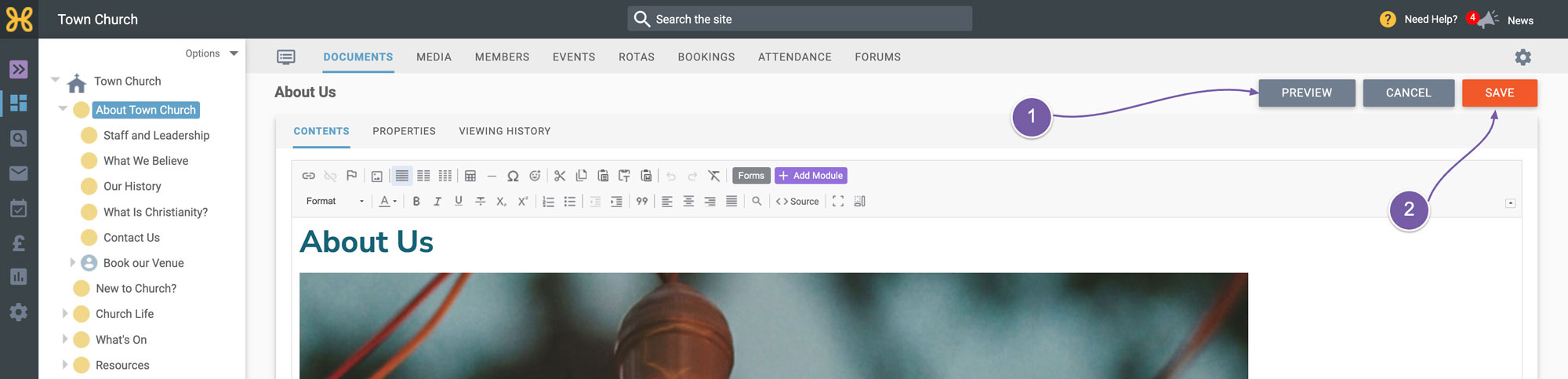
If you want to look at a preview of your article on the site at any time, just click on the “Preview” button at the top right of the page.
-
When you are ready to publish the changes, just click “Save”. If you are editing an article and you make a change, the “Save” button goes orange to indicate there are pending changes. When you click “Save”, the button will go to green to indicate that the article is saved and there are no pending changes that need saving.
Now you know how to add text and links to your pages. You can watch the next video in our guide to learn about adding images to make your pages more engaging.