How to update the NEW LIFE and GRACE templates
The NEW LIFE and GRACE templates use two folders of images on the homepage, plus a background image. You’ll find them under the Media tab on the root group.
Use the right image sizes
Upload your images at the sizes given below. If they’re the wrong size, the homepage won’t display correctly for your visitors.
Slideshow images
The slideshow images live in the ‘Hero Slideshow’ folder, and you can add whatever images you need, at 2000 pixels wide by 750 tall. There’s a guide to uploading an image if you need it.
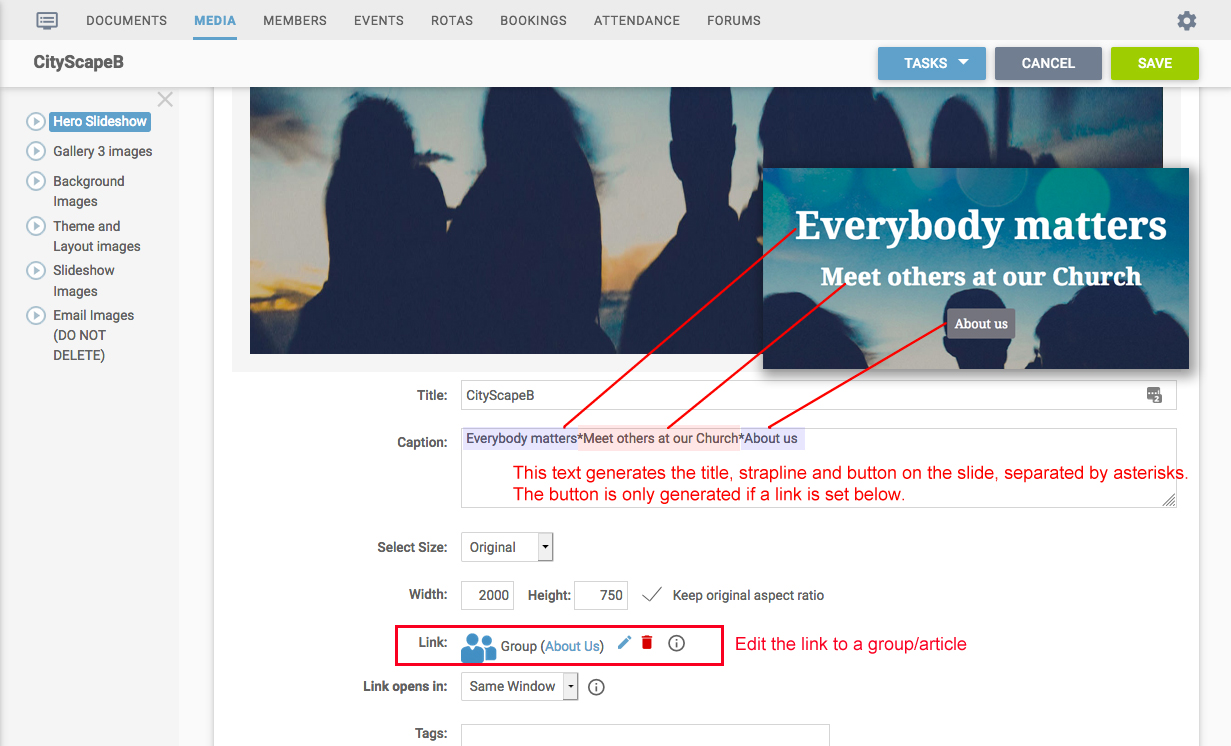
The caption on each image sets its text and its button. The parts are separated by asterisks: the first is the title, the second the strapline, and the third the button text. The button only shows if the image has a link, and there’s a guide to adding links if you need it.
Gallery images
The smaller images at the bottom of the homepage come from the ‘Gallery 3 Images’ folder, at 800 pixels wide by 400 tall (made larger than needed so you can reuse them elsewhere without losing quality). Add new ones and remove any you don’t need.
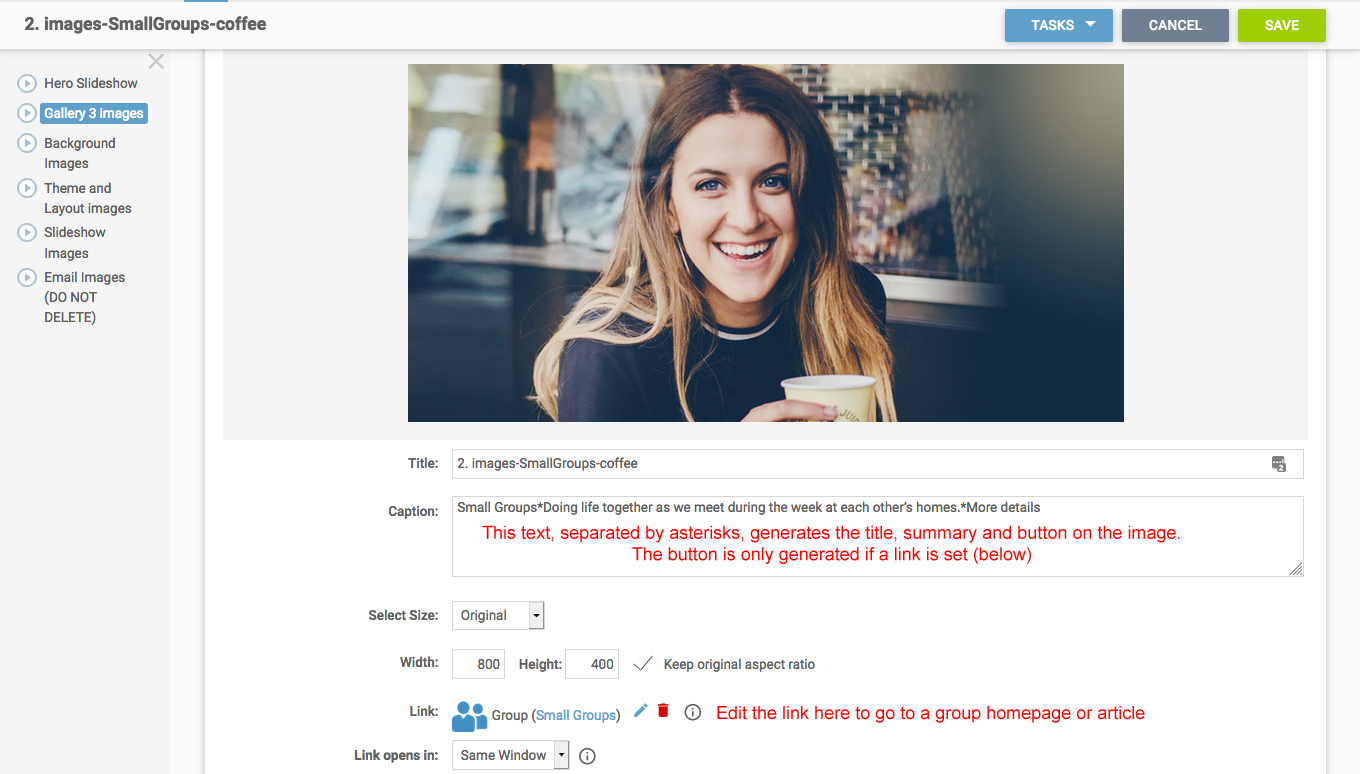
There are three images in this folder, shown in alphanumeric order, so renumber them to change the order. The name shown under each image on the homepage comes from the caption field.
The background image
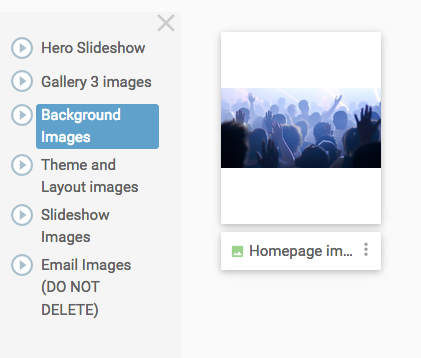
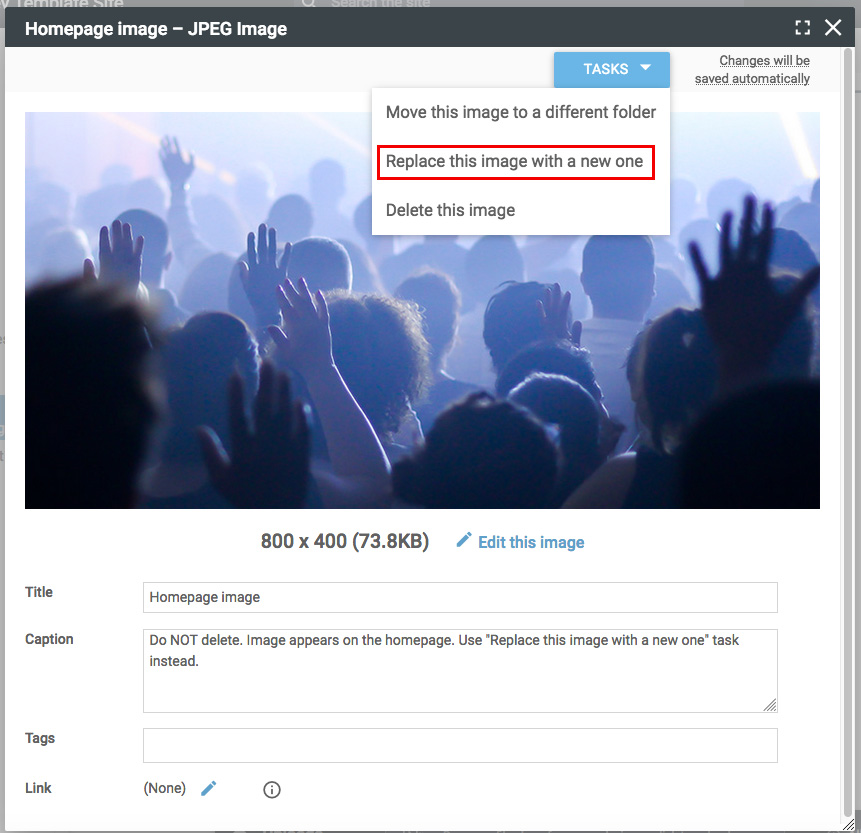
There’s a background image on the homepage stored in the ‘Background Images’ folder. To change it, select it and use the ‘Replace this image with a new one’ task.
Still stuck? We’re real people.
Raise a support ticket and our UK team will get back to you.
Contact support