How to hide a page from your menus
Groups are the building blocks of your site, and normally each one earns a spot in your menus. But sometimes you want a page that’s live without being listed: a campaign landing page, a page for one event, or something you only want to share by link. This guide shows you how to take a group out of the menus while keeping the page itself working.
Hiding a group from the menus
-
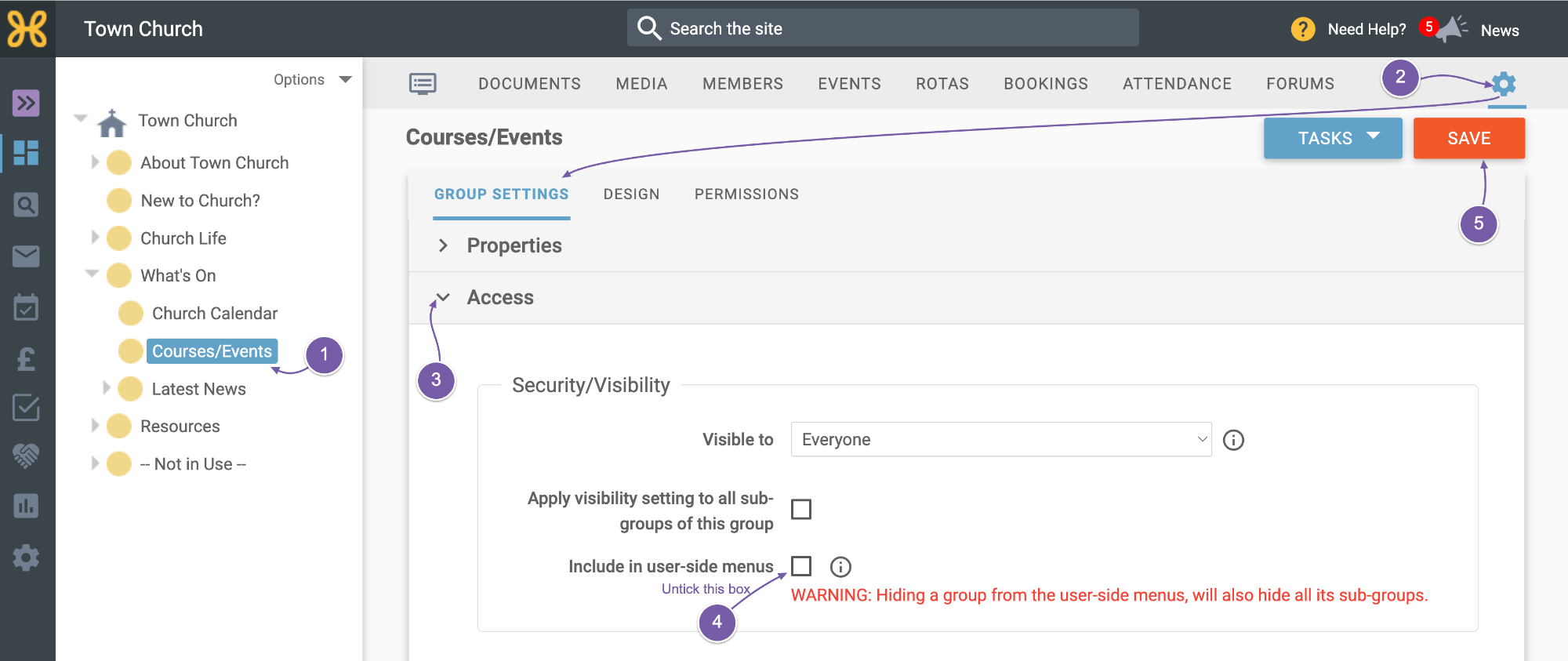
Log in to your web office and select the group in the group structure on the left.
-
Click the settings cog at the top right to open the Group Settings tab.
-
Open the Access section.
-
Untick the ‘Include in user side menu’ option.
-
Click ‘Save’, then check your live site: the page has gone from the menus, but anyone with its address can still reach it.
Good to know
-
A hidden page is unlisted, not private. Anyone who has the link can see it, which is exactly what you want for a landing page. Pair it with a short URL and you’ve got a tidy address for your publicity that never clutters the menu.
-
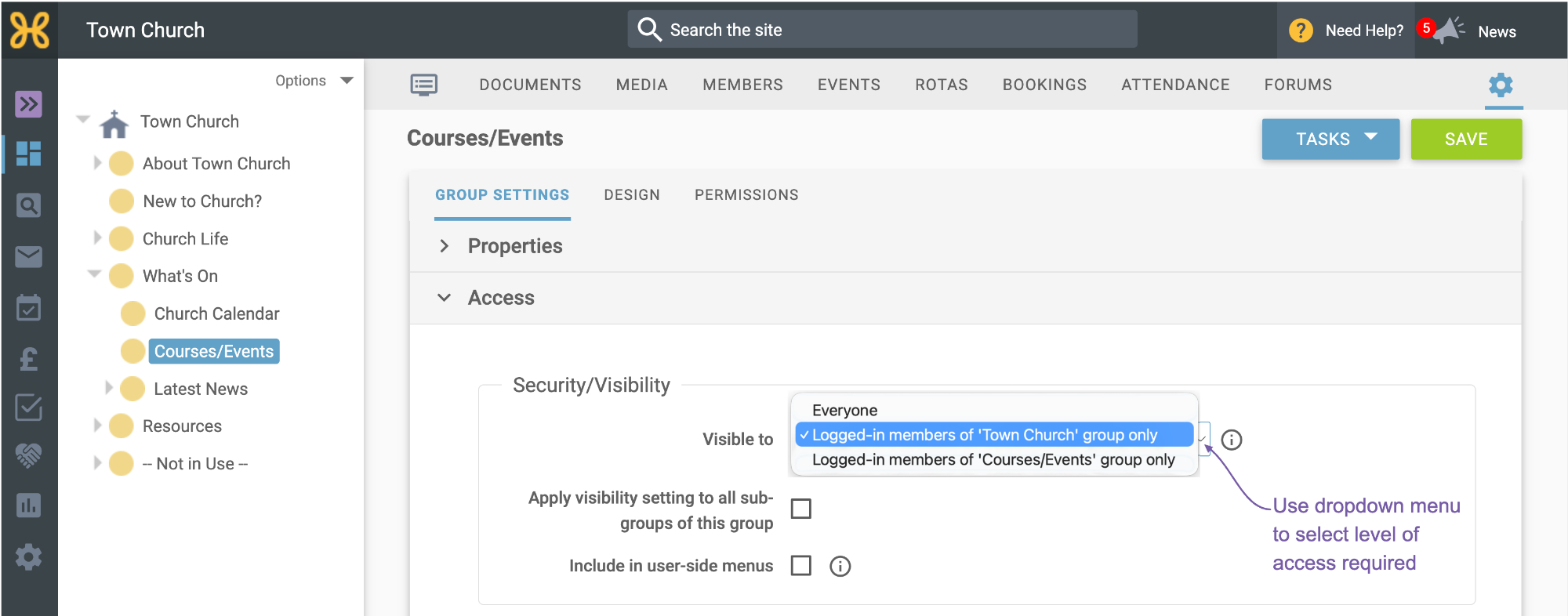
If the page should be genuinely private rather than just unlisted, the same Access section lets you restrict who can see the group, for example to logged-in members only.
-
Menus hide empty groups automatically: a group with no published articles won’t appear even with the menu option ticked. So if a new page isn’t showing, check it has a published article before checking anything else.
-
The change is live as soon as you save, and ticking the option again puts the page straight back in the menus.
Still stuck? We’re real people.
Raise a support ticket and our UK team will get back to you.
Contact support