Setting your social media links
(2 minutes)
You can add your social media links to your website very easily.
Sorry, your browser is unable to play this type of file.
You can still
download it
When we set up your trial site, we add in any social media links that you give us when you fill in our free trial form. If you missed this, then you can easily add these links to your site.
To check the links on your site:
-
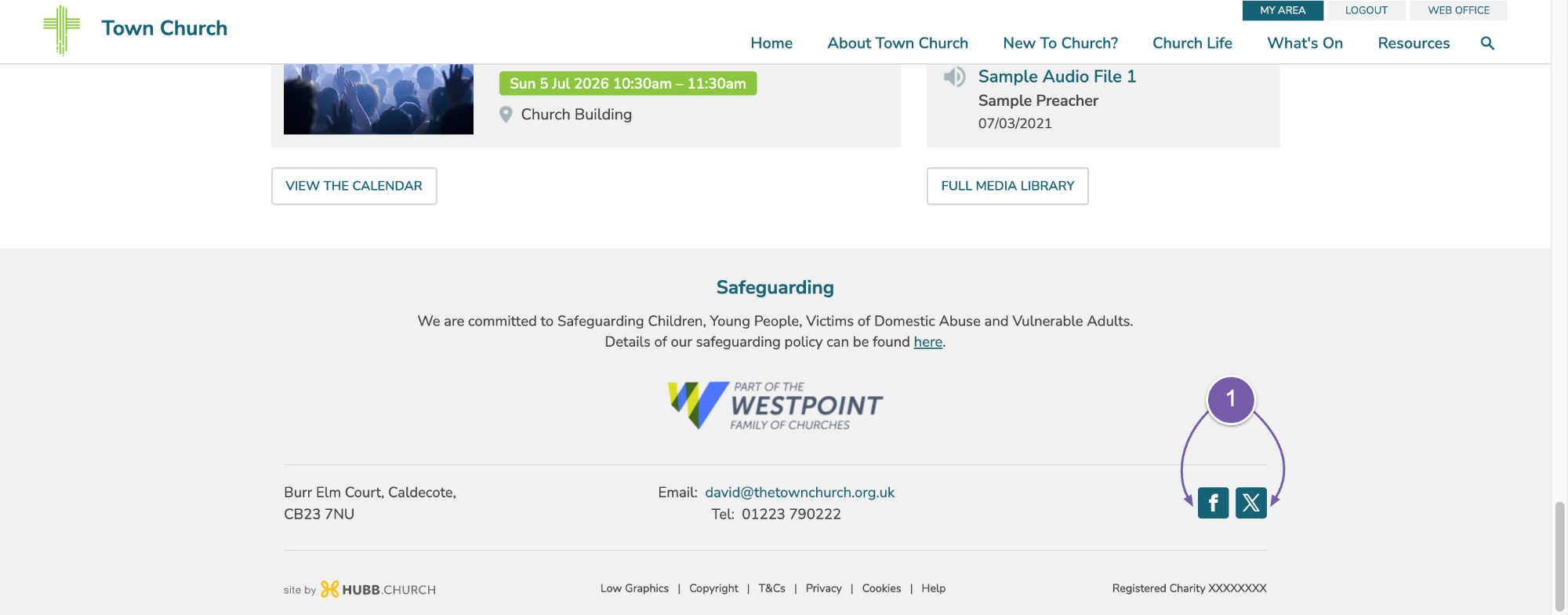
Go to the bottom of your trial site and see which social media icons are showing, and hover over the icons to see the links, or click on the icons and see if they go to the right place.
To edit or add your links:
-
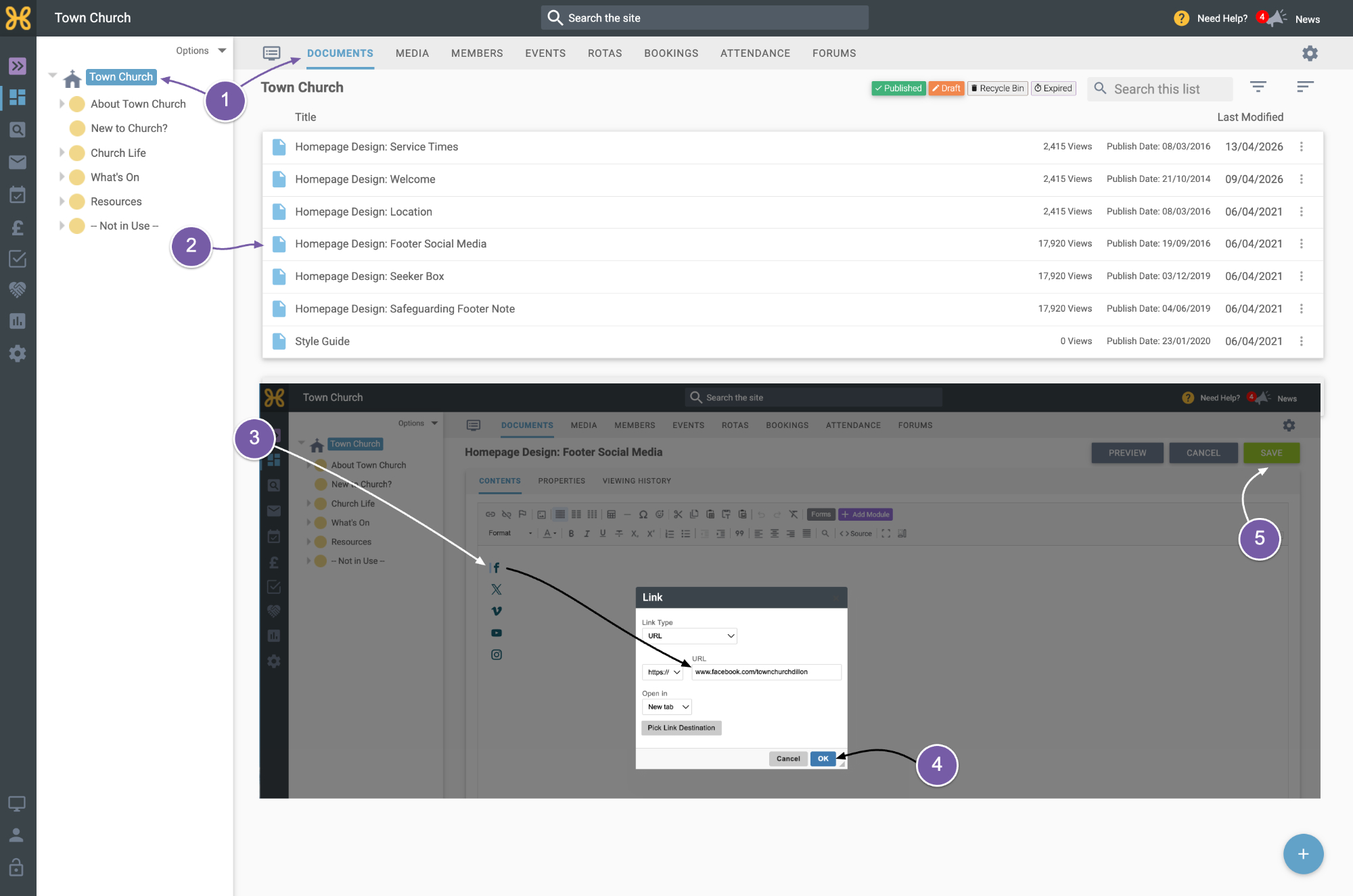
Go to the Web Office. On the top group, in the Group Tree of the Site Manager, click on the “Documents” tab,
-
Then click on the “Homepage Design: Footer Social Media” article to go into the editor.
-
All you need to do is double click on the social media icon you want to edit or add, and change the URL to what you want.
-
When you are done, click “OK”.
-
Repeat this for any other social platform, and then finally Save your article.
If the social media platform you need is not there, please contact our support team on support@hubb.church and we will add it for you.