How the Latest News page works
(3 minutes)
A brief guide to show you how to use the latest news feature of your website.
Sorry, your browser is unable to play this type of file.
You can still
download it
You can use your website as a major part of your church’s communications strategy. We have given you a “Latest News” area on your trial site so you can easily write your news to keep your members and the community up-to-date.
Talking about communications strategy, we’ve often been asked for advice about what churches should do. Our answer has been, write your news on your website, then use the link to the news item and post it on your social media accounts, mainly X and Facebook. This can be done in a few seconds. Finally, get a mailing out with that news to your members. Of course, with our app the news will also be displayed there too.
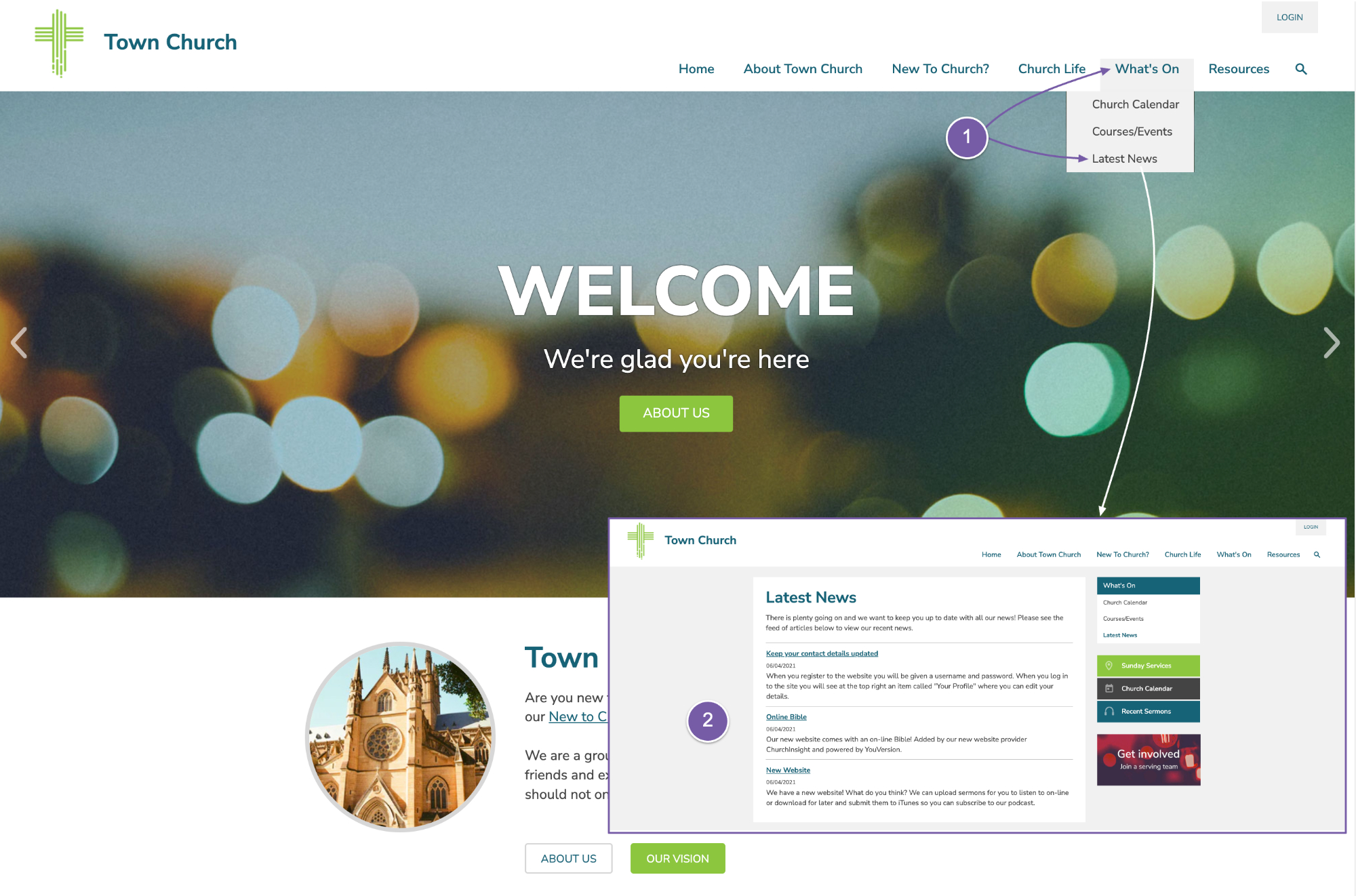
So let’s look at this “Latest News” page on the front of the site. To get to it:
-
Go to the “What’s On” menu and click on “Latest News”.
-
You will see that we’ve put some dummy news items up. Some may actually be relevant when you come to launch the site, so it would be worth looking over each one and think about tweaking each to suit you. It’s really easy to add new stories to this page. You just need to write a new article, give it a title and summary, then click “Save”.
-
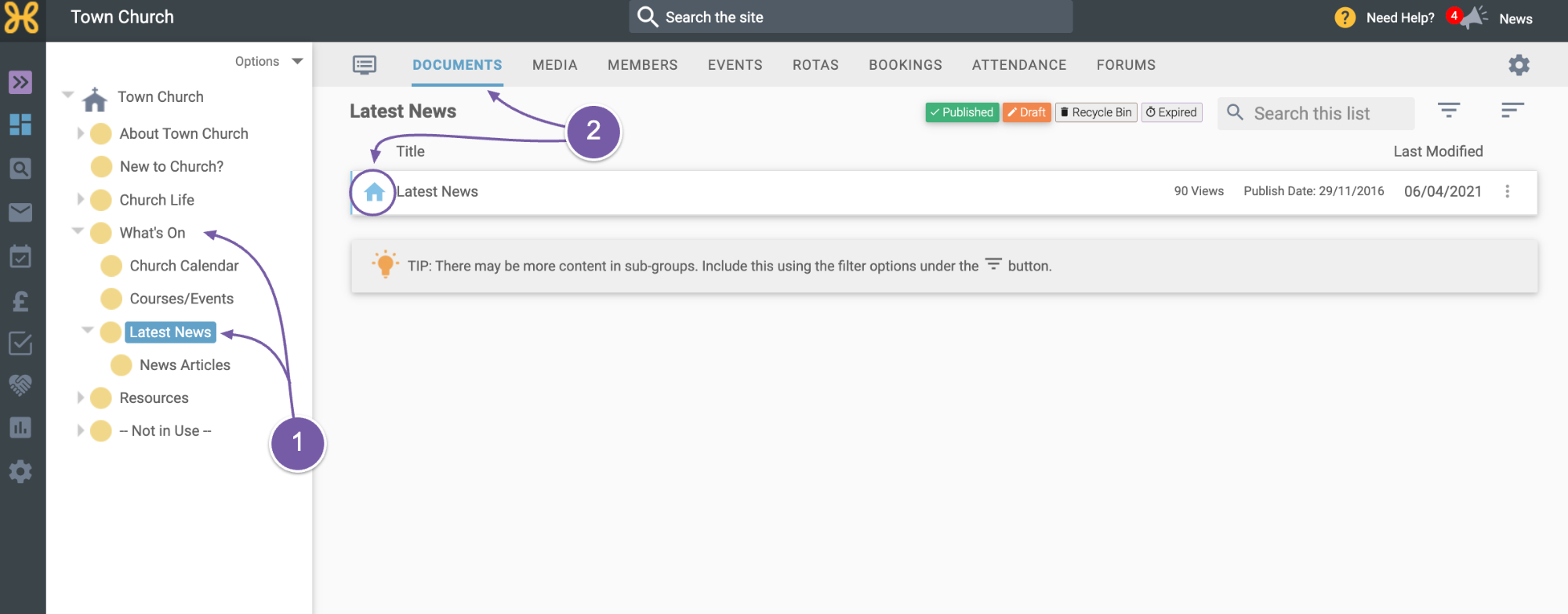
Let’s jump back into the web office and find the group under “What’s On” and “Latest News”.
-
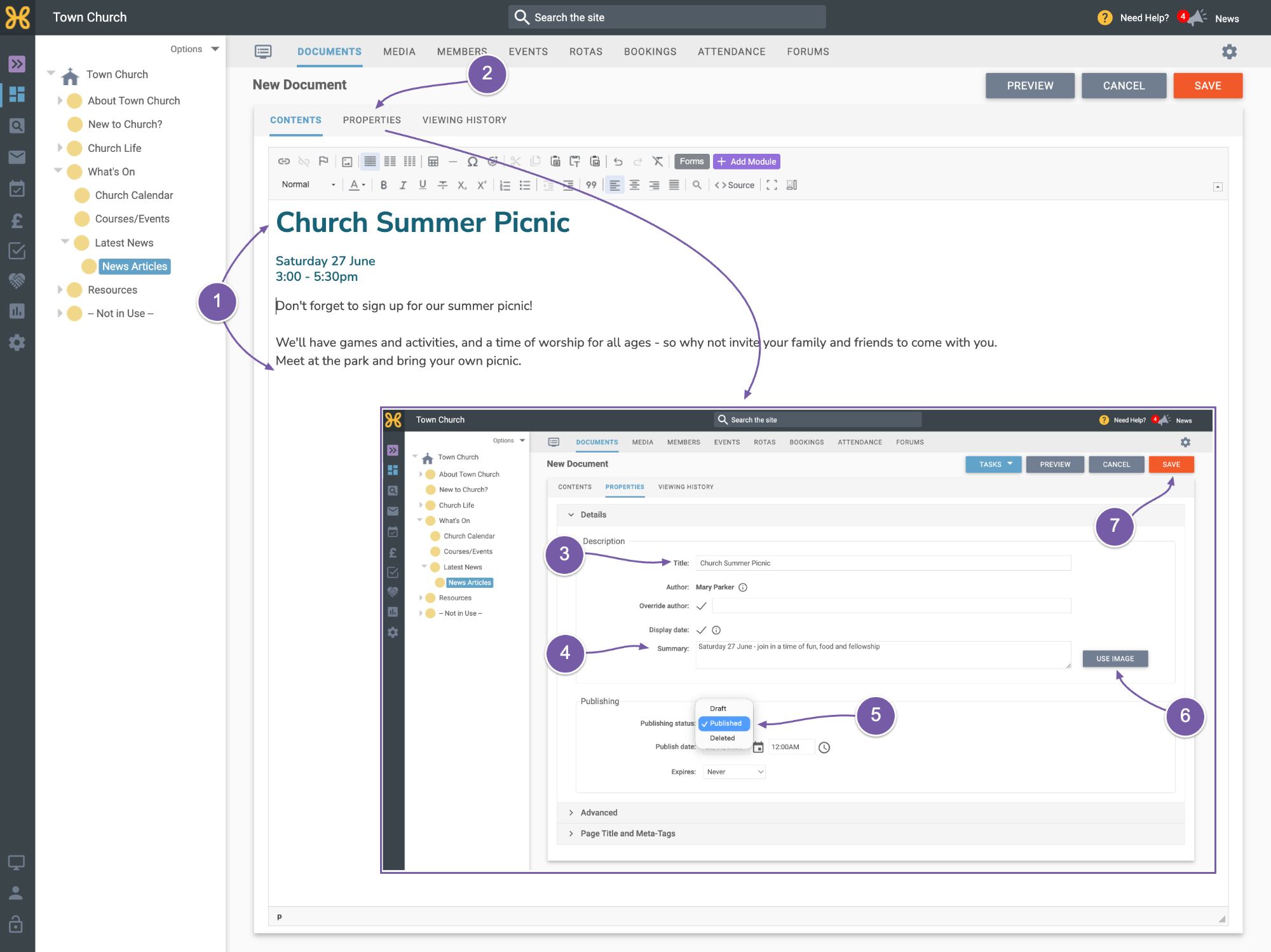
If you click on the “Documents” tab, you can see the Group has a “Group homepage”. You don’t need to edit this article at all – it has a module in it that shows all of the articles in the group below, which is called “News Articles”.
-
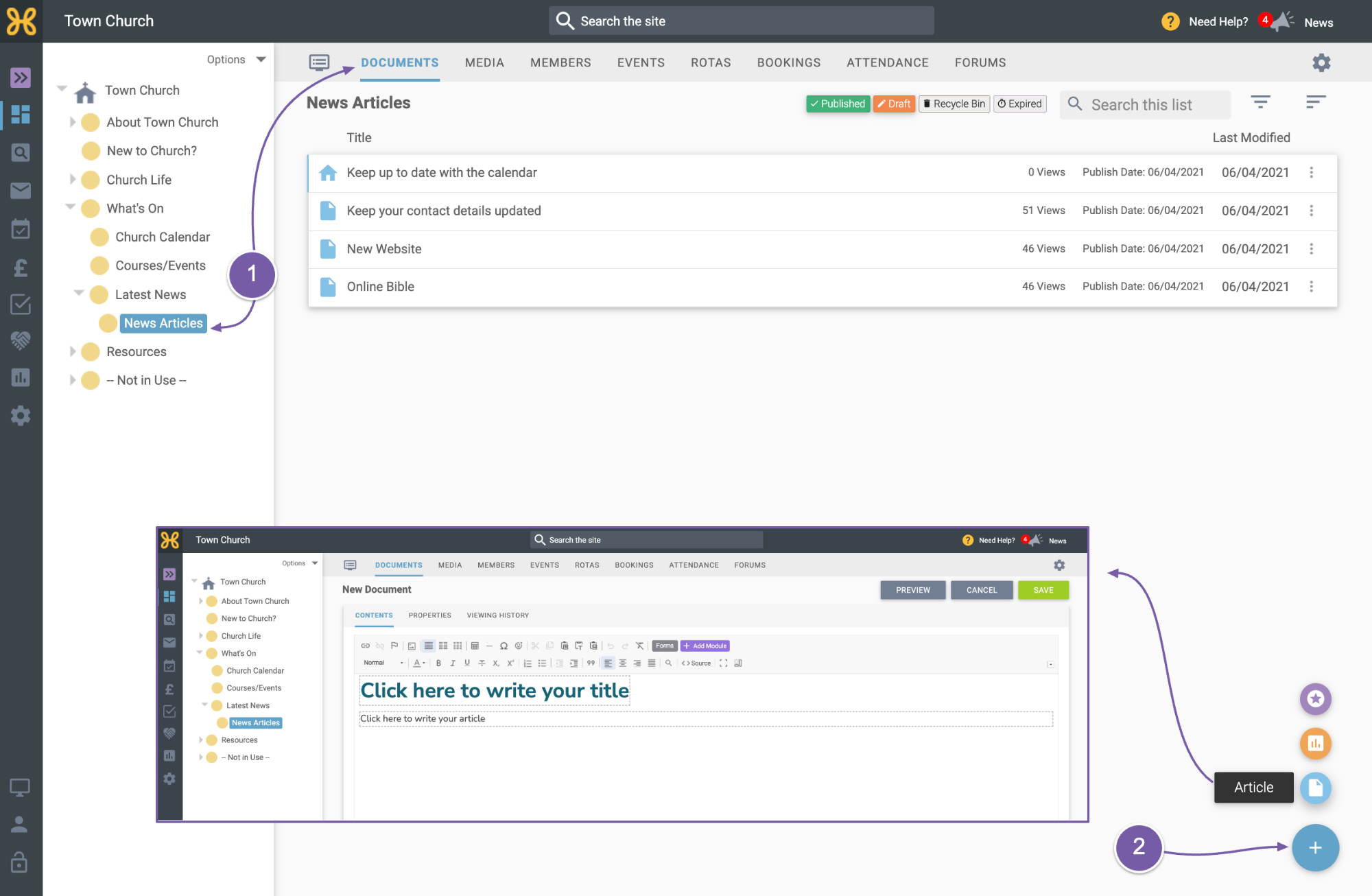
All you need to do to write a new article is go to that “News Articles” group on the “documents” tab,
-
Click on the blue “+” icon at the bottom right of the screen to add a new article.
-
If you’ve been following our Launch Guide, you’ll be familiar with writing articles and you can add your text, images and set links on the page.
-
When you’re done, just go to the “Properties” tab,
-
Give it a title
-
A summary
-
And set the publishing status to “Published”
-
You can also set the summary image that will display on the app. We recommend that you use the “feature image” size of 800 x 400 pixels.
-
When you are done, you can click “Save”.
Setting Publication date and Expiry date for your News articles
-
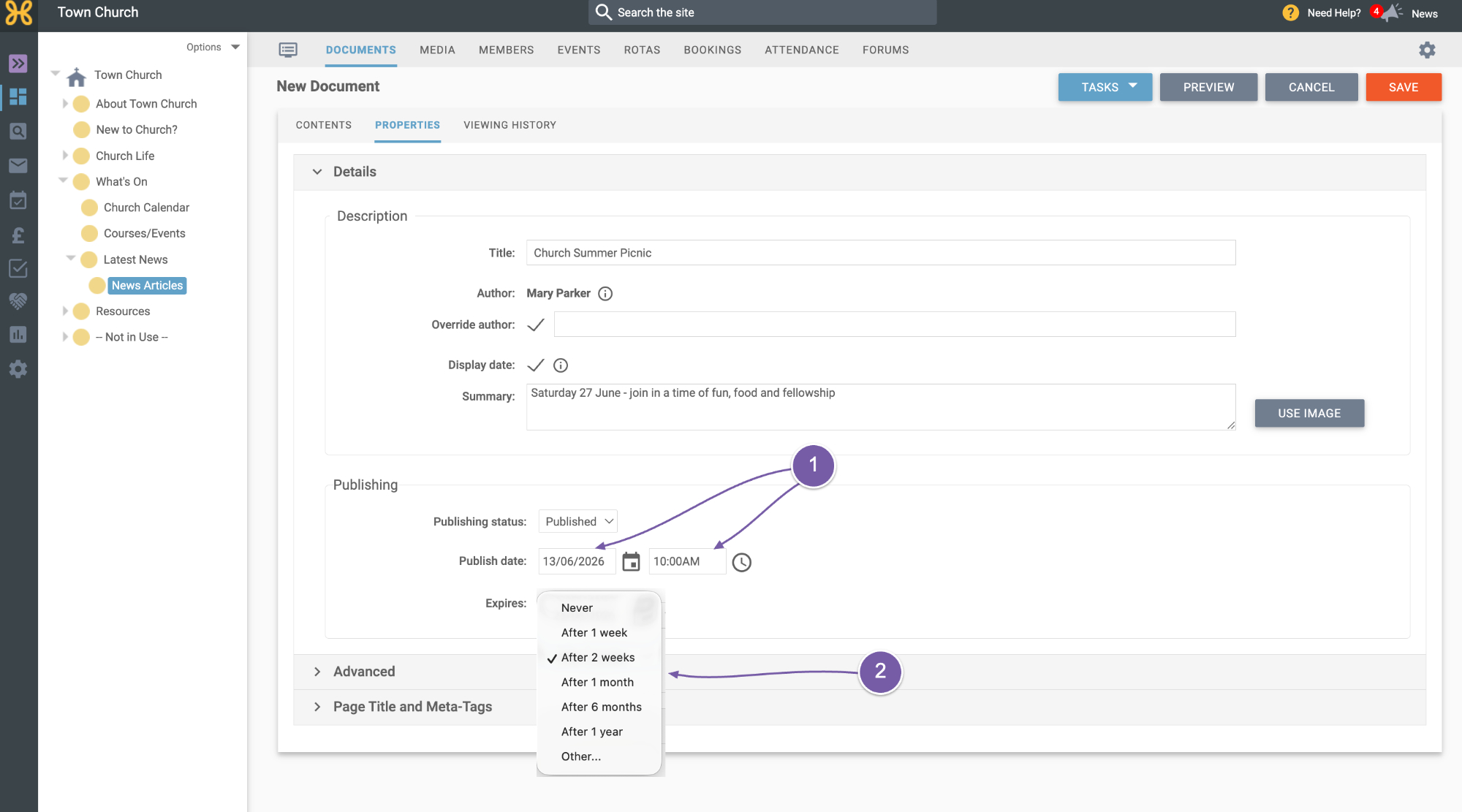
The last thing we’d like to share with you is a little tip that you can add a future publish date and time to your article, which means that it will only show up when that date or time has been reached.
-
You can also set an expiry date, so the article will become unpublished and removed from the public-facing website.
This is really useful to forward plan your communications.