Sermons Page v Sermon Series
(5 minutes)
We have two ways to present your sermons to your audience. First is a basic sermon library that is easy to use and very functional. Secondly, you can opt to group your sermons into series and show a more image based view.
Sorry, your browser is unable to play this type of file.
You can still
download it
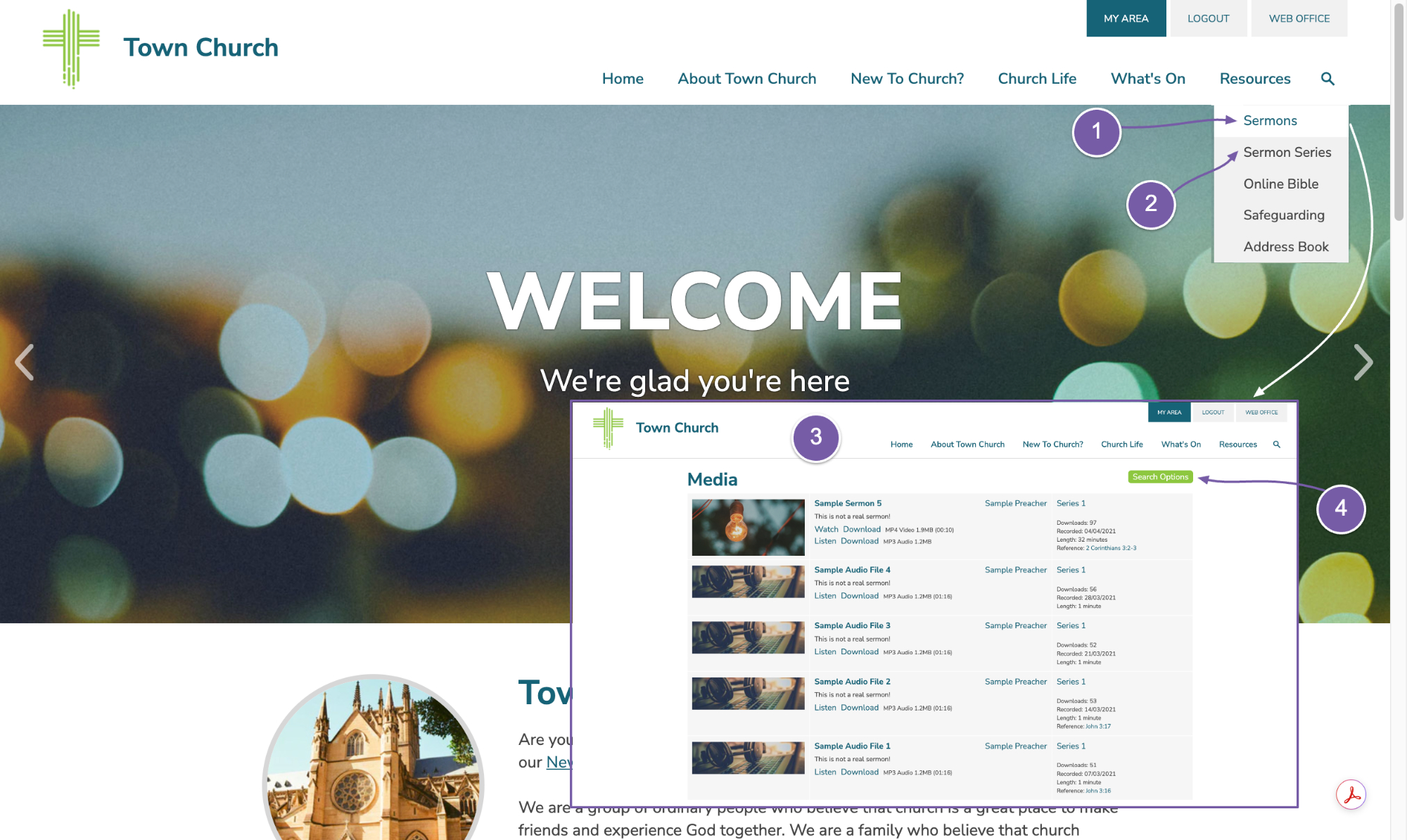
The Aspire template that we give you for your trial has two options for managing your sermons - on the website we can see both options in basic form under the Resources menu:
-
Sermons list that just lists all your sermon audio, video and notes in one list
-
Sermon series – a much more visual and advanced way of displaying your sermons, grouped in series and with the ability to have images for each series displayed in a really nice interface.
-
Let’s first look at our Sermons page. This is what we call a ‘system page’ as it is the same for every site that uses Hubb. One important thing to note is that the look and feel of this page is not customisable beyond the colours and fonts. This page displays all audio video recordings in your Hubb system by date order, and gives a fair amount of data about each. You can add many files about each recording – for example, a sermon may contain an audio file, a video file, and even a PDF of sermon notes. All of these will be displayed in this list, with the option to watch, listen or download the various files. If you add an image for the recording, that will also show up in this list.
-
There are also some powerful search and display options in the “search options” at the top right.
This is a really functional and good-looking way to display your media, and the page automatically updates as soon as you save a new recording. This is perfect for any church that needs the sermon uploading process to be as quick and easy as possible.
-
If we now look at the Sermon Series page, again under the “Resources” menu,
-
you can see a nice, large banner image at the top of the page,
-
a search box,
-
the two most recent sermons,
-
and the list of series.
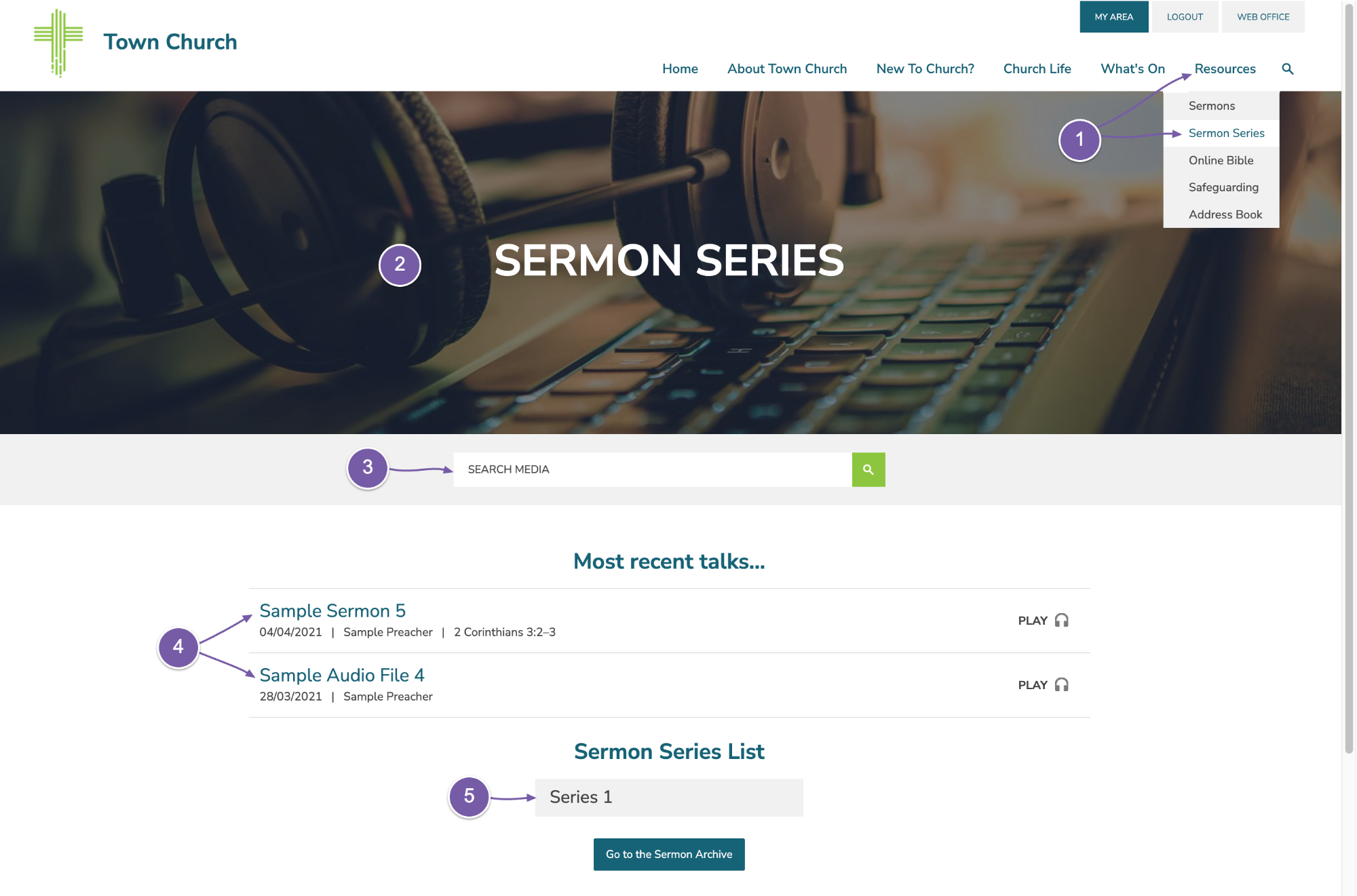
Of course, when you get your trial, we only give you a few files so you can’t see the full effect on this page.
So let’s take a look at a site that’s been using this. We’ll open up the demo church website for The Town Church and navigate to the “Sermon Series”.
-
This is the same page layout, but it shows many more sermons, with images.
-
At the bottom of the series there is a button to view older series, which displays more series
-
and then a button to view the Archive. This actually takes you to the standard sermon view that indexes all sermons in date order.
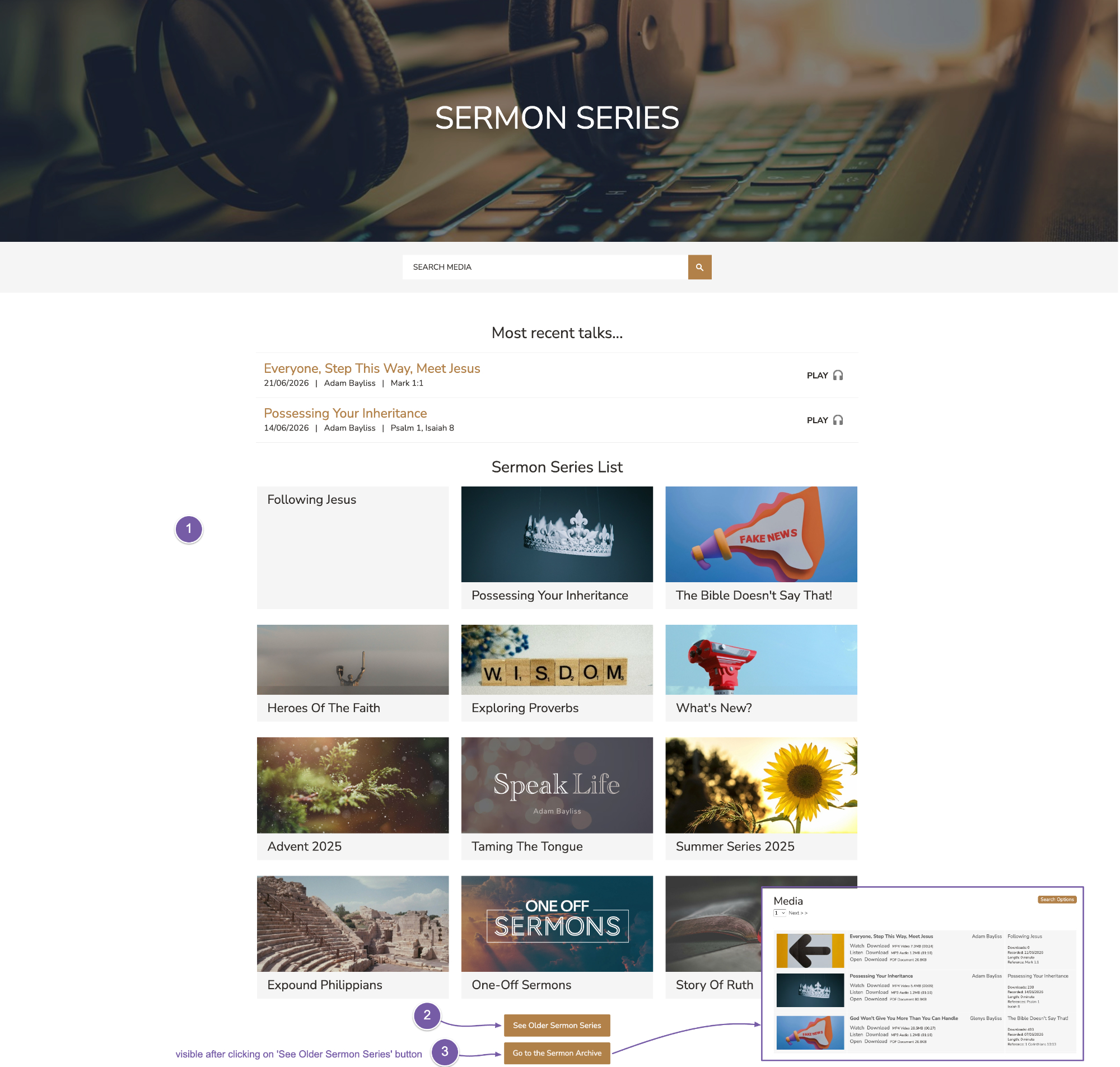
The sermon series approach does take a little longer to maintain, as you need images for each series, but with just a bit of effort, you could end up displaying your messages better than ever before. You can also find licence-free images online and use our built-in image editor to quickly crop them to size.
The last thing we want to tell you about sermon series is what we’ve done on our demo site. We created a series called ‘One off sermons’. Any time a visiting preacher comes, we file their sermon in there, and that’s why the last two sermons appear first on the page, just in case the latest sermon is not in the latest series.
So you can choose which method you wish to use. It’s important to hide the other option so you don’t have both appearing in the menus, and here’s how to do that:
-
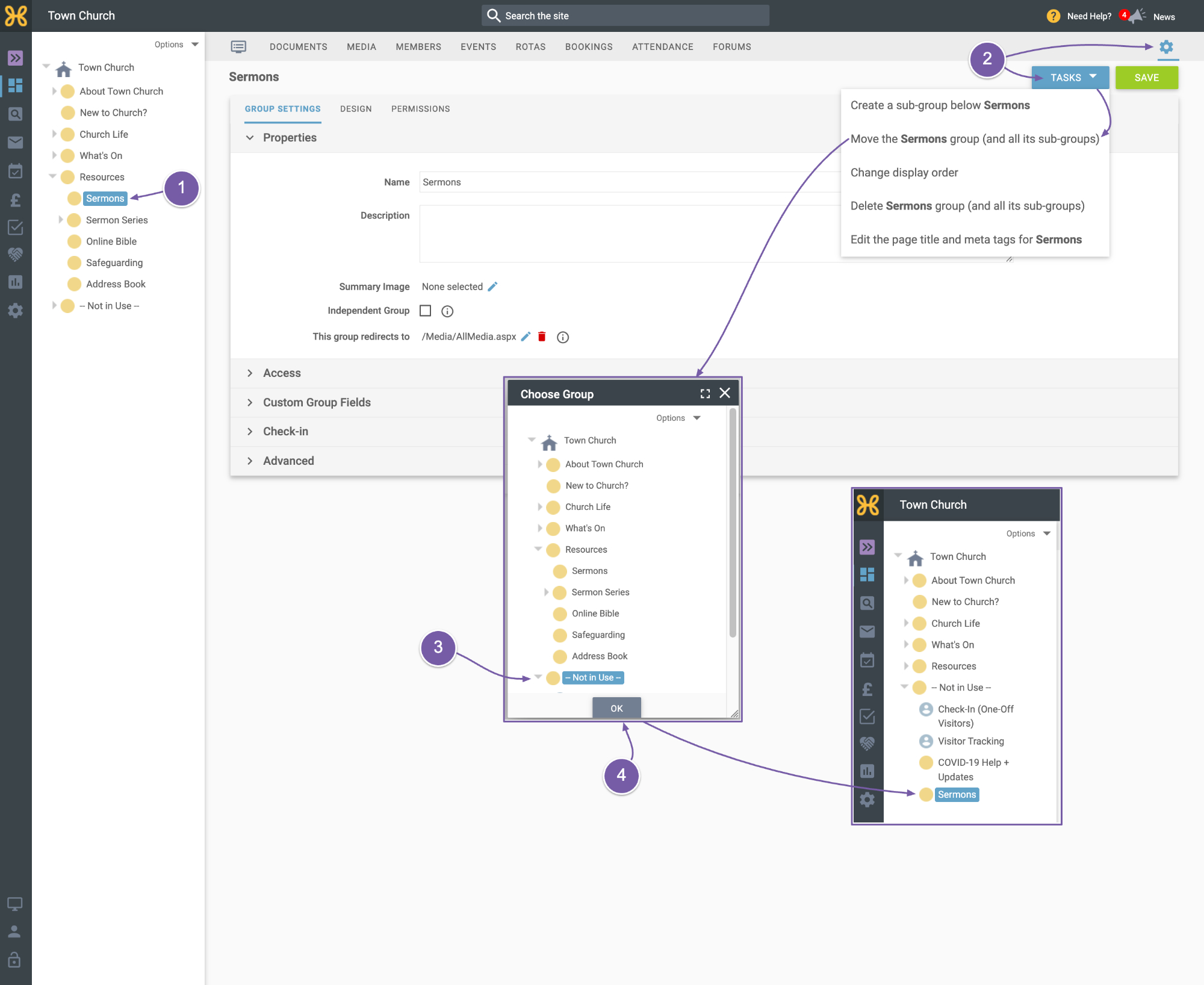
Go back into your web office and find the group you don’t want to use – “sermons” for this example
-
Click on the “Group Settings” tab, use the “Tasks” at the top right to Move the Group.
-
We want to move this Group to the “Not in Use” group at the bottom of the Group Tree. This means that it will not appear in the menus, but if you want to use it in future, you can.
-
Just click “OK” when done and you will see on the left hand side that the group has moved.
I hope this video has been helpful and you enjoy showcasing your teaching on Hubb. In our next Help section we will show you
how to upload your sermons to your site.