Managing Enrolment
Sorry, your browser is unable to play this type of file.
You can still
download it
-
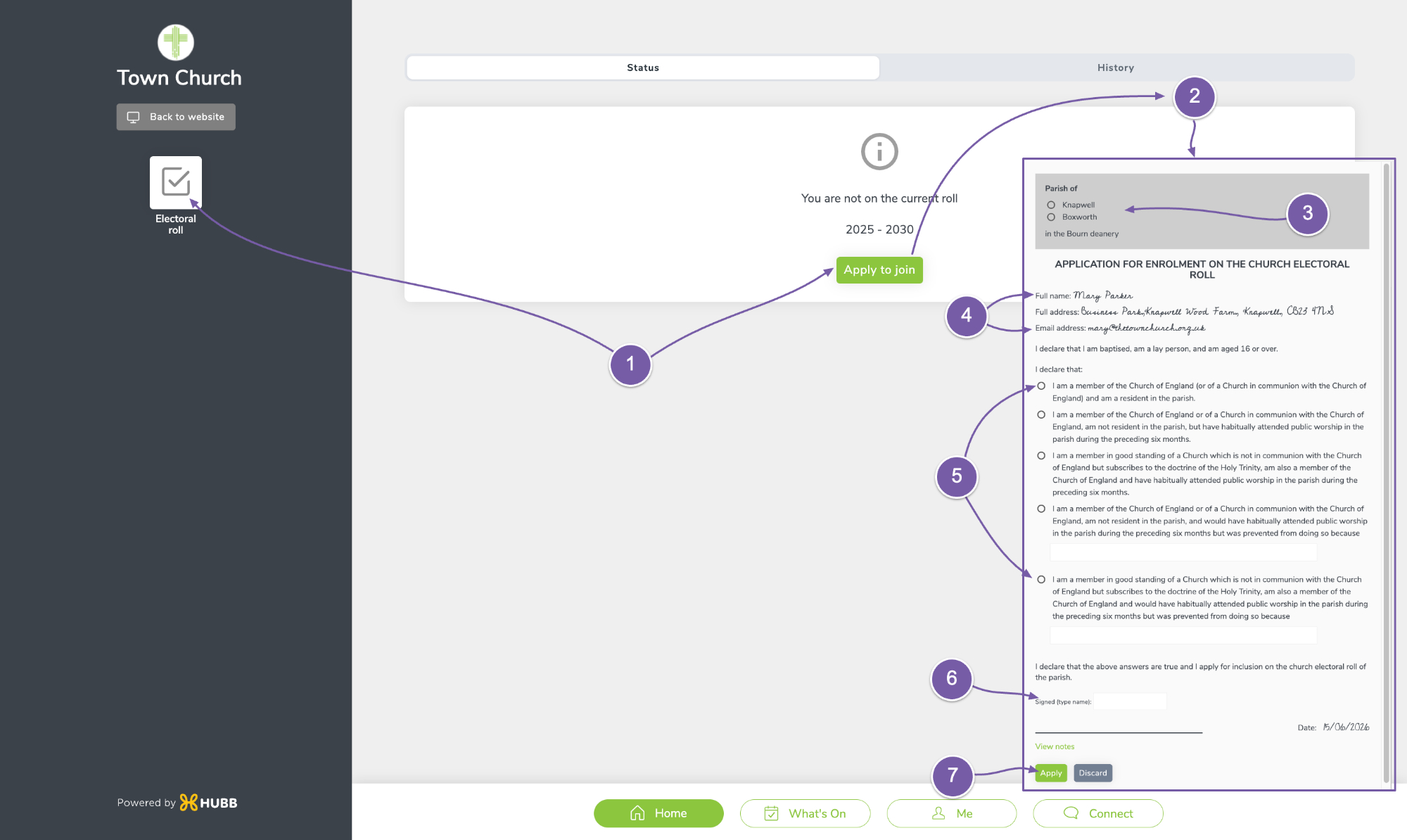
When a user logs into their account and goes to the “Electoral Roll”, they can click “Apply to Join”.
-
They will then see the form to fill in.
-
First, they must choose the parish if you have more than one.
-
Because they are logged in, Hubb can pre-populate the user's name, address and email.
-
Then they choose their declaration, adding any notes where required.
-
When they have made the declaration, they simply type their name in the box and Hubb generates a signature.
-
Lastly, they need to click Apply.
-
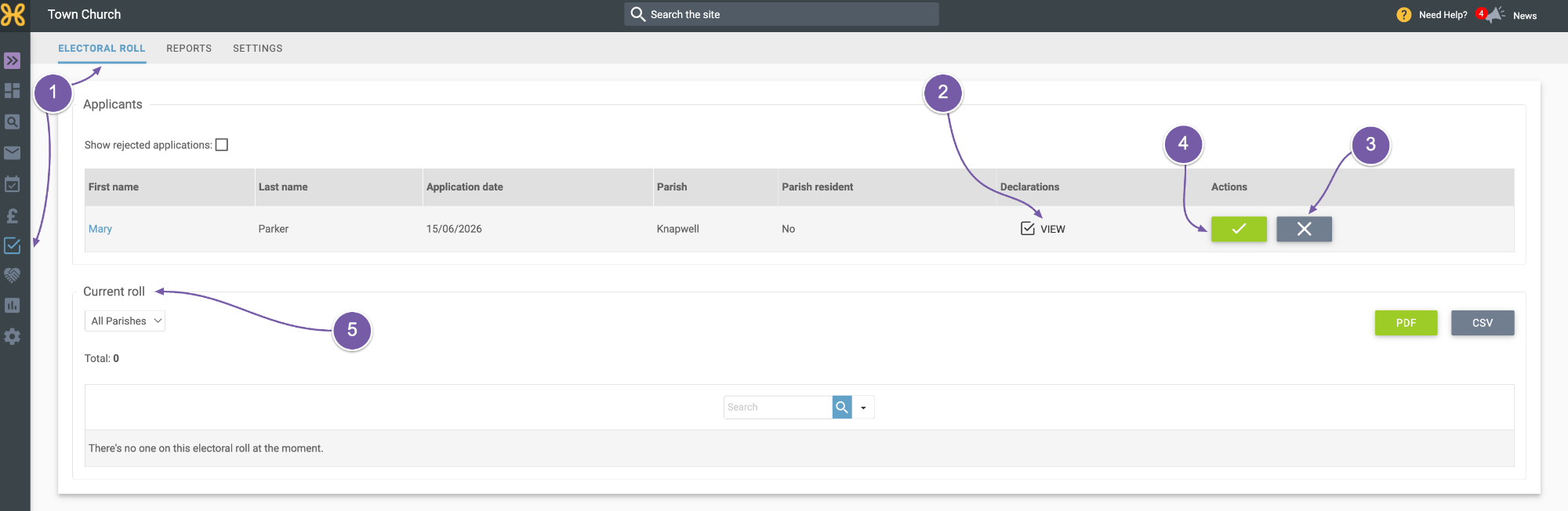
Depending on your settings, this will be auto-approved or you will need to go into the “Electoral Roll” page in the web office and review the application.
-
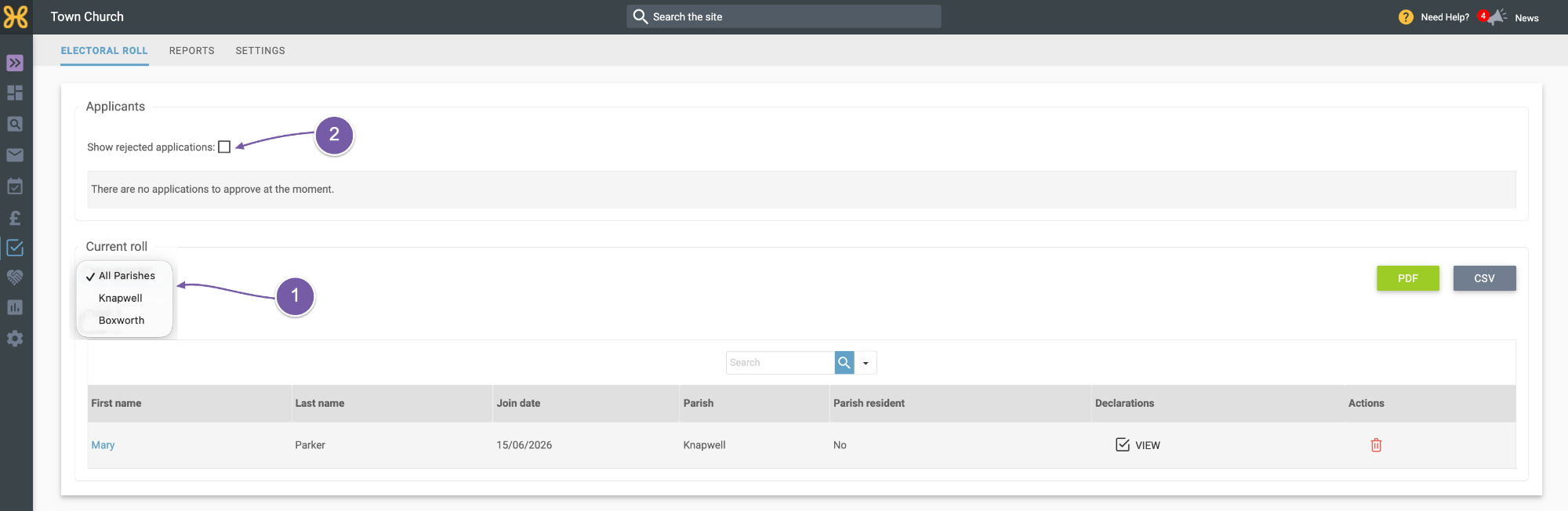
You can see all the outstanding applications on this page and review their declarations.
-
If you reject the application, you will be asked to write a reason and please note that this will be displayed on their roll history on the user record.
-
Click the green tick to approve the application.
-
Then the person will jump to the bottom under “Current Roll”.
-
If you have more than one parish, you can choose from the list to display the role for all parishes or select which parish you would like to view the role.
-
On this page, you can also toggle to show any rejected applications and you can see their declaration or the reasons for the rejection.
-
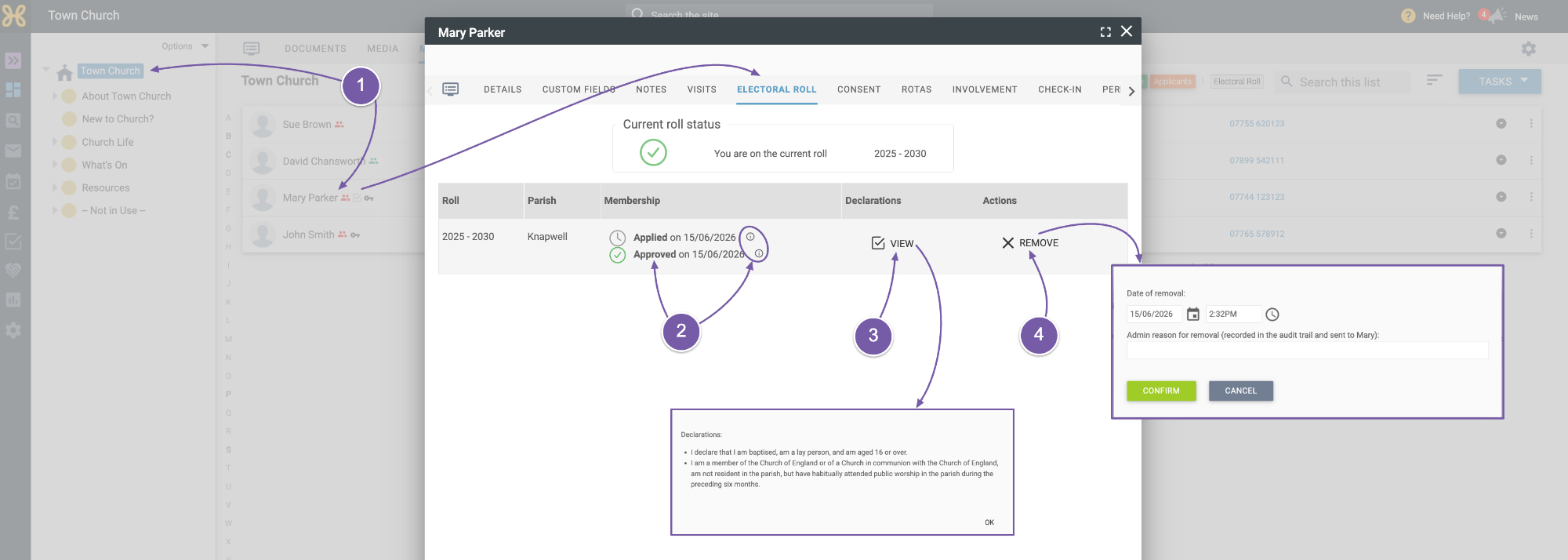
Let's jump into a user record and see how the data looks.
-
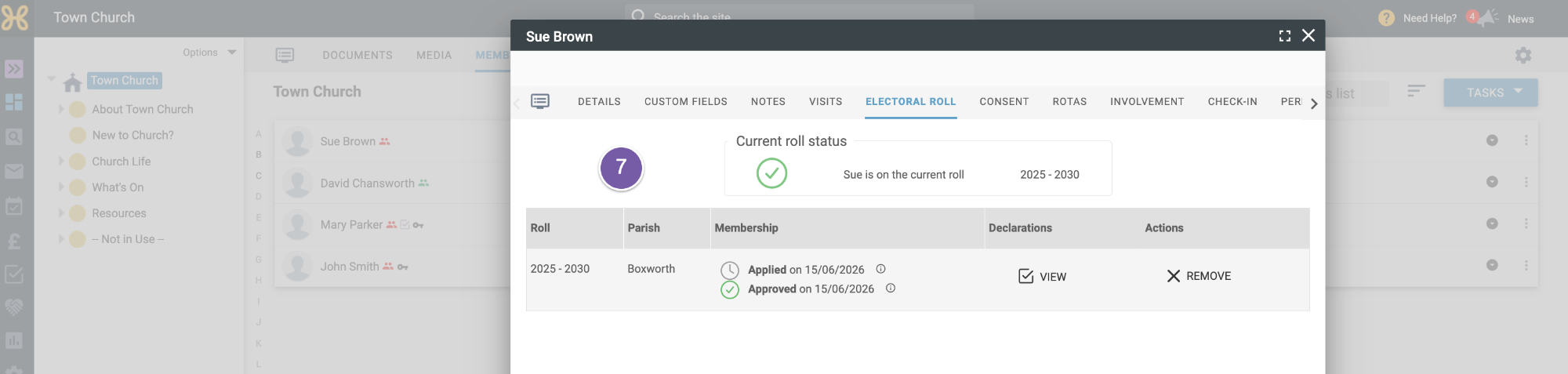
You can see the audit history and click on the info icons for more detailed information.
-
You can also see the declaration
-
and remove the person from the roll, which will prompt you to set the removal date and reason. The reason will be recorded in the history they can see and sent to them.
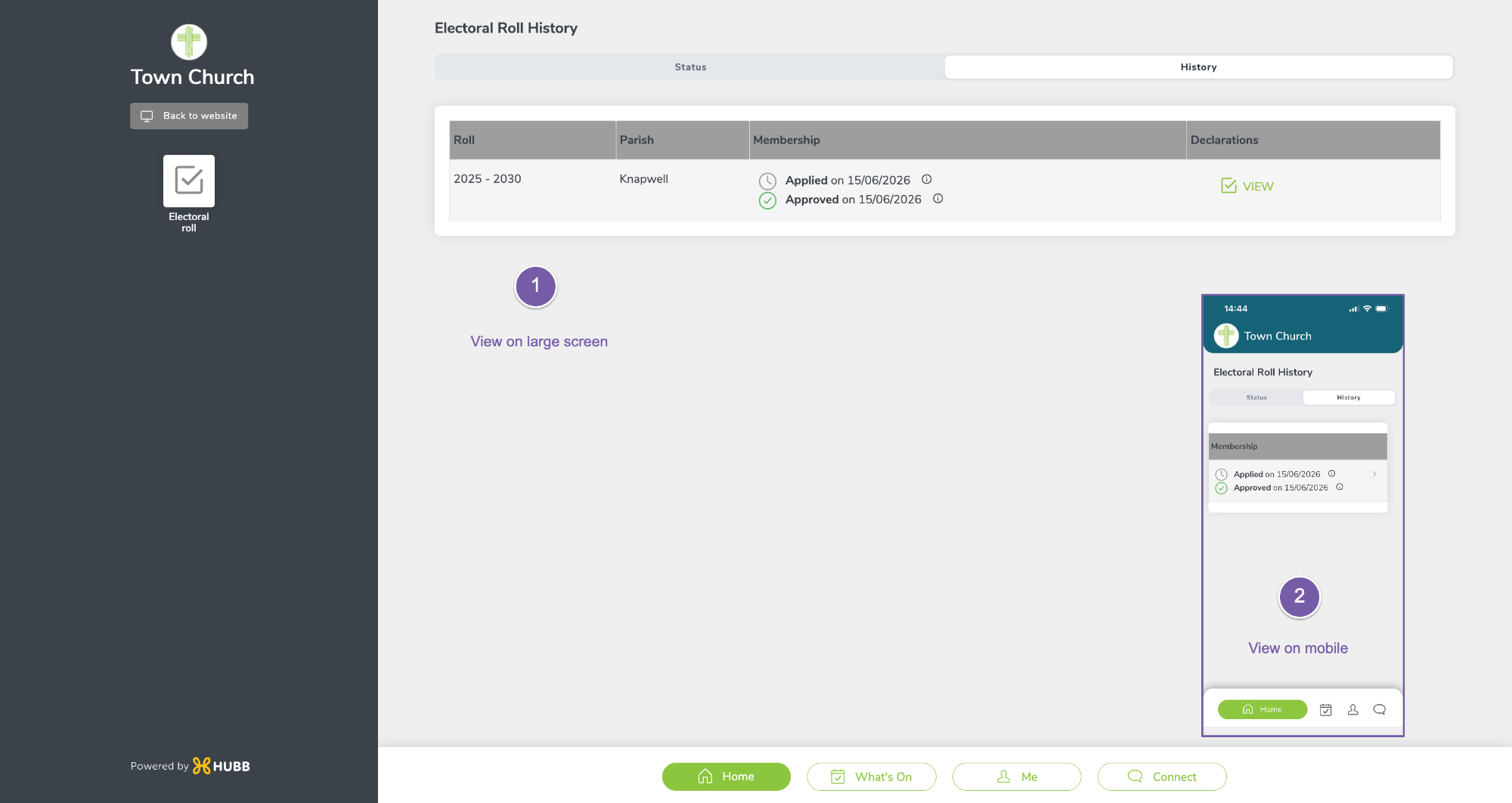
This is how the history looks when a user logs into their profile:
-
Using a large screen
-
Using the app on their mobile.
 Adding declarations from a printed form
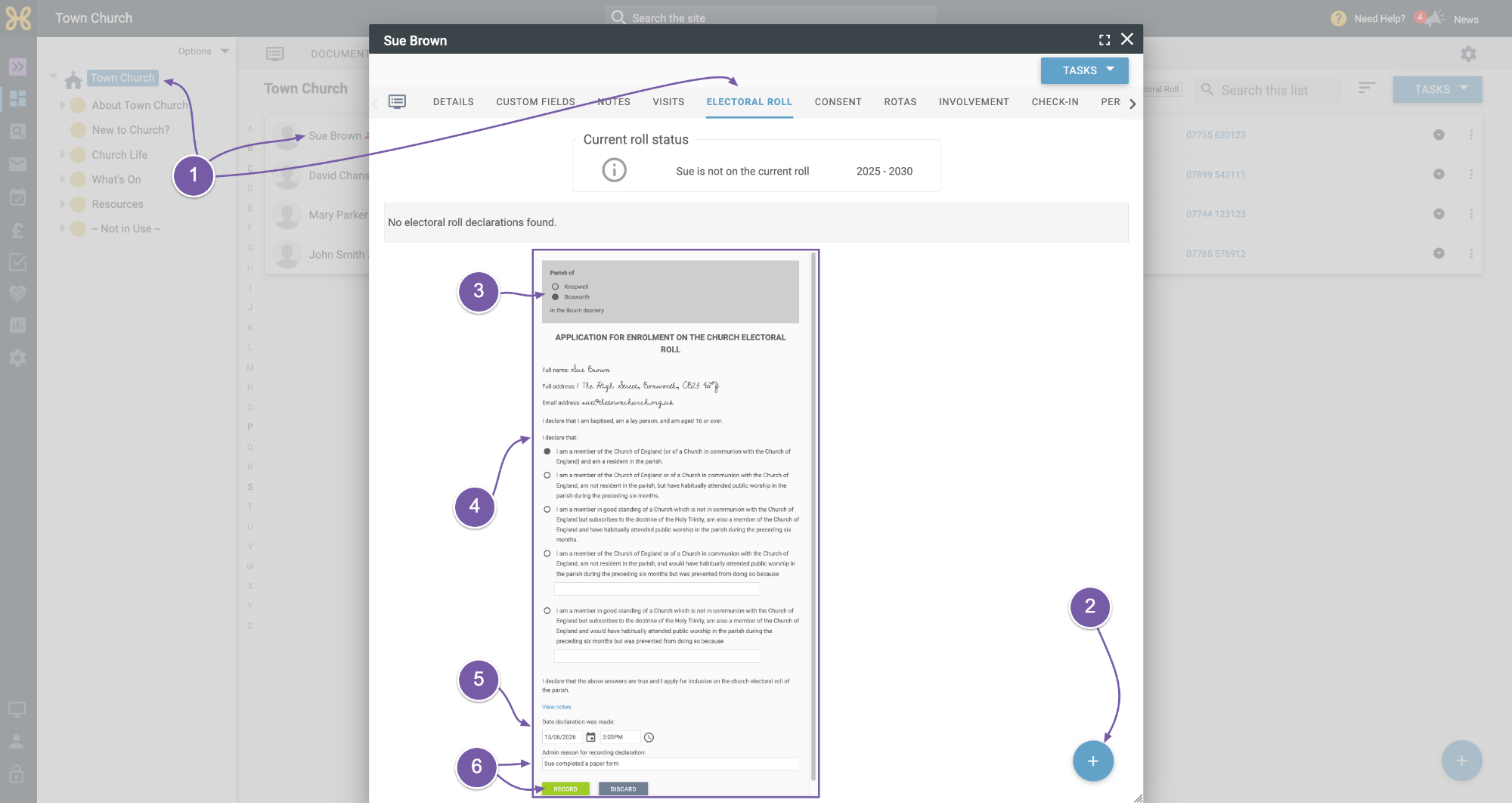
Finally, if you need to add declarations to users in your web office - for example, from a completed paper form:
-
Go to the “Users Electoral Roll” tab
-
Click on the blue “+” icon at the bottom right.
-
If you have more than one parish, select the parish
-
Choose the declaration
-
Set the date and time you want to record
-
Then add your reason for adding this declaration.
-
You will then see their updated status with the history.