Editing custom fields
Sorry, your browser is unable to play this type of file.
You can still
download it
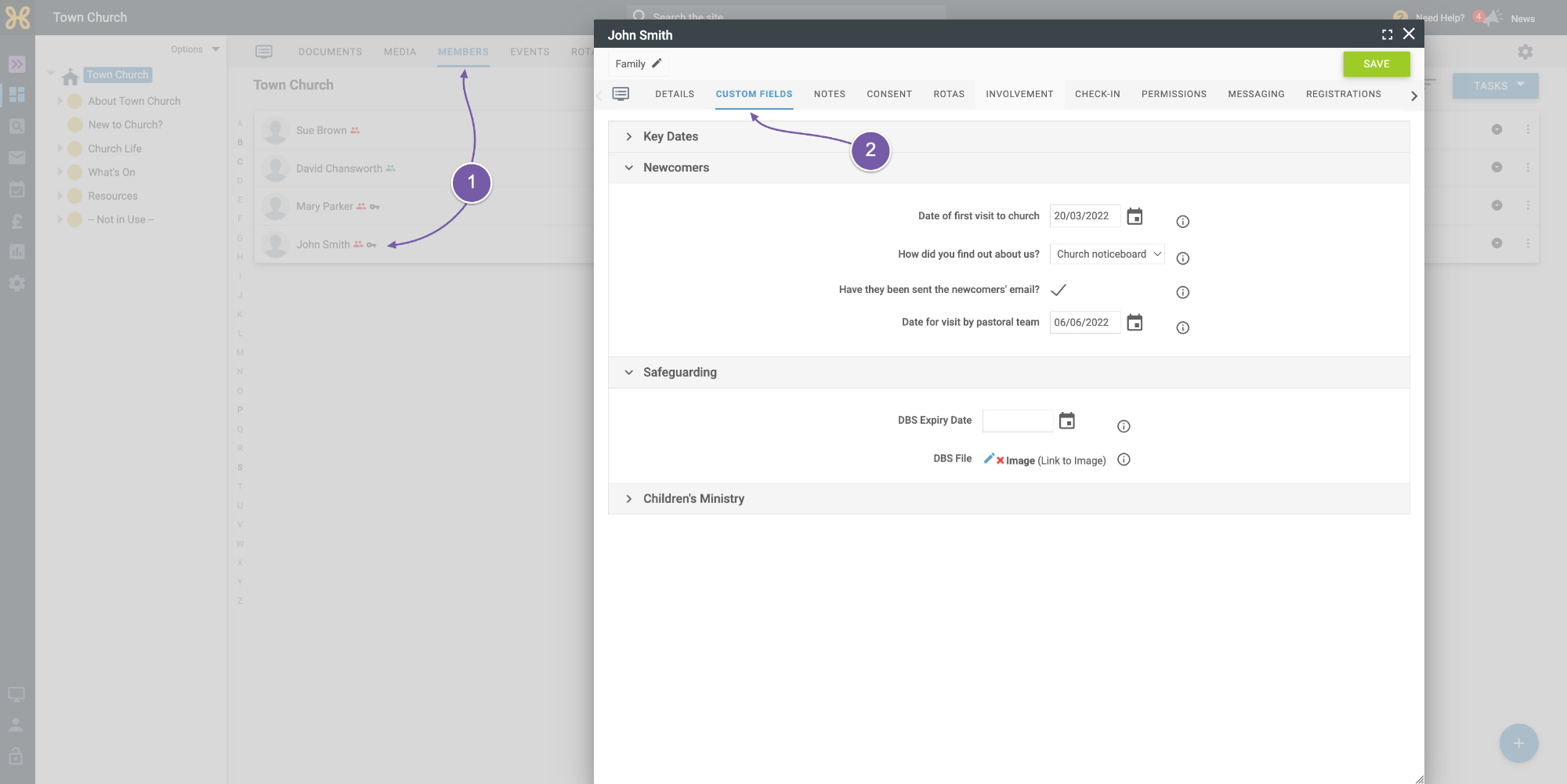
To edit a Global custom field:
-
Go to “Any User Record”
-
Select the “Custom Fields” tab to see the available fields, and make any changes or updates.
You can do the same for any non-Global custom field.
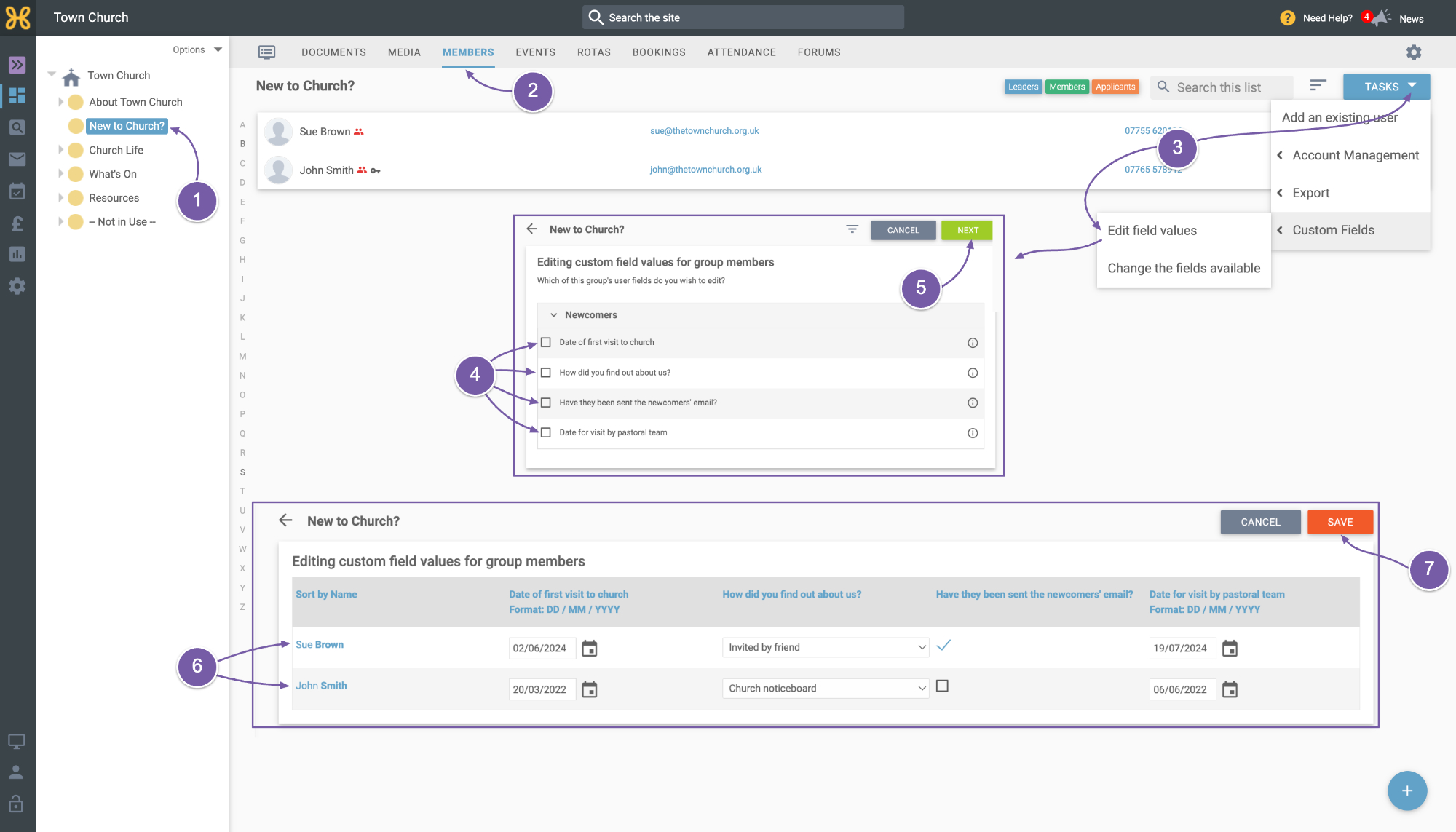
However, we do have a way for you to edit the non-Global fields en masse. To do this:
-
Go to the group you want to edit.
-
Click on the “Members” tab.
-
Click on “Tasks” and select “Custom Fields, Edit Field Values”.
-
Tick the fields you would like to update
-
Click “Next”.
-
Your members will be displayed in a list alongside the fields you chose. You can go through and update the fields.
-
Click the “Save” button to commit your changes.