Change your where and when details
(5 minutes)
Personalise these key details inside your welcome area to help visitors.
Sorry, your browser is unable to play this type of file.
You can still
download it
The last few details to change on your welcome area are the service time and location details.
Changing the details of your service times
-
Go to the top group of your site tree in the site manager and click on the “Documents” tab.
-
Click on the article called “Homepage Design: Service Times”.
-
When you are in editing mode there are three parts you can change. The title, the details and the link.
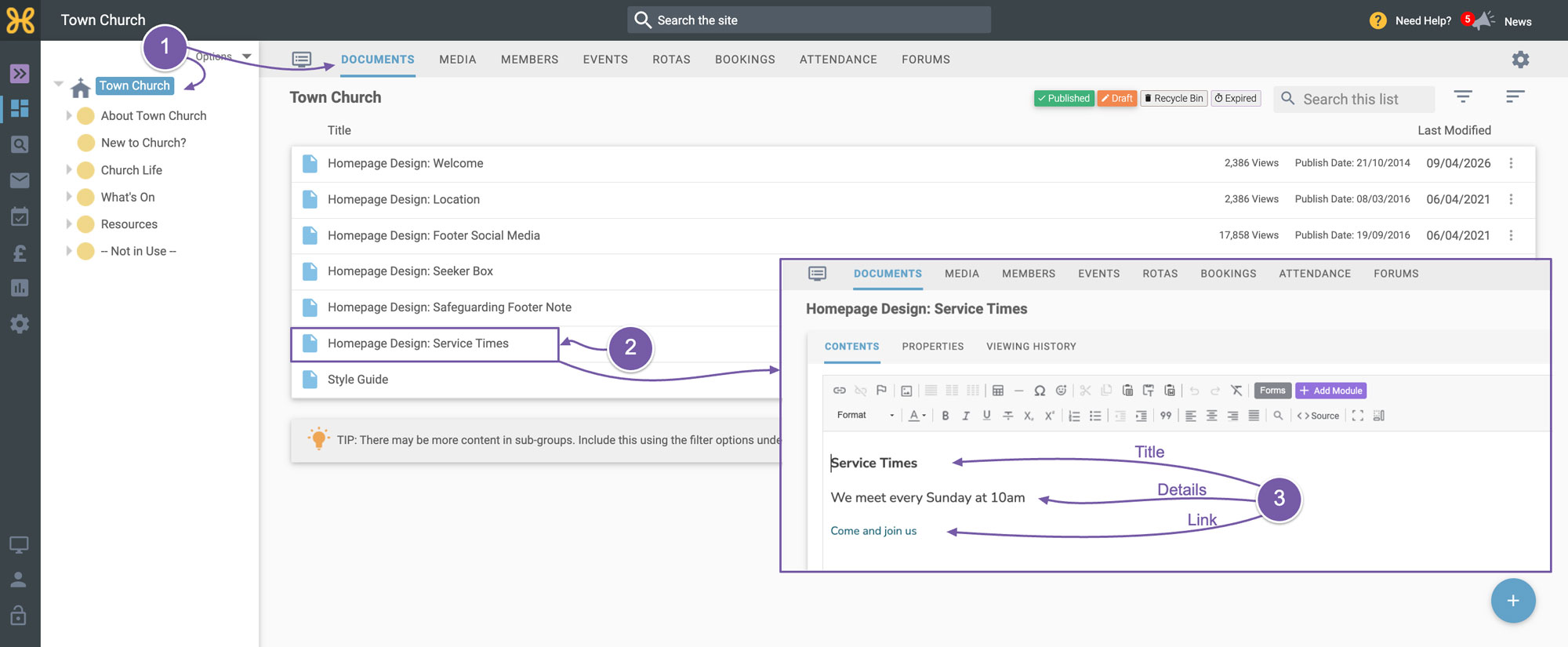
One thing to think about with this area is the amount of text you add to the details of your services. To keep the site looking good we recommend keeping it as short as possible. If, however, you have many services on Sundays and in the week and the space available here is not sufficient then just get in touch with us and we will help you as we are keen to help all churches display key information as best as possible and we understand that some churches may have some slightly different requirements.
-
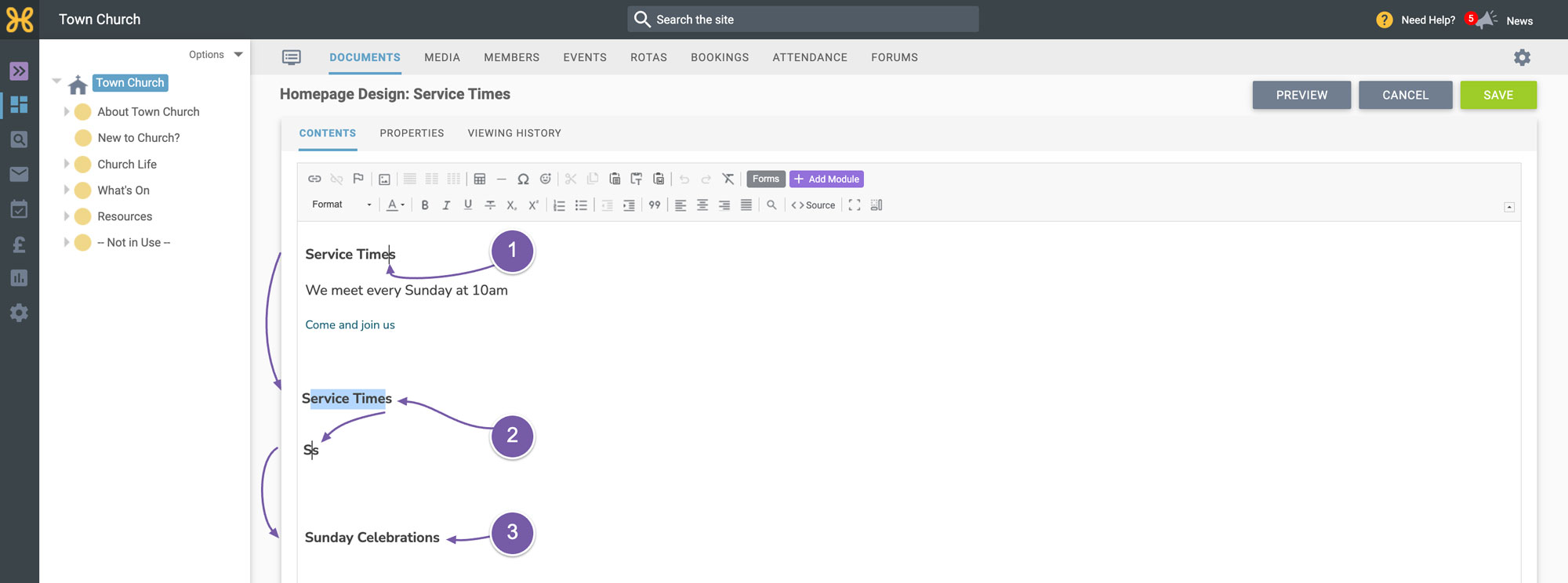
If you need to change the wording of service times to something like “Sunday celebrations”, all you need to do is place your cursor before the last letter in the current title
-
Delete the remaining letters leaving the first letter so your cursor sits between the first and last letter
-
Now you can write the text that you want the title to say. When you are done you can then delete the first and last letter.
The reason we leave the first and last letters is to ensure the title keeps the same formatting style. If you were to delete all of the letters the styling would disappear and the home page would not look as good.
We follow the same approach for
editing the details of the service.
-
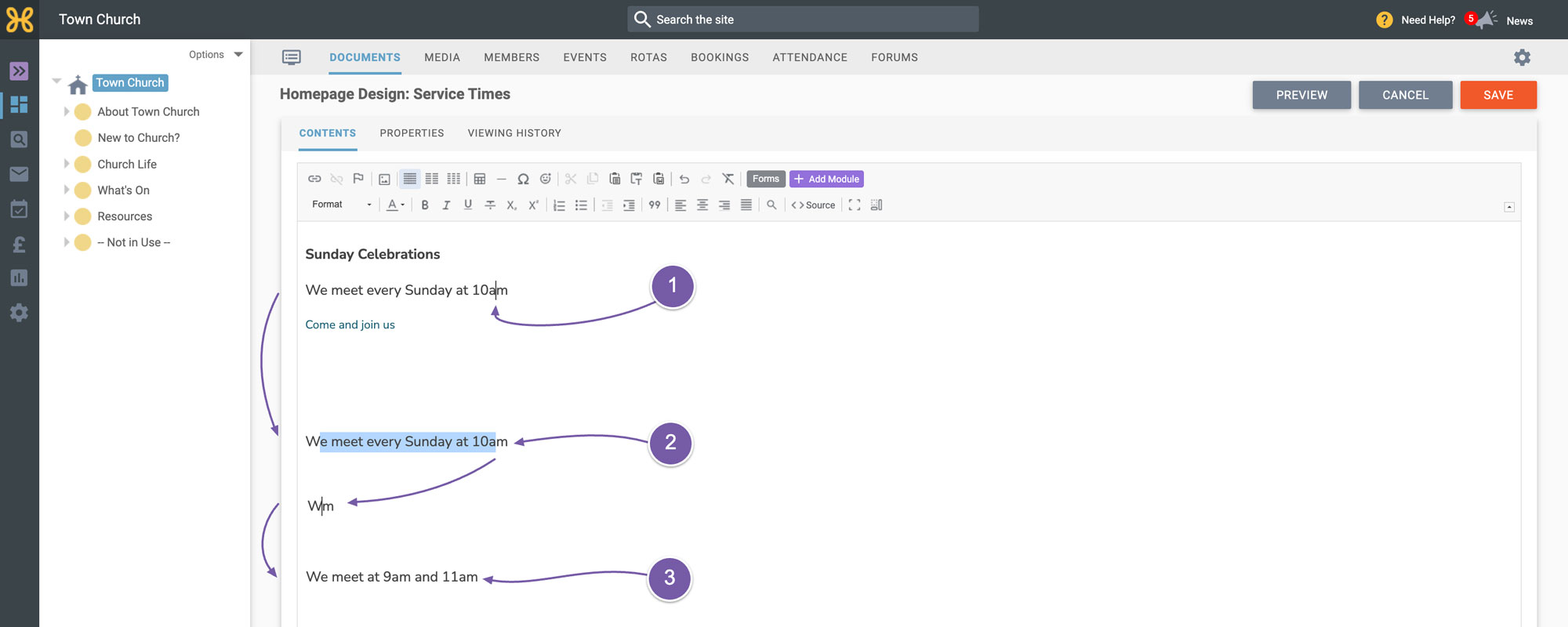
Place your cursor before the last letter
-
Delete the remaining letters leaving the first letter so your cursor sits between the first and last letter.
-
Now you can write the text that you want to say - for example, “We meet at 9am and 11am”. When you are done you can then delete the first and last letter.
The
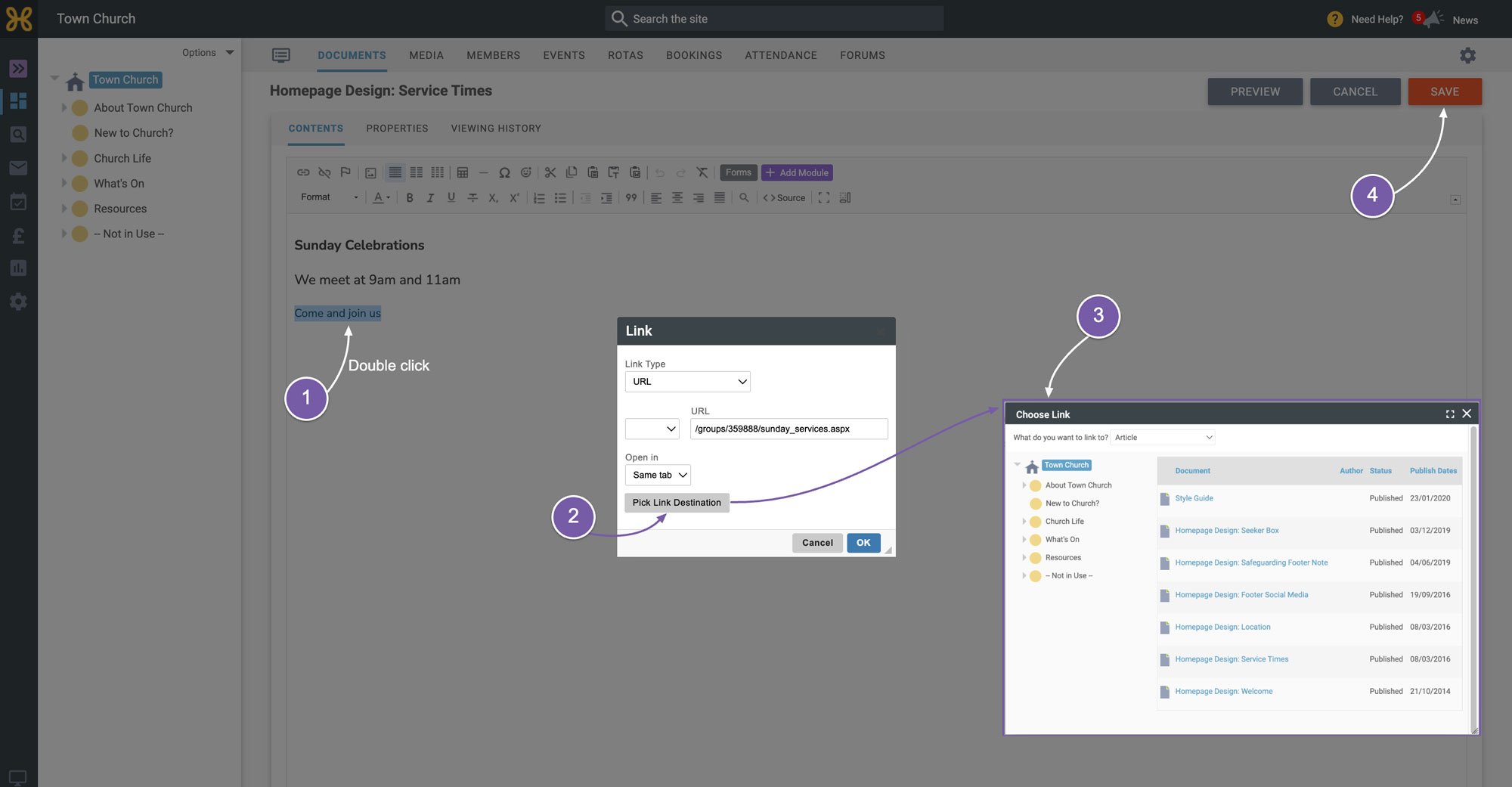
link currently points to the “Sunday Services” page. To change this:
-
Double click on the text
-
Click on the “Pick Link Destination” button
-
From there you can find what you want to link to
-
Now the title, details and link are what we want we can click “Save”.
 Editing the details in the “Location” area
To do this:
-
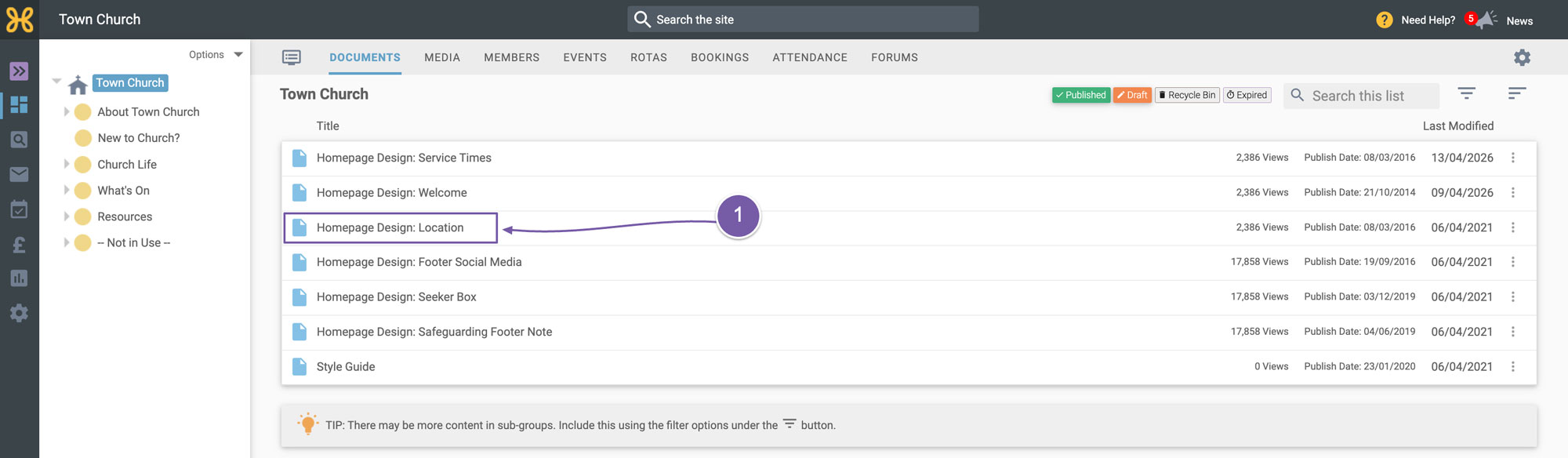
Exit out of the article you are in by clicking “Cancel” and then click on the “Homepage Design Location” article
-
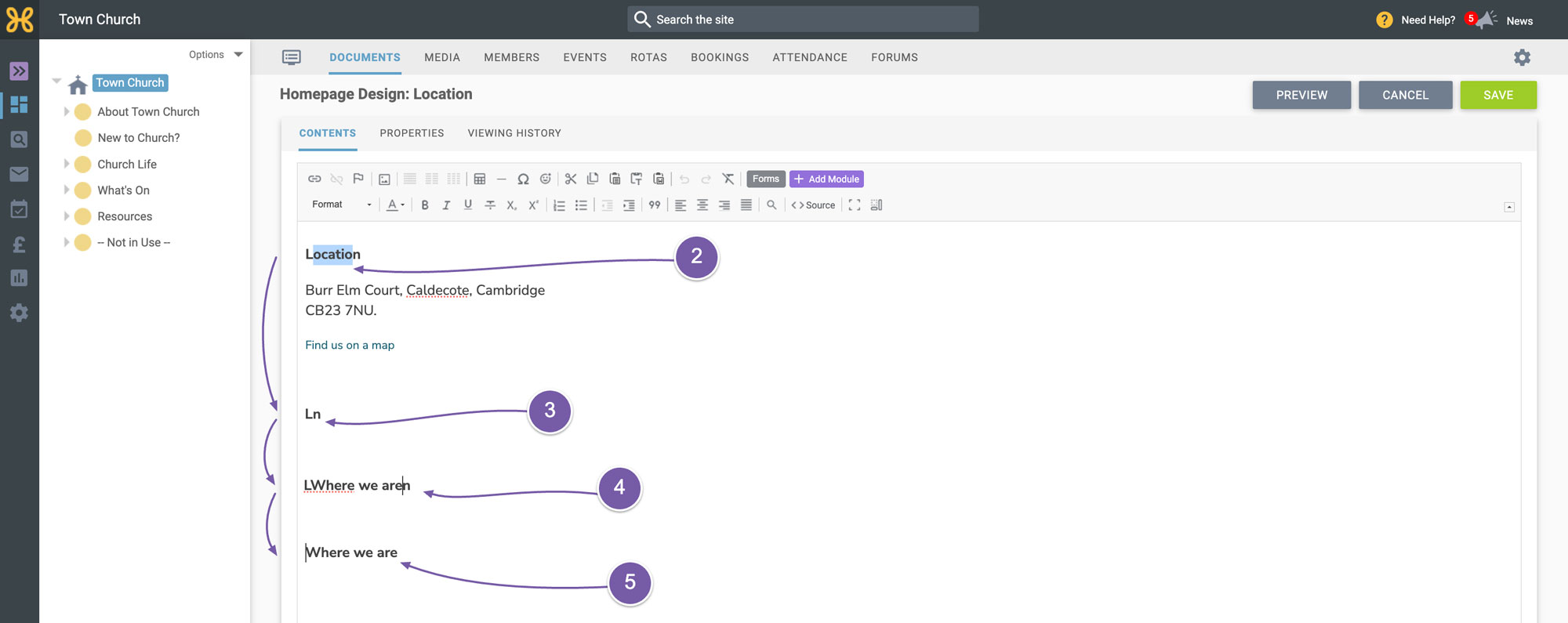
This is set up in exactly the same way as the service times article you have just edited. You can edit the title or the details by placing your cursor before the last letter in the current title or details text
-
Delete the remaining letters leaving the first letter so your cursor sits between the first and last letter.
-
Now you can write the text you want to have.
-
When you are done you can delete the first and last letters.
-
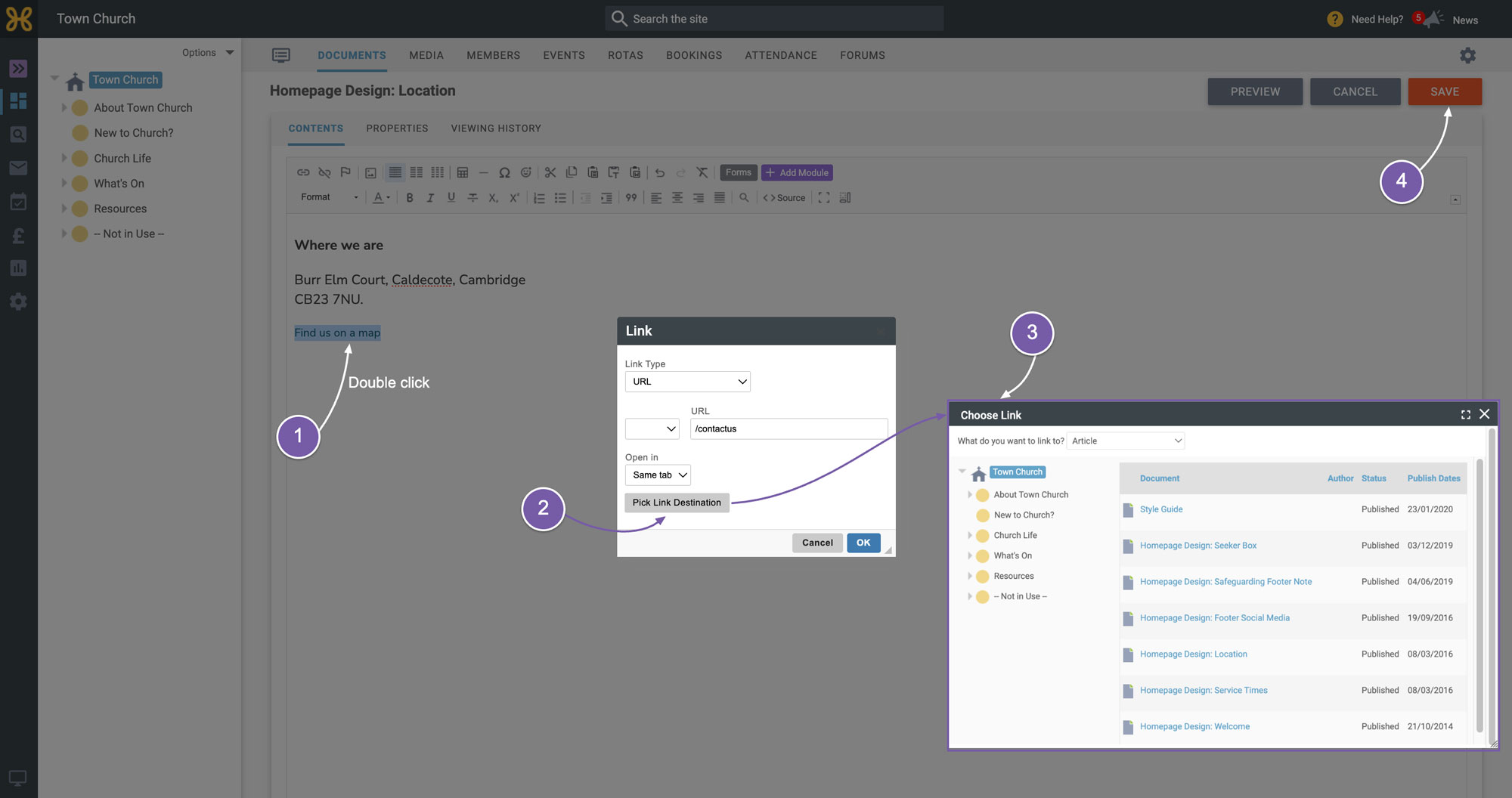
The link currently points to the “Contact Us” page. To change this just go ahead and double click on the text
-
Click on the “Pick Link Destination” button.
-
From there you can find what you want to link to.
-
Now the title, details and link are what you want you can click “Save”.
Now you should have your welcome area completely personalised for your church.