Select your denomination logo, or have none...
(2 minutes)
Easily display the logo of your denomination or church group(s).
Sorry, your browser is unable to play this type of file.
You can still
download it
The last of the homepage images we are going to personalise is the denomination or group logo image in your footer.
-
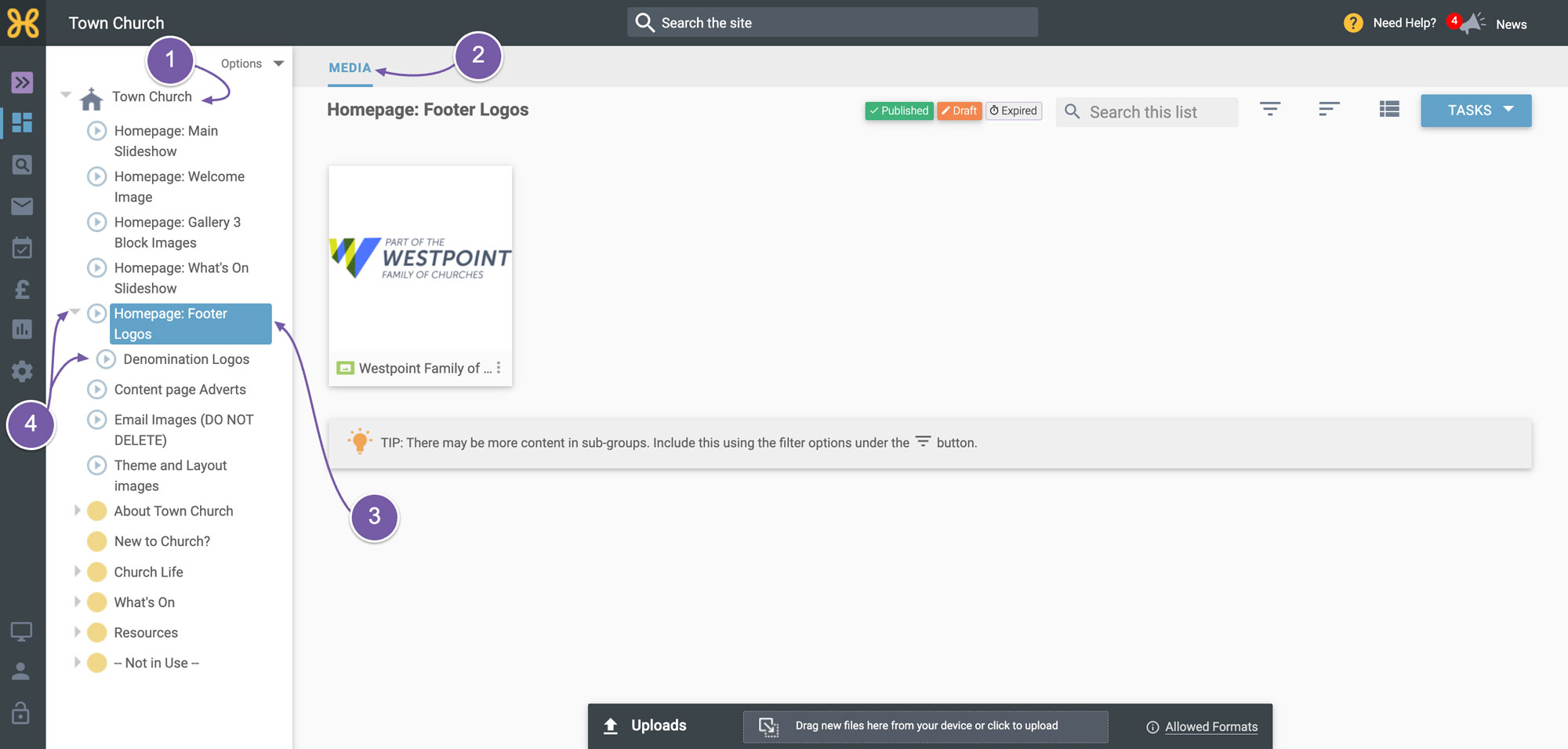
Go to the top group in the “Group” tree
-
Click the “Media” tab
-
Select the “Homepage Footer Logos” media group
-
Click to expand its subgroup that contains many of the mainstream denominations or church groups.
-
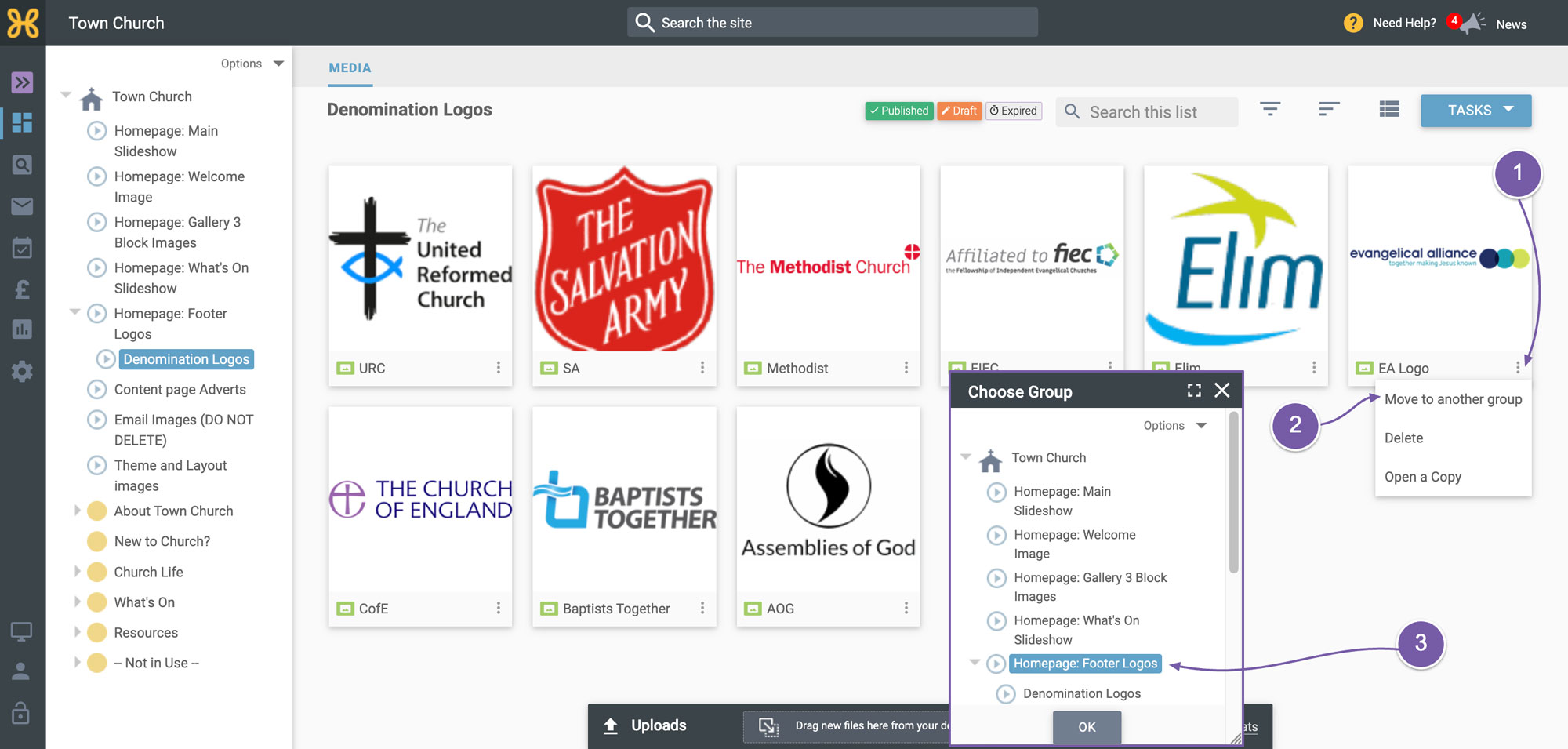
If the logo or logos you need are there, then all you need to do is click on the three option dots
-
Choose the option to "Move to another group".
-
You need to move this image to the "Homepage footer logos" media group. Just repeat this if you are part of more than one group or denomination.
-
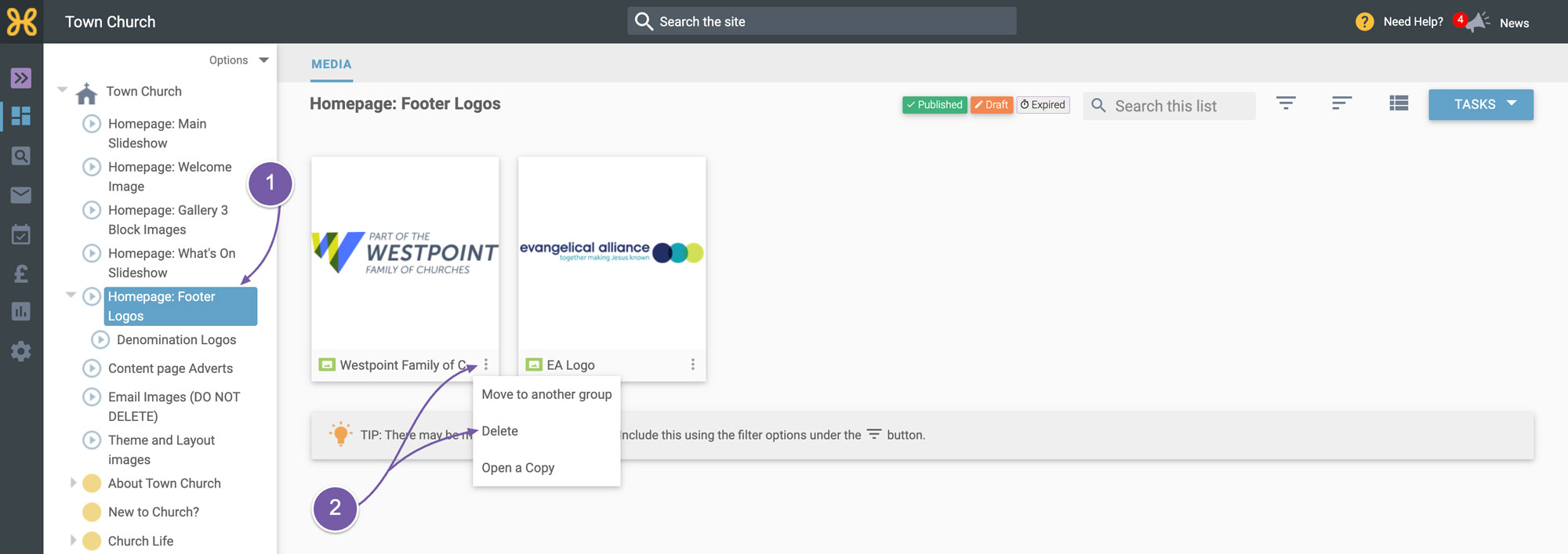
When you are done, you need to go to the “Homepage Footer Logos” media group
-
Click on the three option dots of the West Point logo and select “Delete”.
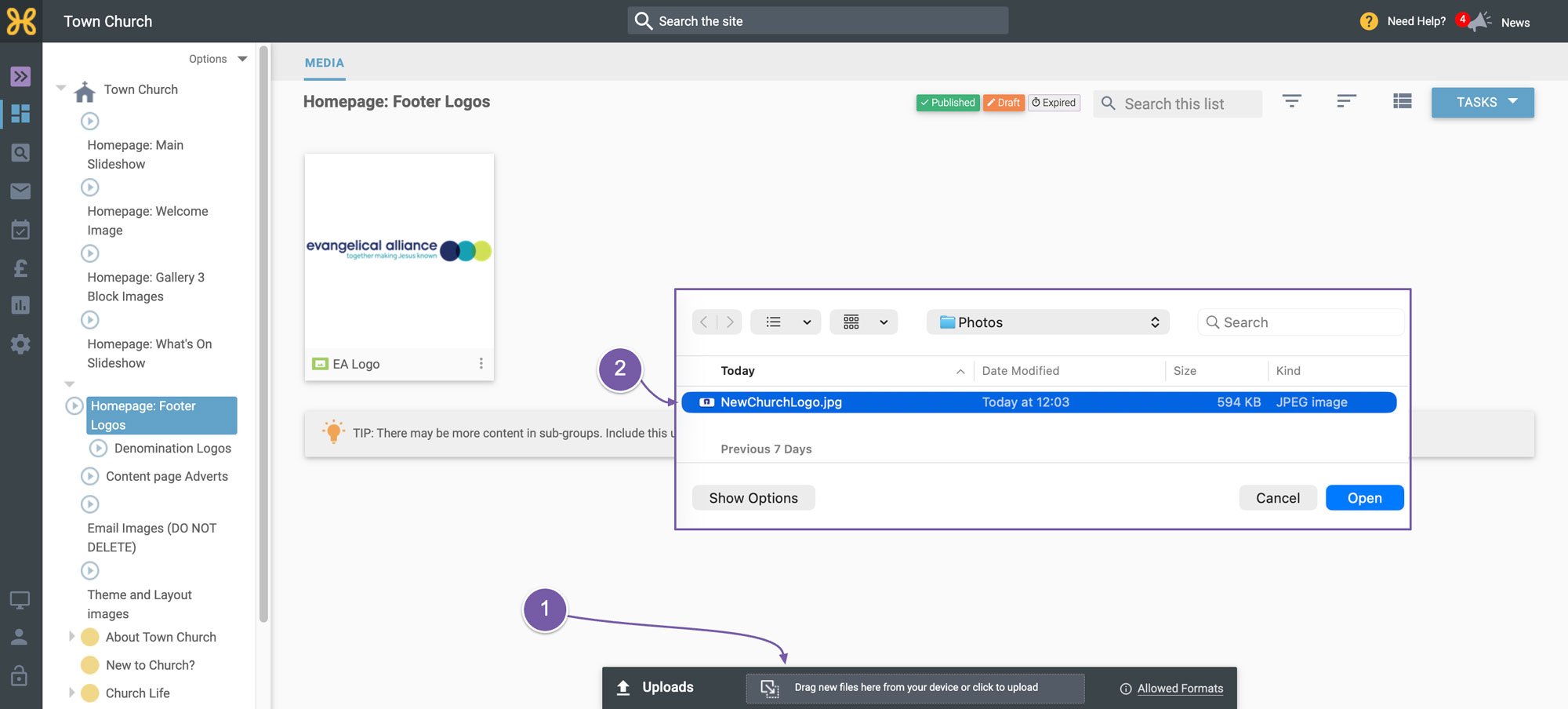
If you need
to upload a new image then simply delete the West Point logo like we have just done
-
Click on the “Upload” area
-
Upload your own image from your computer
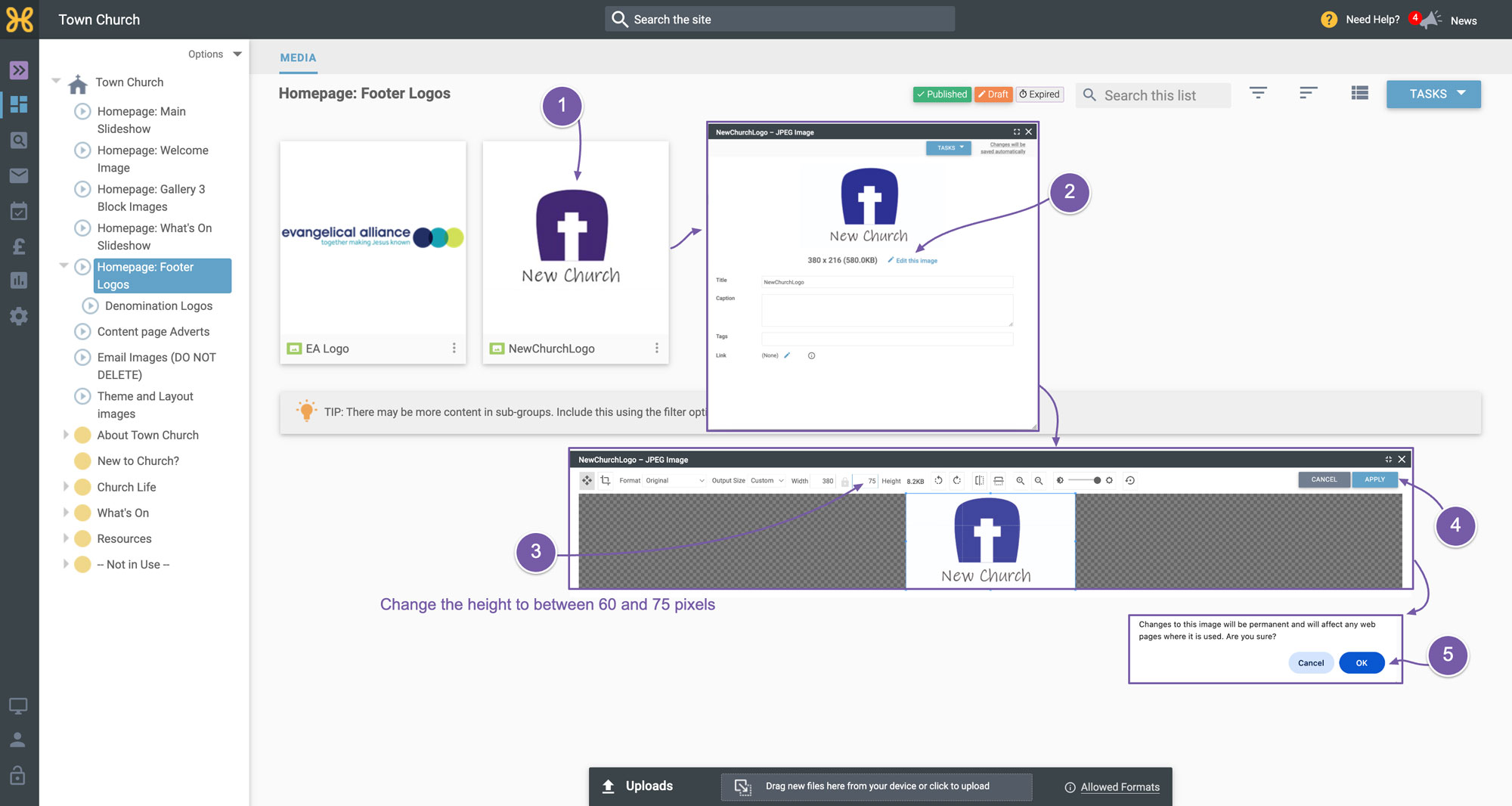
It's important that the height of the logo is between 60 and 75 pixels high, so if you need to resize your image once it's uploaded:
-
Click on the image to open the settings and
-
Click on “Edit this image”
-
Type any number between 60 to 75 into the image "height" box
-
Click “Apply”
-
Then click “OK” on the final confirmation prompt.