A quick guide to how admin permissions work in hubb.church
(3 minutes)
Watch our quick guide on permissions to understand how you give people access to only what they need.
Sorry, your browser is unable to play this type of file.
You can still
download it
It's time now to get others involved in working in your Hubb system. Before we go ahead, it's important to understand how our permissions feature works. The good thing is it's flexible, so you can give access to someone to access one feature on one area of your system. For example, you can delegate the “Sunday School Rota” to someone without them having access to edit any webpages, people data or Hubb system settings.
-
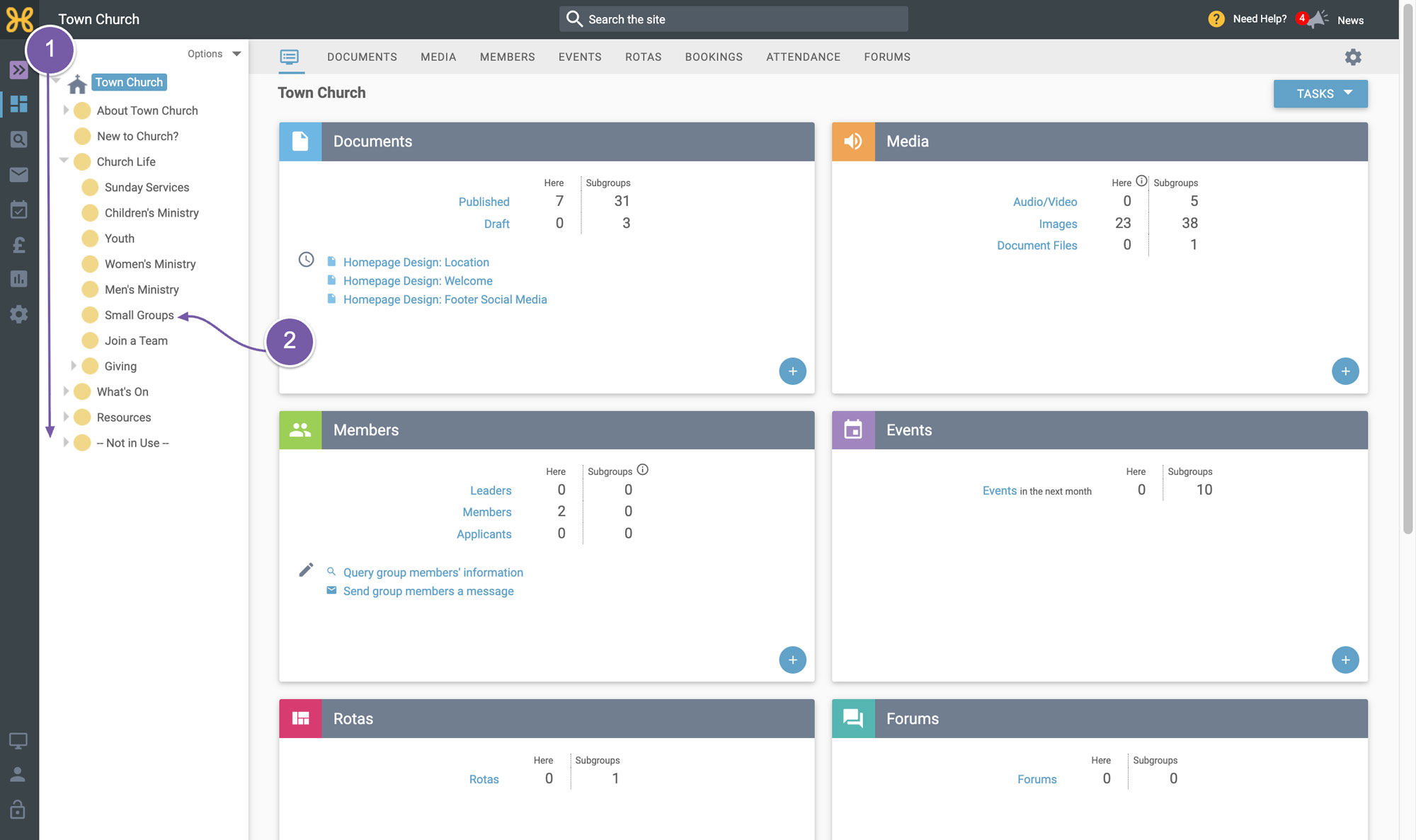
The first thing to be aware of about permissions is that they cascade down the group tree. So, anything you give to someone at the top level will be given to every group because every group is underneath where you have given the permission. This is fine if you want someone to help with the whole site.
-
However, if you just give someone permissions on "Small Groups", they will only be able to do those things on that group because there are no groups below it.
One of the main benefits of giving out accurate permissions is that the interface for each person inside the web office is personalised for them, making the whole system much simpler and easier to use for the tasks they carry out. We have found that tailoring permissions can increase engagement of your staff and volunteers. Should anyone stop volunteering or working for your church, then handing over knowledge to new people is much more straightforward.
To see how permissions relate to what a person sees when they log into your web office
-
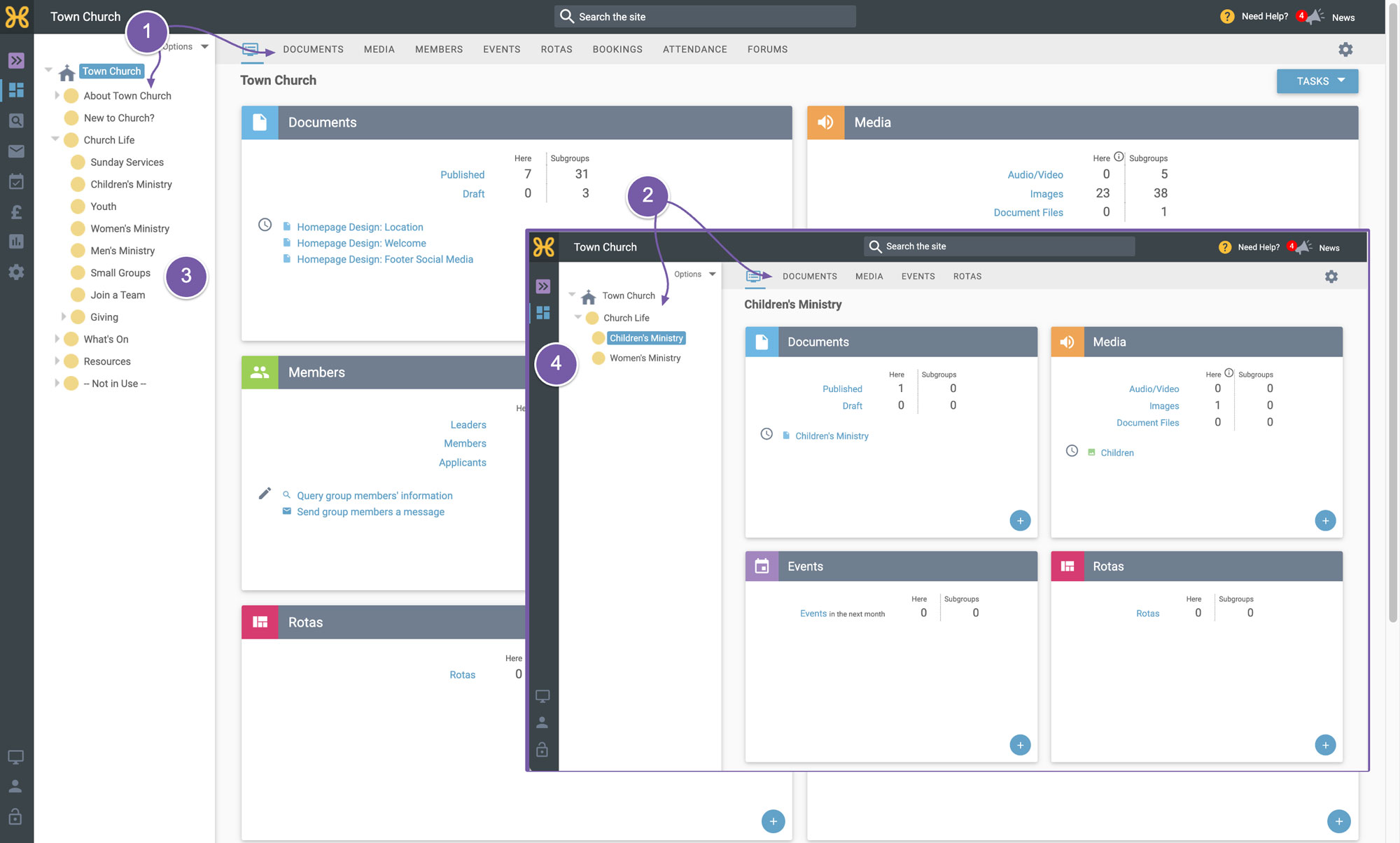
this person has access to the full website
-
this volunteer helps manage the children's ministry calendar, rotas and email sending. They also help run the women's ministry, so they have access to edit the web page, see the member data, send emails, manage the calendar and book attendance to record who comes to the events.
-
As you can see, when we look at this volunteer's view of the web office, it is much simpler. They do not have access to the various area icons on the far left of the page
-
They can only see the groups they have permissions on and the tabs for each group that they have permissions on. They can see the children's ministry group and the women's ministry group.
What we have tried to do is make the system seem like a small, easy to use web app for your team, whether on staff or volunteers, to manage areas of the church. We hope that you have enjoyed learning about how permissions work and you are able to go on and set up users and give them access to only what they need.