Understanding the advanced settings for events
(6 minutes)
Get to grips with further settings in the church calendar.
Sorry, your browser is unable to play this type of file.
You can still
download it
As we looked at the basic editing and setup of events, we didn't dive into the more advanced settings. Even though you might not use these settings right now, it's a good time to understand what they are and what they can do.
-
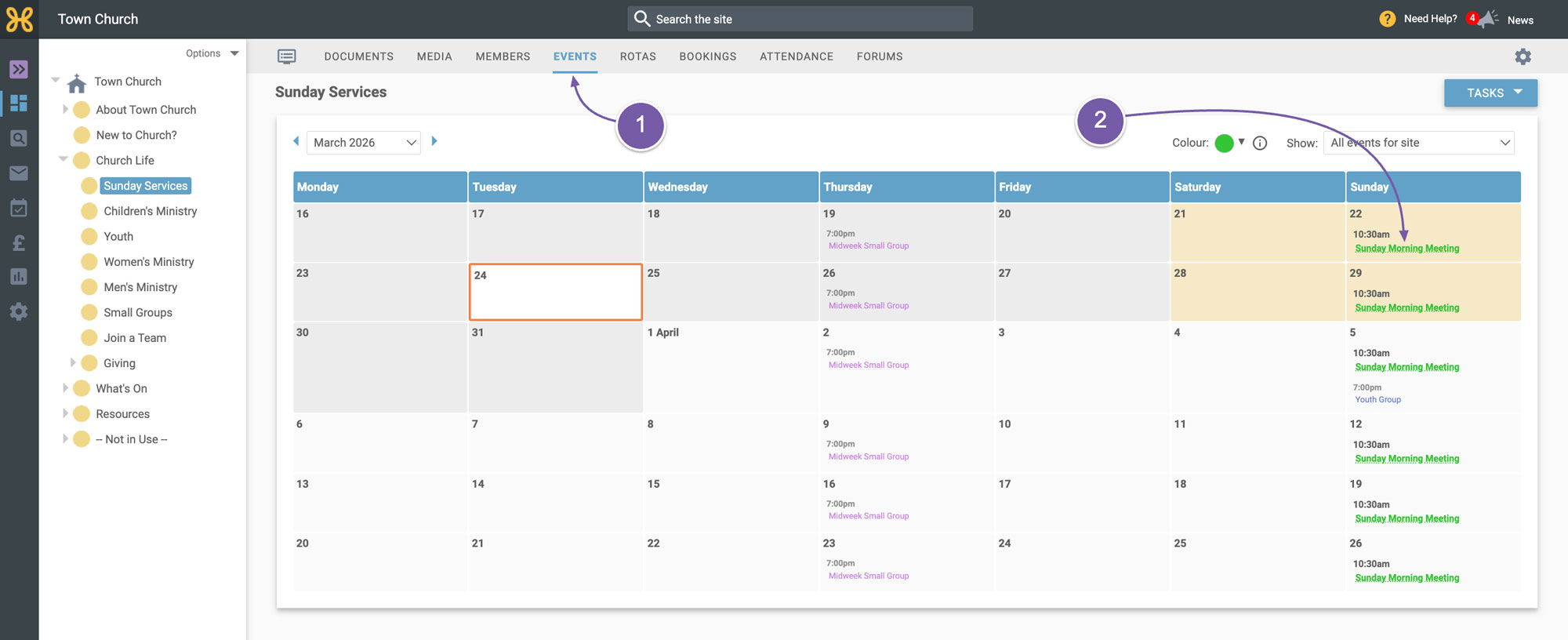
Go to the “Events” tab of one of our groups
-
Open up an event and look at these settings.
-
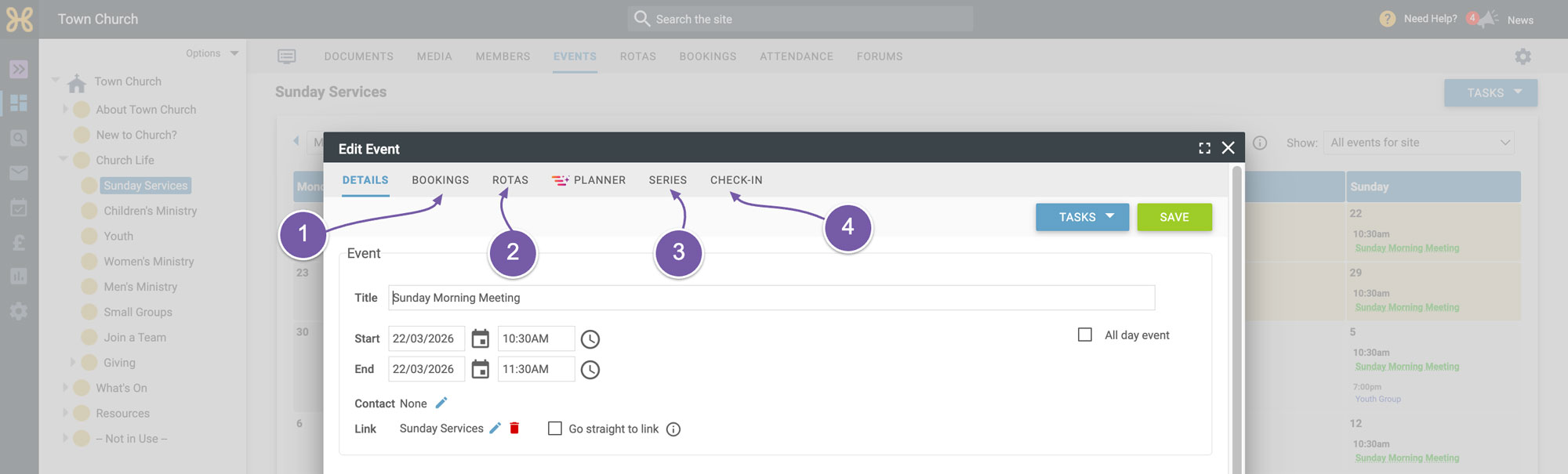
The “Bookings” tab right at the top of the event box is where you can add room and equipment bookings to keep track of your resources. This is an extremely popular feature of Hubb and it helps your whole team stay on top of who's using what and when. If your church rents out halls and rooms for external bookings, then you can take advantage of this feature and manage both bookings for your ministry events as well as your external bookings. No external booking details are added to your main church calendar. For those details, you just need to create those bookings in our resources area rather than in your main church calendar. To help you keep track of who's using what, all of your church bookings show up in your external booking calendar. We have a separate video to get you up to speed on resource bookings, but we wanted you to be aware of this tab as it will mean you can create an event and add booking information all in one process.
-
The next tab along is “Rotas”. This is a helpful tab that lists all the rotas on your site that are using this event for serving.
-
Next is the “Series” tab. If your event is a recurring event, then you can see a list of all of the events in the series and click on any to edit them.
-
The last two tabs mention “Check-in”. This is the system where you can use label printers and scanners to register people to events, mainly the children's group.
-
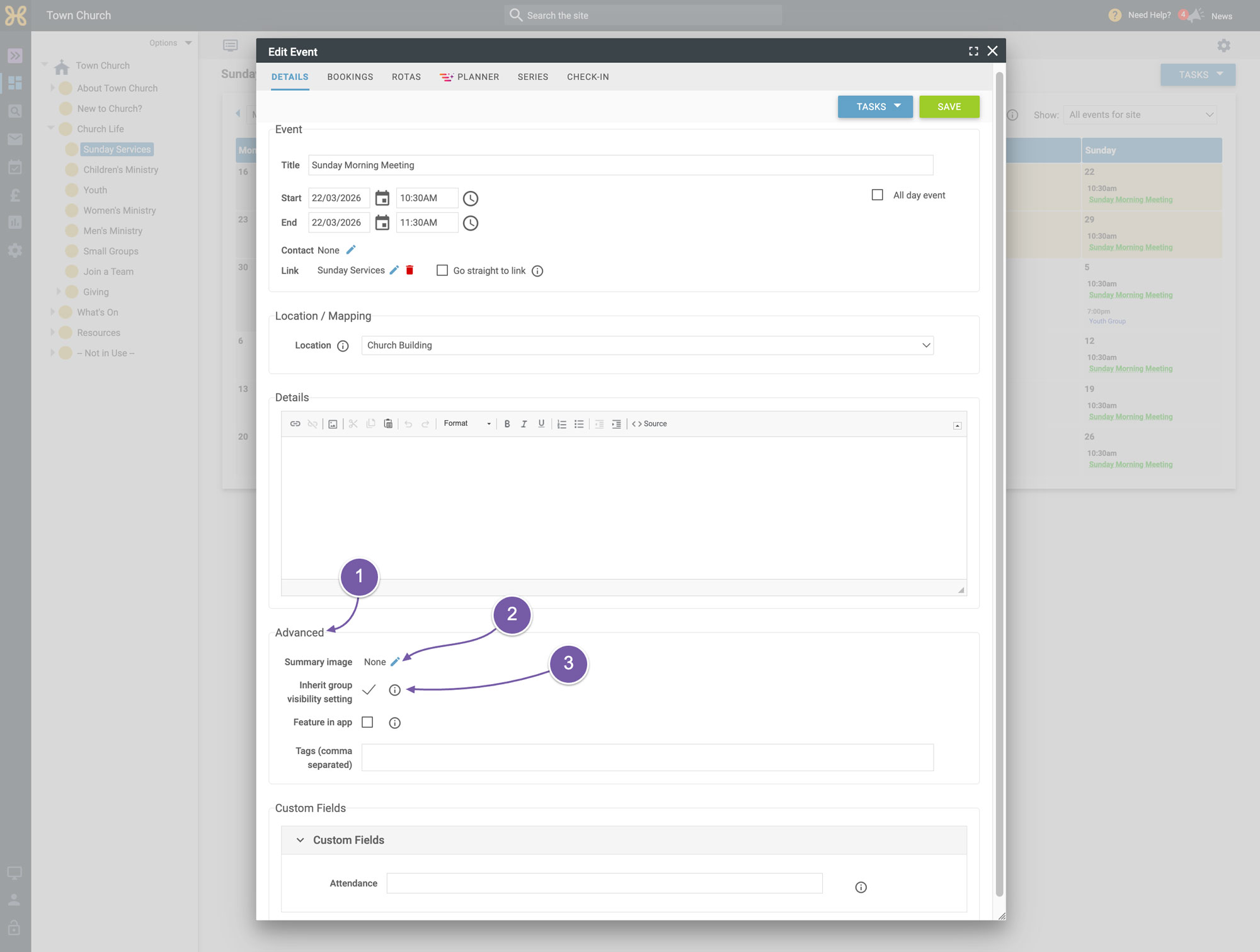
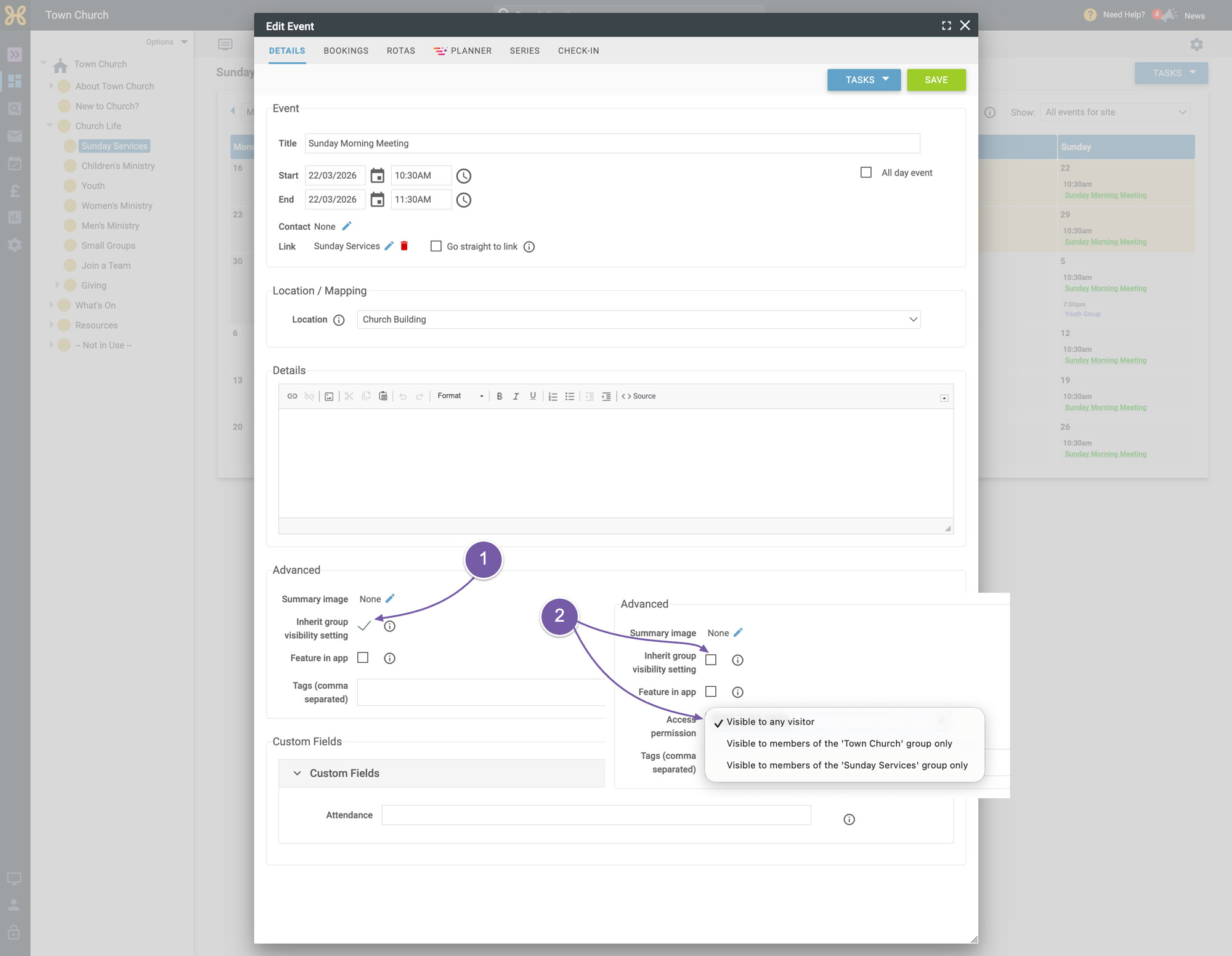
If we go back to the “Details” tab and scroll to the bottom of the event, you can see the “Advanced” area.
-
We have already gone through how to change or add a summary image to your event, but we have not mentioned the other settings.
-
The next setting is about the “Visibility” of the event. By default, it is set to inherit the visibility setting of the group. When you take a Hubb trial, we have made sure that all of the visibility settings make sense for the content the site comes with. You only have to edit this if you want to change who can see the event.
-
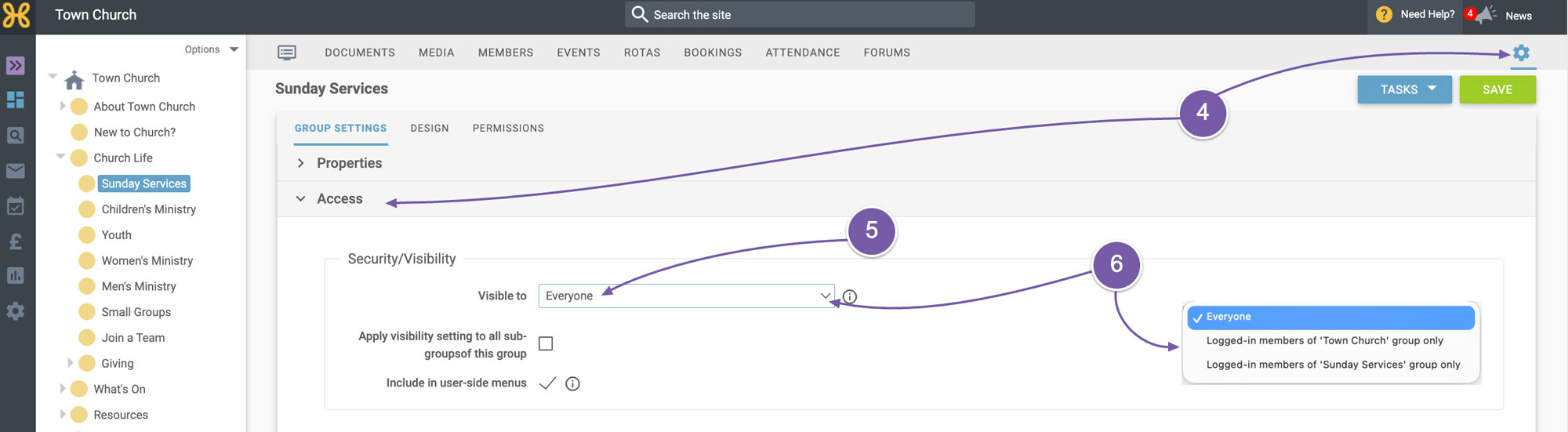
To check the visibility of a group, you can go to the "Group Settings" of the group and click on the “Access” area.
-
You can see this group has its visibility set to “Everyone”.
-
There are three options for visibility. One, visible to the public - anyone can see that content. This is by far the most common setting of your groups. Two, logged in members of your top group. And three, logged in members of the group you are in. The visibility settings apply to documents, media, events and rotas in the same way.
Let's go back to the “Events” tab and click back on the “Event”. As this event is inheriting the group's visibility setting, it's a public event.
-
If you want to override the setting, you can just tick the box
-
and pick the option you want.
-
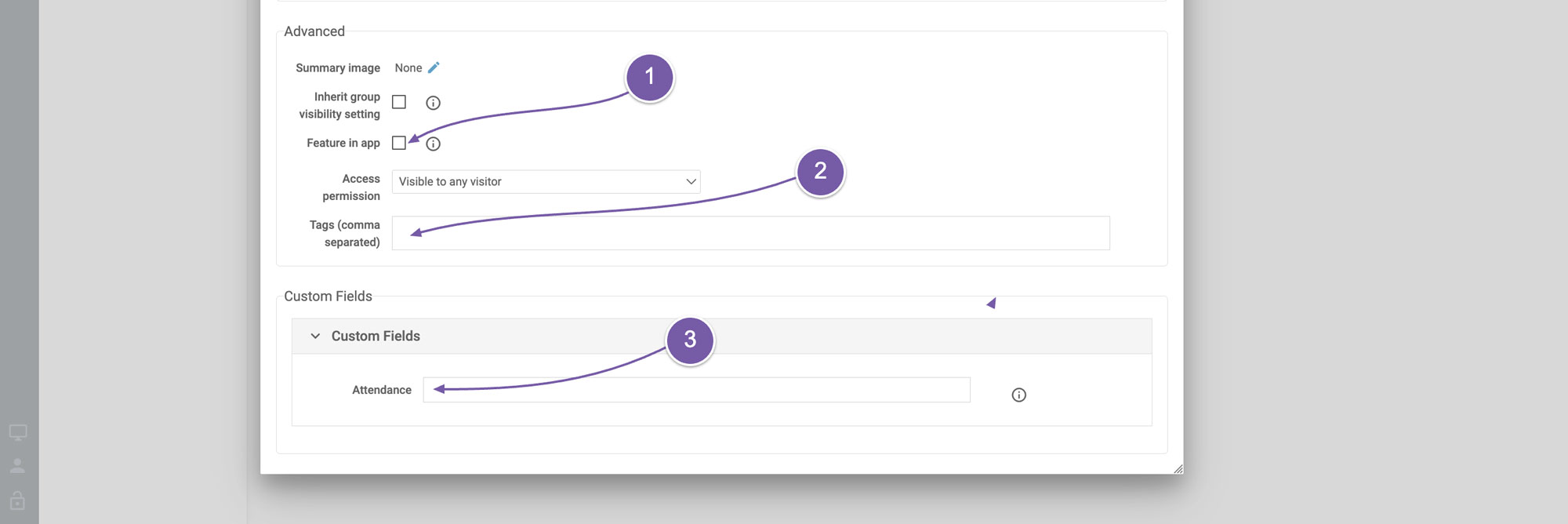
Next is the “Feature in the app” tick box. If any event has this ticked, then your app will show the next five featured events at the top of the events section of the app. If you don't have any ticked to be featured, then the app will just feature the next five events coming up in your calendar. This means if you do tick this box for one event, you will want to go through and tick it for others to avoid only one event coming up in your featured events list.
-
You can add any tag you like to your events. This can be useful if you would like to create a mini feed of events based on a tag rather than groups from an event. This is not that widely used, but it is there if you want it.
-
Lastly, your site will come with an event custom field for tracking a raw number of how many people attended the event. If you use this regularly, we have a report to export that information for you to see how the attendance has trended. This is mainly used for your Sunday Services where you want to record the number of attendees rather than who personally attended a smaller event like a “Home Group” or “Youth Group”. For that kind of attendance tracking, we recommend using the “Attendance” tab or the check-in feature.
We hope this gives you a good heads up as to what these advanced settings mean and you can feel comfortable creating your church events on Hubb.