Things to check when going live with a new trial site
Here’s a checklist worth running through before you take a new site live. Not everything will apply to you, but it’s worth a quick look to catch anything that needs updating first.
1. Do you have a payment processor set up?
Your trial site comes with a ‘Giving’ group. For it to take donations from your members and visitors, you need to set up a payment processor and add it to the giving group’s settings.
If you’d like a hand adding your processor to the existing giving group, get in touch and our UK team will sort it with you. It needs to be done before any payments can be taken.
If you’re not going to use the giving group, delete the payment page module from the bottom of that article (in the web office, in the group called ‘Giving’), then update the text on the page so it no longer mentions giving through the form.
2. Have you replaced the default email logo and banner images?
Replace these images, don’t delete them
Always use the ‘Replace this image with a new one’ task on these images. If you delete one and upload a new one instead, it gets a new ID, the automatic link breaks, and you’ll have to relink the logo by hand in every system mailing template.
Every new trial site has a media folder called ‘Email Images (DO NOT DELETE)’ with two images in it.
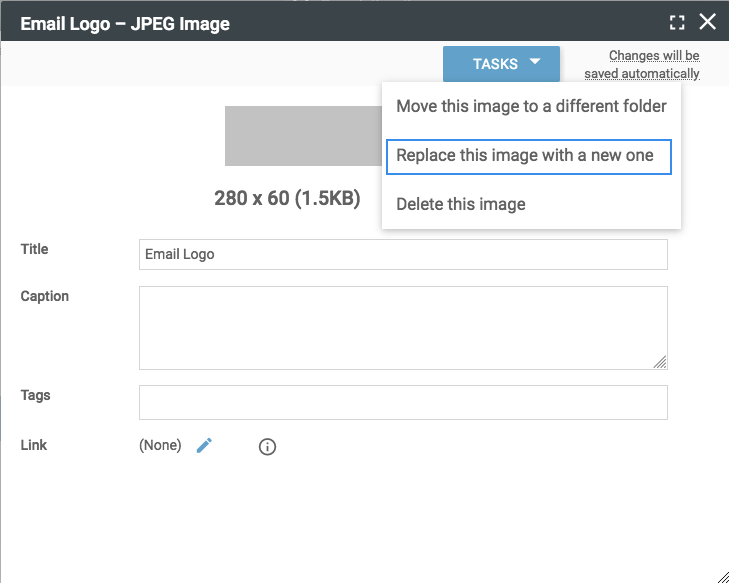
The first is a logo, 280 pixels wide by 60 tall, used in all system-generated emails and your mailing-centre templates. Replace it with one the same size and it updates everywhere automatically.
The second is a banner, 750 pixels wide by 200 tall, used in the newsletter template in the mailing centre. Replace it with your own to add a bit of interest to your emails, and it updates in the template too.
You’ll find both under Site Settings > System Emails.
3. Have you updated your site email address?
If you’re sending email from the website using a domain address, and you’ve added an SPF record so our server is allowed to send on your domain’s behalf (see the SPF records guide), you can set that address in the ‘site email address’ field on the site profile under Site Settings.
Don’t use a non-domain address here (a gmail.com or yahoo.com one, say) or anything that can’t be verified with an SPF record, as mail from those will bounce. In that case, leave the site email address as noreply@hubb.church and set a ‘reply to’ address on the emails you send, so replies still reach you.
4. Are you using the app?
If you are, it’s worth having your app styled so it matches your church. Get in touch and our UK team can set that up for you.
5. Have you set up notifications for your response forms?
Check that notifications are switched on for any forms on your site, so the right person is emailed the responses when someone submits one. It’s easy to miss, and without it submissions can arrive with nobody being told.
Good to know
- This is a checklist rather than a running order, so just pick out whatever applies to your site.
- It’s worth going through it a few days ahead, so there’s time to sort anything that needs our help before your go-live date.
Still stuck? We’re real people.
Raise a support ticket and our UK team will get back to you.
Contact support