Previewing a new template on a theme and layout site
If you’ve asked us to add a new template to your site, you can preview it with your existing content in place before you switch. Here’s how.
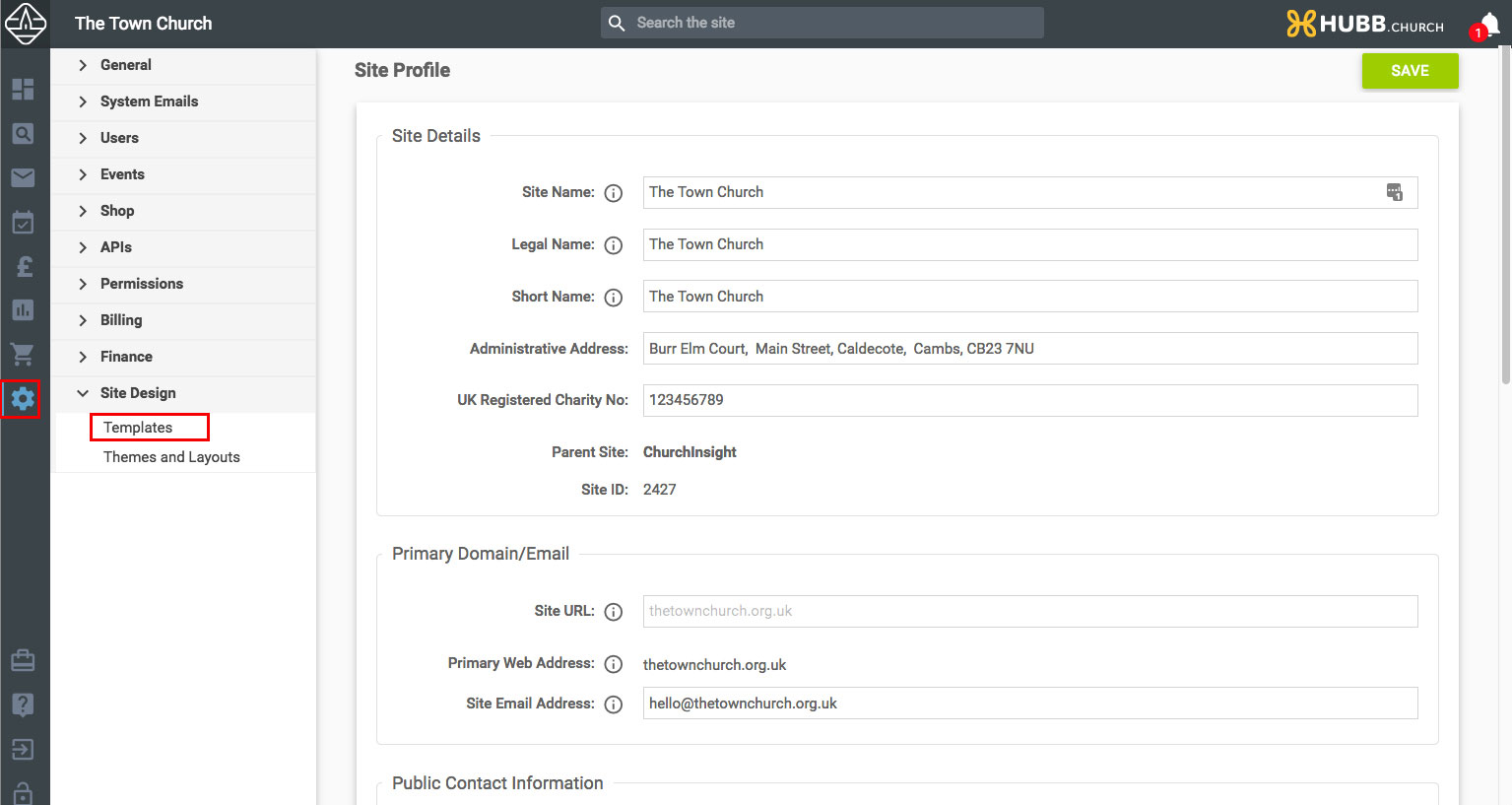
- Access the Site Design area. Select the Site Settings (cog) icon in the left-hand navigation, then Site Design > Templates. If the Site Settings or Templates area isn’t available to you, it’s likely a permissions issue, so speak to your site administrator or get in touch and our UK team can enable it.
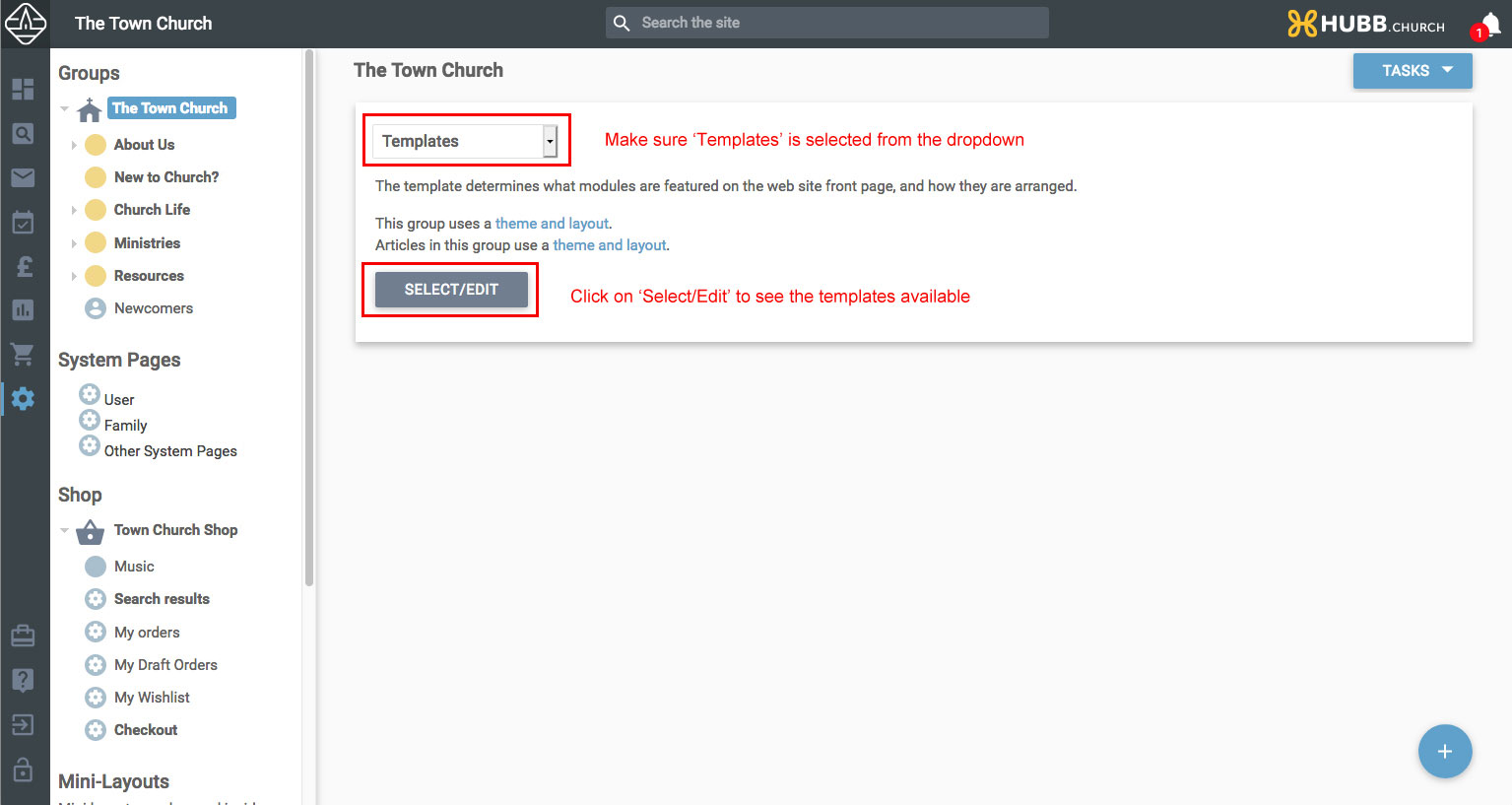
- Show the available templates. Click the ‘Select/Edit’ button to see the templates installed on your site. You’ll need to do this each time you visit this area until a template is actually applied, after which this step won’t be needed.
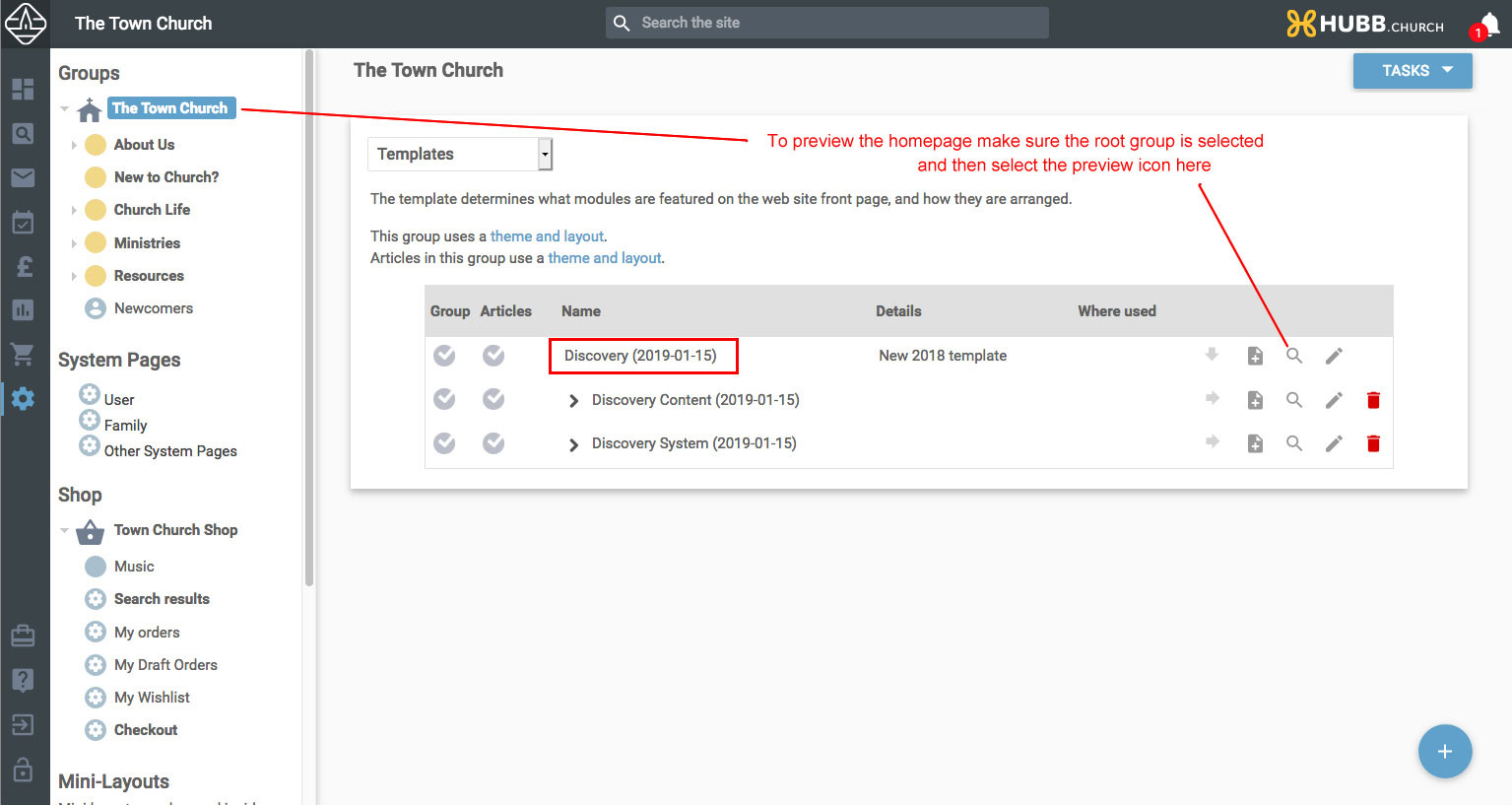
- Preview the homepage. With the root group selected, click the preview (magnifying glass) icon next to the first template in the set you’d like to preview.
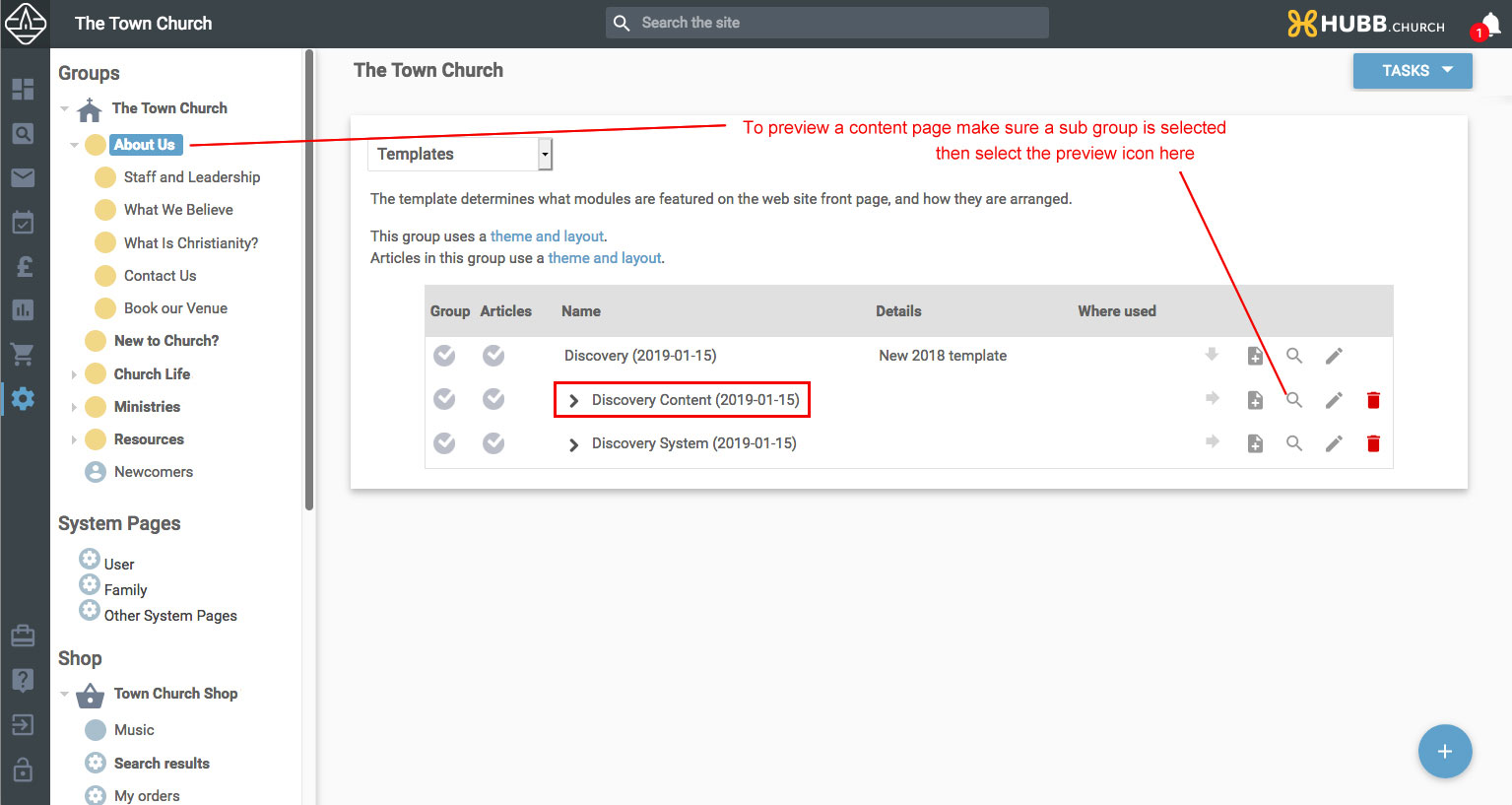
- Preview a content page. Select one of your content groups and click the preview icon next to the content template in the list.
Once a content page preview is showing, you can click through the menus to move around your content pages just as a visitor would, so you can see everything with your existing content and the new template in place.
You may find you need to adjust any images set to a fixed width, as those won’t be responsive in the new template. The Making images responsive guide will help.
Still stuck? We’re real people.
Raise a support ticket and our UK team will get back to you.
Contact support