Multi-factor Authentication
We strongly recommend exploring and enabling our multi-factor authentication feature for enhanced security when logging in to the web office.
Users frequently reuse passwords, which means that if one site is compromised and passwords are stolen, the hacker has access to numerous other sites where the same password was used.
Multi-factor authentication significantly reduces the risks associated with this because, when logging in, we check something you know (a password) and something you have (a device). A hacker may have your password, but they cannot log in without being able to enter the 6-digit code generated by your smartphone or another device.
Multi-factor authentication will be 'off' by default so there will be no changes for your users unless you choose to enable it, which we highly recommend.
To enable Multi-Factor Authentication for web office logins
-
Go to Site Settings
-
Site Configuration
-
Update the setting under Login Security
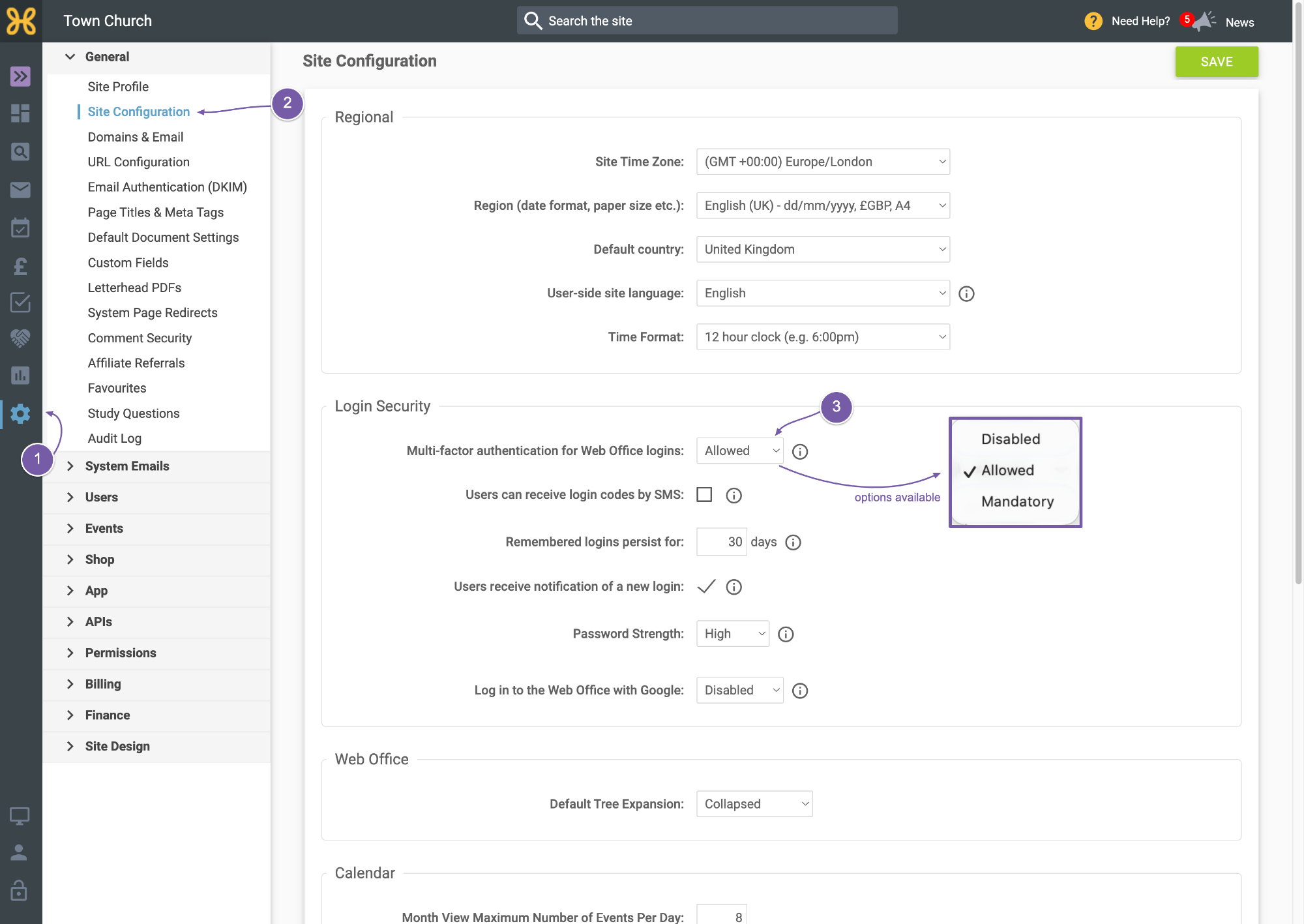
If you are planning to switch on multi-factor authentication then you will need to make sure that any of your volunteers or staff who use the web office know what they need to do.
Information for users with web office access
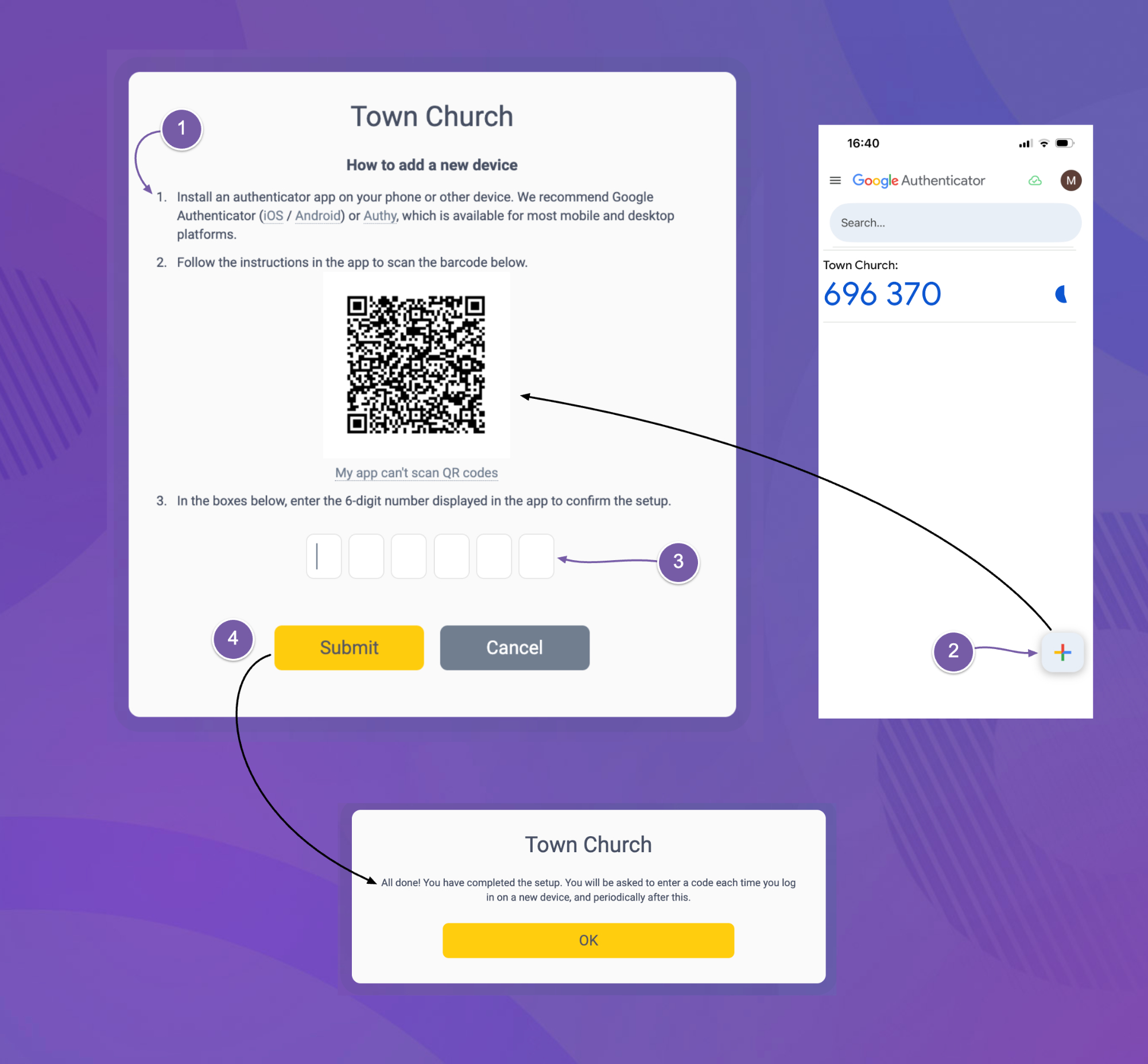
If a site administrator enables multi-factor authentication in the web office, the next time each user logs-in to the web office they will need to complete a one-time setup in order to be able to generate authentication codes for future log-ins.
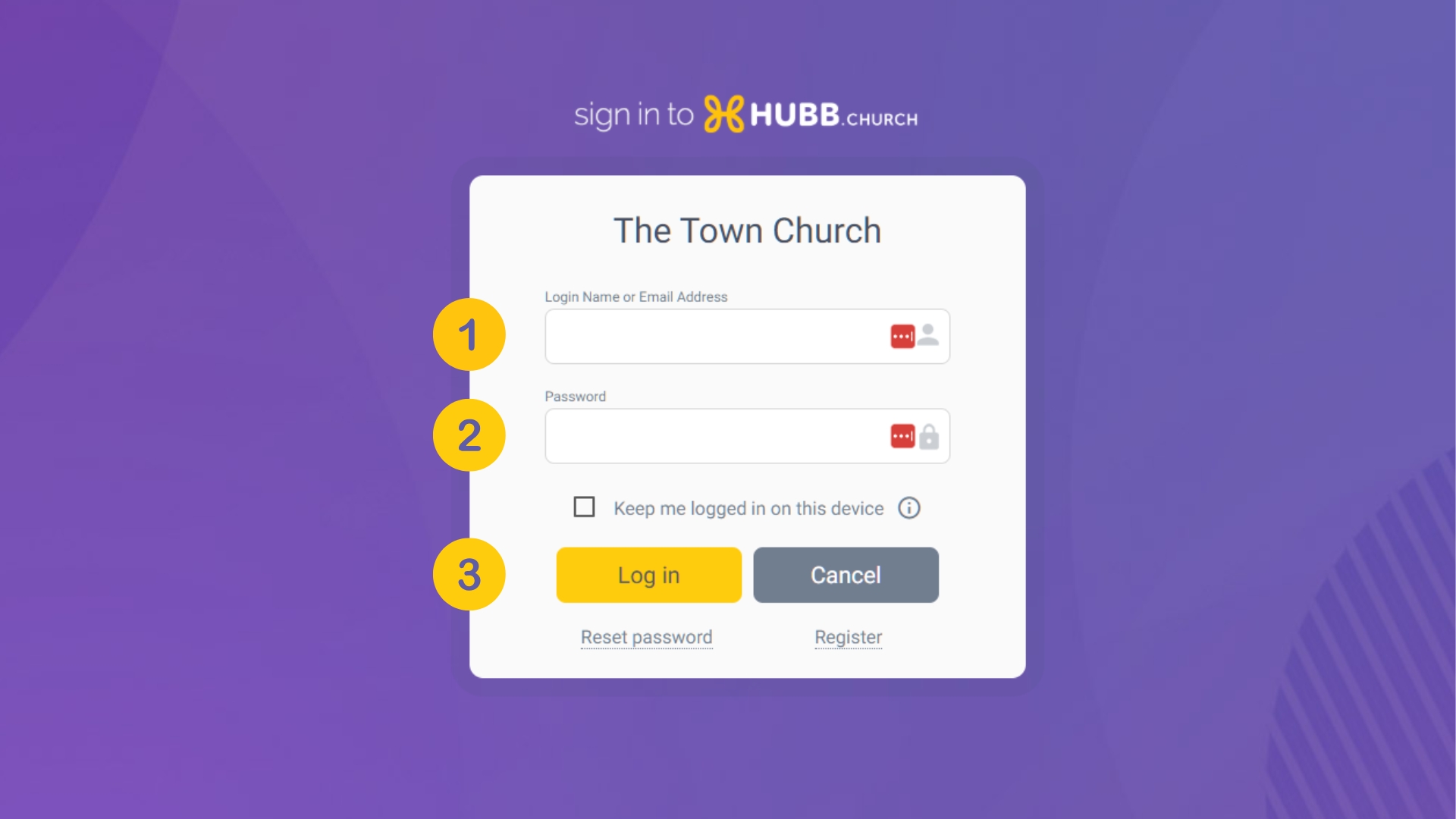
At the login screen
-
Enter login name or email address
-
Enter password
-
Click 'Log in'
-
Install Google Authenticator or Authy on your phone (or other device)
-
On your phone, click to add a new QR code in the Authenticator, and then scan the QR code displayed on screen
-
Enter the 6 digit number displayed on the Authenticator app to add your new device.
-
Click submit
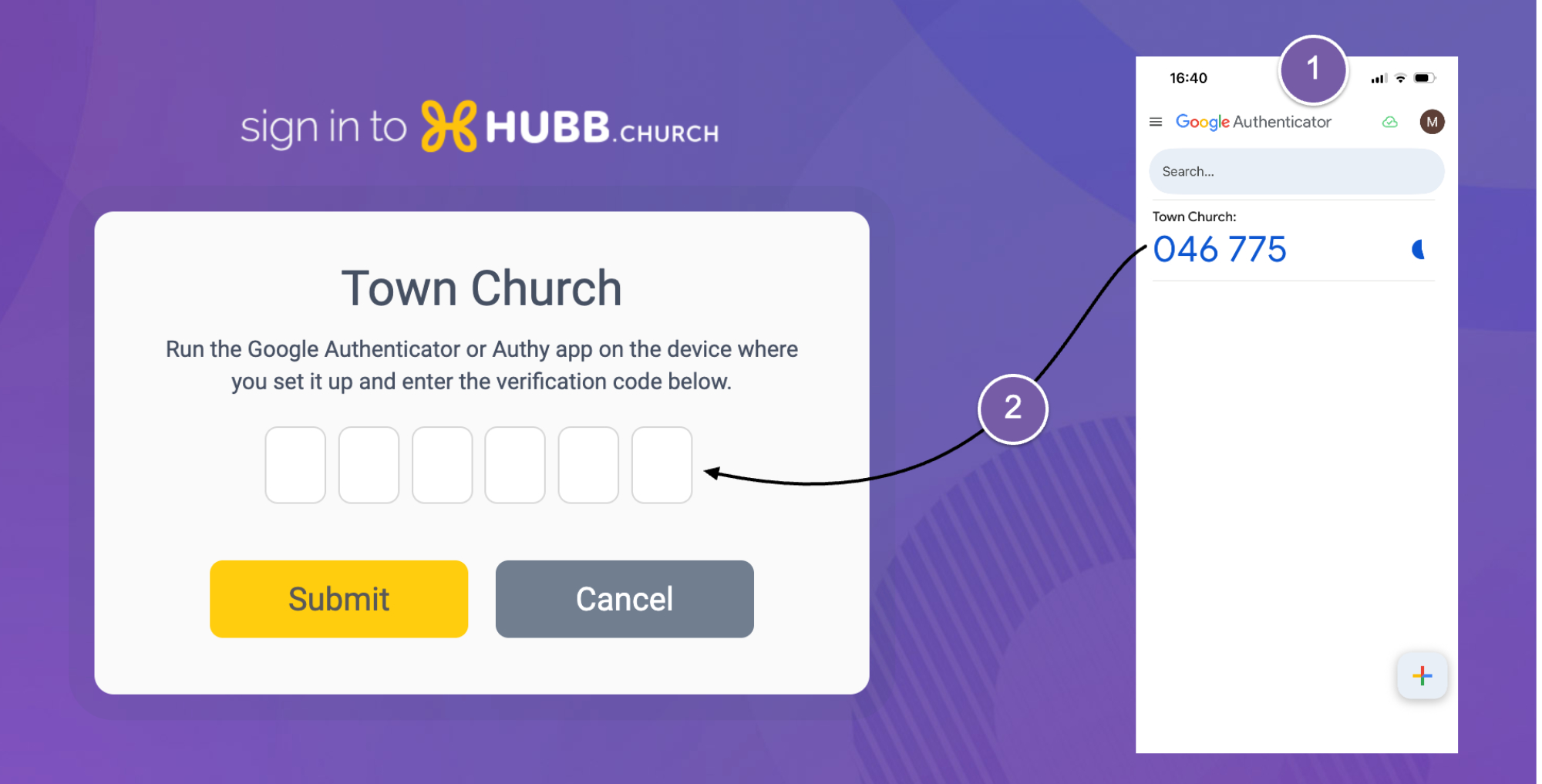
When users log in to the web office in future, particularly if it is the first log-in on a new device, they may be asked to provide a code from the Authenticator app on their phone or other device.
-
They will need to start the Authenticator app on their phone or other device
-
Enter the code displayed into the login page
For users without smartphones, there are desktop apps or they can receive an SMS message (charges will apply on your monthly bill).
Alternatively, for users who have limited permissions, you may consider turning off multi-factor authentication on an individual basis.
For help and questions, please email us at support@hubb.church.